DC-Unlocker 2 Client v1.00.1442 (Latest Version) Download – for Windows PC
When it comes to unlocking modems, routers, and phones on Windows, DC-Unlocker 2 Client is one of the most trusted names in the GSM tool industry. It was the first universal GSM service product released worldwide and has been the go-to unlock tool for Huawei, ZTE, Sierra Wireless, and Netgear devices for years. Each unlock operation takes between 5 and 60 seconds, no special cables or adapters are needed, and the COM port is detected automatically — making it one of the most straightforward unlock tools available for Windows PC.
In this guide, the GSMxblog team covers everything about DC-Unlocker 2 Client v1.00.1442 — what it does, how it works, what you need to get started, and where to download the latest version free for Windows.
What is DC-Unlocker 2 Client?
DC-Unlocker 2 Client is a specialized Windows program for servicing modems, routers, and mobile phones. It was the first universal GSM service tool released worldwide and continues to be one of the most widely used unlock tools in the mobile repair industry.
The tool supports network unlock, IMEI repair, FRP bypass via testpoint, band editing, and other service operations depending on the connected device. It works through a standard USB cable with no special adapters required, and it detects COM ports automatically so you don’t have to configure anything manually before connecting your device.
DC-Unlocker operates on a credits system for users without a dongle. Users who have a DC-Unlocker dongle or another compatible dongle with DC-Unlocker activation can service almost all supported devices for free. One year of free updates and support for new dongles is included with every dongle purchase.
Key Features of DC-Unlocker 2 Client
- Unlock network-locked modems, routers, and phones
- Automatic COM port detection — no manual selection needed
- Works with a standard USB cable — no special cables or adapters required
- Fast operation — 5 to 60 seconds per unlock
- IMEI repair on supported devices
- FRP bypass via testpoint on supported Huawei models
- Band list editing on supported Netgear routers
- New models added regularly through software updates
- One year of free updates included with dongle purchase
- Dongle users can service almost all supported devices for free
- Credits-based system available for users without a dongle
- Clear, easy-to-use interface
Supported Brands and Devices
DC-Unlocker supports a wide range of modems, routers, and phones. Key supported brands include:
- Huawei — modems, routers, and mobile phones
- ZTE — modems and routers including Pocket WiFi 801ZT, MF275U
- Sierra Wireless — modems
- Netgear — routers including MR611, MR5100, MR6110, MR6400, MR6500, Nighthawk M6 Pro 5G MR6400 and MR6500
For a complete and up-to-date list of all supported models, visit the official DC-Unlocker 2 Client supported models page at dc-unlocker.com.
DC-Unlocker 2 Client Download
- File Name: dc-unlocker2client_1.00.1442.zip
- Version: v1.00.1442 (Latest)
- File Size: 11.4 MB
- Supported OS: Windows PC
- Official Website: dc-unlocker.com
Requirements Before You Start
Before using DC-Unlocker 2 Client, make sure everything below is ready:
- DC-Unlocker Account or Dongle — You need either a registered user account with credits or a compatible DC-Unlocker dongle to perform unlock operations.
- USB Cable — A standard USB cable is all you need. No special adapters or cables are required.
- Correct USB Driver — Install the USB driver for your specific device before connecting. For Huawei devices, install the Huawei USB driver. For ZTE devices, install the ZTE USB driver.
- Windows PC — DC-Unlocker Client runs on Windows. Make sure your PC meets the basic requirements to run the software.
How to Use DC-Unlocker 2 Client
Step 1: Download and Install
Download the latest DC-Unlocker 2 Client from the official link above. Run the installer and follow the on-screen steps to complete the installation on your Windows PC.
Step 2: Install the USB Driver
Install the correct USB driver for your device before connecting it. Without the driver, DC-Unlocker will not detect the device even after connecting via USB.
Step 3: Connect Your Device
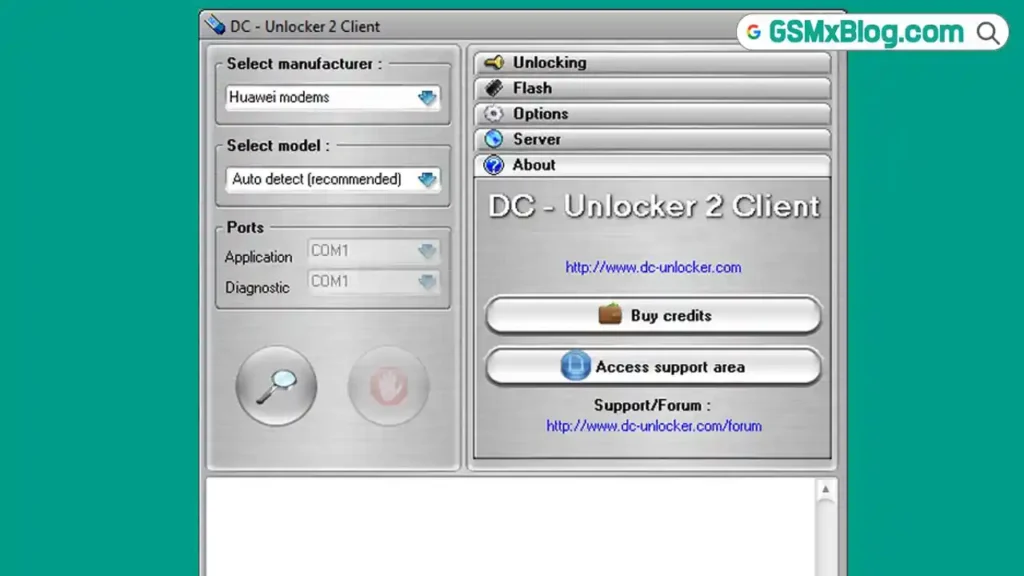
Connect your modem, router, or phone to the Windows PC via a standard USB cable. DC-Unlocker 2 Client detects the COM port automatically — you do not need to set this manually.
Step 4: Launch DC-Unlocker
Open DC-Unlocker 2 Client on your PC. Log in with your user account credentials or connect your dongle before proceeding.
Step 5: Select Manufacturer and Model
Select the correct manufacturer and model from the dropdown menus in the tool interface. If you are unsure of the exact model, use the Read Info function to detect it automatically.
Step 6: Select the Operation
Choose the operation you want to perform — Unlock, IMEI Repair, FRP Bypass, Band Edit, or another function available for your device. Check the credits required for the operation before confirming.
Step 7: Start the Operation
Click the button to start the selected operation. The process takes between 5 and 60 seconds depending on the device and function. Do not disconnect the device while the operation is running.
Step 8: Confirm the Result
After the operation completes, the tool will show a success or failure status in the log window. If the unlock was successful, reinsert a SIM card from a different network to confirm the device is now unlocked.
Important Notes
Use Credits Wisely: Each operation on a non-dongle account consumes credits. Check the credits required for your specific device and operation on the DC-Unlocker buy page before starting.
Official Download Only: Always download DC-Unlocker from the official website at dc-unlocker.com. Third-party sources may distribute outdated or modified versions of the tool.
Dongle Gives Best Value: If you service modems and routers regularly, the DC-Unlocker 2 Client dongle is the most cost-effective option since it allows free servicing on almost all supported devices after the initial purchase.
New Models Added Regularly: DC-Unlocker 2 Client updates its supported model list regularly. If your device is not currently supported, check the official website periodically or follow their news section for the latest additions.
Credit: DC-Unlocker is developed and maintained by the DC-Unlocker 2 Client team. Full credit goes to them for building and continuously updating this tool since its original release.
Conclusion
DC-Unlocker Client v1.00.1442 remains one of the most capable and widely used modem, router, and phone unlock tools available for Windows PC. Its automatic COM port detection, fast unlock speed, standard USB cable support, and wide brand coverage make it a practical first choice for any technician who regularly handles Huawei, ZTE, Netgear, and Sierra Wireless unlock and repair jobs.
Whether you use a dongle for free servicing on all supported devices or purchase credits for individual operations, DC-Unlocker gives you a clean, focused interface and a reliable result in under a minute per device. The GSMxblog team recommends downloading only from the official dc-unlocker.com website to always have the latest version with the most current model support.
Download DC-Unlocker 2 Client v1.00.1442 from the official link above and add it to your modem and router unlock toolkit. If you have any questions, drop a comment below and we’ll help you out.
Related Articles:
- QCOM Write MEID v1.1.7 Download
- Nokia OST Tool v6.3.7 – Free Download
- SamKey Code Reader V6.25.8 Download
FAQs
Is DC-Unlocker free to use?
The DC-Unlocker Client software itself is free to download. However, performing unlock and service operations requires either a compatible dongle or purchased credits. Dongle users can service almost all supported devices for free after the initial dongle purchase.
Do I need special cables to use DC-Unlocker 2 Client?
No. DC-Unlocker works with a standard USB cable. No special cables or adapters are required for any supported operation.
How long does an unlock take with DC-Unlocker 2 Client?
Most operations complete within 5 to 60 seconds depending on the device and the specific function being performed.
⚠️ Disclaimer: All tools and files shared on GSMxblog are for educational and testing purposes only. Always scan files before use. Use everything at your own risk.