QCOM Write MEID v1.1.7 Download Free – Qualcomm IMEI Repair Tool
One of the most common hardware-level repair tasks on Qualcomm Android devices is writing or restoring a missing or corrupt MEID and IMEI. QCOM Write MEID v1.1.7 is a free lightweight Windows tool built specifically for that job. It lets mobile technicians write MEID and IMEI data directly to Qualcomm-based Android smartphones without needing an expensive dongle or box. At just 1.62 MB, the tool is compact, portable, and straightforward — connect the device via ADB or diagnostic mode, enter the correct values, and write them to the device in seconds.
In this guide, the GSMxblog team covers everything about QCOM Write MEID v1.1.7 — what it does, how to use it step by step, and where to download it free for Windows PC.
What is QCOM Write MEID?
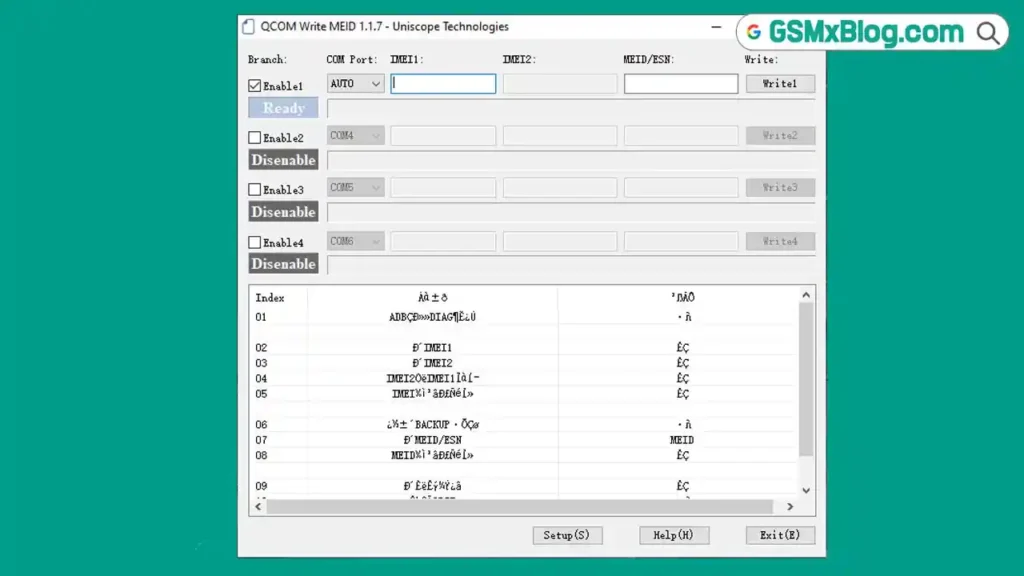
QCOM Write MEID is a free Qualcomm IMEI repair tool for Windows that writes MEID and IMEI values directly to Qualcomm chipset-based Android devices. It targets the most common IMEI-related issue on Qualcomm phones — a null, invalid, or missing IMEI caused by a bad flash, corrupt NVRAM partition, or incorrect firmware installation.
The tool works through the Qualcomm diagnostic (DIAG) port, which means your device needs to have ADB enabled or be accessible in diagnostic mode before the tool can connect and write the values. It is compact, requires no installation in most cases, and is distributed completely free — making it one of the most practical free GSM tools for Qualcomm IMEI repair on Windows PC.
Key Features of QCOM Write MEID
- Write MEID to Qualcomm Android devices
- Write IMEI to Qualcomm Android devices
- Works via Qualcomm DIAG port connection
- Supports Qualcomm chipset-based Android smartphones
- No dongle or box required
- Lightweight — no heavy installation needed
- Simple, focused interface for fast IMEI repair jobs
- Free to download and use
QCOM Write MEID v1.1.7 Download
- File Name: QCOM_Write_MEID_v1.1.7.zip
- File Size: 1.62 MB
- Version: v1.1.7
- Supported OS: Windows PC
Before downloading, make sure Qualcomm USB Driver is installed on your Windows PC. Without it, the tool will not detect your Qualcomm device in diagnostic mode.
Requirements Before You Start
Before launching QCOM Write MEID, make sure everything below is ready:
- Qualcomm USB Driver — Install Qualcomm USB Driver on your Windows PC before connecting the device. The tool connects through the Qualcomm DIAG port and requires this driver to detect the device correctly.
- ADB or DIAG Access — Your device must be accessible via ADB with USB debugging enabled, or in Qualcomm diagnostic mode. Without one of these, the tool cannot connect.
- Correct IMEI and MEID Values — Have the original IMEI and MEID values for your device ready before starting. You can usually find these on the device’s original box, the sticker under the battery, or in your repair records. Never write random or fabricated values.
- Device Charge — Make sure the device has enough battery charge to complete the process without powering off mid-operation.
How to Use QCOM Write MEID
Step 1: Download and Extract
Download QCOM_Write_MEID_v1.1.7.zip from the link above. Extract it to a folder on your Windows PC using WinRAR or 7-Zip.
Step 2: Install Qualcomm USB Driver
Install the Qualcomm USB Driver on your Windows PC if you have not done so already. This driver is required for the tool to detect your device through the DIAG port.
Step 3: Enable ADB or DIAG Mode on the Device
Enable USB Debugging in Developer Options on your Android device, or boot the device into Qualcomm diagnostic mode depending on your device model and what access is available.
Step 4: Connect the Device
Connect your Qualcomm Android phone to the Windows PC via a USB cable. Confirm the device is detected in Device Manager before opening the tool.
Step 5: Launch QCOM Write MEID
Open the extracted folder and run QCOM Write MEID as Administrator. Wait for the tool to detect the connected device through the DIAG port.
Step 6: Enter MEID and IMEI Values
Enter the correct MEID and IMEI values for your device in the appropriate fields. Double-check these values before writing — incorrect IMEI values will cause network and SIM detection issues after the operation.
Step 7: Write to Device
Click the Write button to begin. The tool will write the entered values to the device’s NVRAM partition through the Qualcomm DIAG connection. The process takes only a few seconds.
Step 8: Reboot the Device
Once the write operation completes, reboot your device. After the restart, go to the dialer and type *#06# to confirm the IMEI is now correctly written and showing on the device.
Important Notes
Use Correct IMEI Values Only: Always write the original IMEI and MEID that belong to the specific device you are repairing. Writing an IMEI that does not belong to the device is illegal in most countries and is not the purpose of this tool. This tool is for restoring a valid IMEI that was lost due to a bad flash or corrupt NVRAM.
Qualcomm Devices Only: QCOM Write MEID works specifically on Qualcomm chipset-based Android devices. It will not work on MediaTek, Unisoc, or Exynos devices. For MTK IMEI repair, use a dedicated MTK IMEI tool instead.
Enable ADB Before Connecting: The tool requires active ADB or DIAG access. If USB debugging is disabled or the device is not recognized in Device Manager, the tool will not detect the phone.
Conclusion
QCOM Write MEID v1.1.7 is a practical and reliable free Qualcomm IMEI repair tool for any mobile technician who regularly works with Qualcomm Android smartphones on Windows PC. It handles MEID and IMEI writing quickly through the Qualcomm DIAG port, requires no dongle or paid activation, and fits into your toolkit at just 1.62 MB.
The key to using this tool correctly is preparation — install the Qualcomm USB Driver first, have the original IMEI and MEID values ready, and make sure ADB or diagnostic access is available on the device before connecting. Follow those steps and the write process completes in seconds.
Download QCOM Write MEID v1.1.7 from the link above and keep it in your Qualcomm Android repair toolkit. If you have any questions or run into issues, drop a comment below and the GSMxblog team will help you out.
Related Articles:
- Qualcomm USB Driver – Free Download for Windows
- MTK USB Driver – Free Download for Windows
- RD Power Plus Tool – Free Download for Windows
FAQs
Does QCOM Write MEID work on MediaTek devices?
No. This tool is built specifically for Qualcomm chipset-based Android devices. For MediaTek IMEI repair, you need a dedicated MTK IMEI repair tool.
How do I verify the IMEI was written correctly?
After the write operation and device reboot, open the dialer and type *#06#. The IMEI should appear on screen. If it matches the value you wrote, the operation was successful.
Is it legal to use QCOM Write MEID?
Using this tool to restore the original IMEI that belongs to a specific device — for example, after a bad flash wiped the NVRAM — is a legitimate repair operation. Writing an IMEI that does not belong to the device is illegal in most countries and is not what this tool is intended for.
Do I need to install anything before running the tool?
Install the Qualcomm USB Driver first. The tool itself is lightweight and may not require a full installer — just extract the ZIP and run the executable as Administrator.
⚠️ Disclaimer: All tools and files shared on GSMxblog are for educational and testing purposes only. Always scan files before use. Use everything at your own risk.