WriteIMEI Tool R3.0.0001 (Latest Version) Free Download 2026 – Tested & Working
Is your Spreadtrum or UniSoc Android device showing an invalid IMEI, losing network signal, or returning a null IMEI after flashing? The WriteIMEI Tool R3.0.0001 is a compact, portable Windows utility built specifically to write, rewrite, read, and restore IMEI numbers on SPD/UniSoc-based smartphones, tablets, and feature phones — quickly, safely, and completely free.
Developed by the Unisoc Communications community, this version supports multiple IMEI writing, Bluetooth and WiFi address repair, Normal Mode and Calibrated Mode, making it one of the most trusted IMEI repair tools for Spreadtrum chipset devices. This guide covers everything: features, file info, installation steps, usage instructions, FAQs, and the free download link.
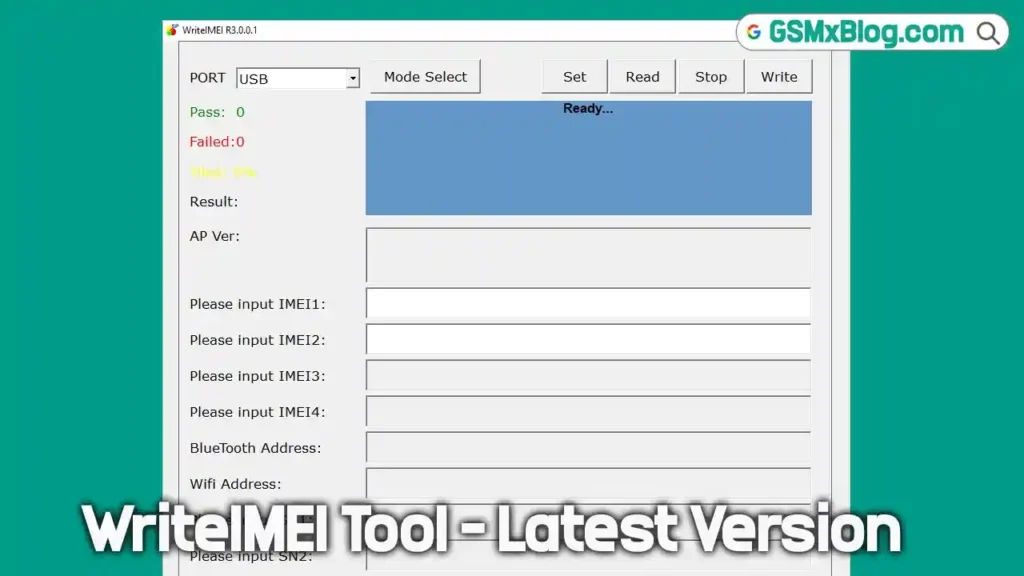
What Is WriteIMEI Tool R3.0.0001?
WriteIMEI Tool R3.0.0001 is a small, portable Windows application exclusively designed for Android devices running on Spreadtrum (SPD) or UniSoc chipsets. It allows mobile repair technicians and users to write or fix IMEI numbers that have been corrupted, lost, or wiped during firmware flashing or other device modifications.
The tool connects to the device in either Normal Mode or Calibrated Mode and supports writing dual IMEI numbers simultaneously on dual-SIM handsets — making it an essential utility for any GSM repair shop dealing with SPD/UniSoc devices.
🔑 Key advantage: WriteIMEI Tool R3.0.0001 is an official Unisoc community release — portable, no installation needed, and supports both single and dual IMEI writing on all SPD/UniSoc Android devices.
Key Features of WriteIMEI Tool R3.0.0001
📱 IMEI Functions
- Write IMEI Number (Single & Dual SIM)
- Read Existing IMEI from Device
- Restore Original IMEI
- Fix Invalid or Null IMEI
- Write Bluetooth Address
- Write WiFi MAC Address
⚙️ Connection Modes
- Normal Mode Connection
- Calibrated Mode Connection
- USB Direct Connection Support
🔌 Compatibility
- Spreadtrum (SPD) Chipset Support
- UniSoc Chipset Support
- Smartphones, Tablets & Feature Phones
- Windows 32-bit and 64-bit Support
✨ Extra Features
- Simple & Clean User Interface
- Portable Tool (No Installation Required)
- Lightweight & Fast
- Official Unisoc Community Release
- 100% Free to Use
- Small File Size (1.53 MB)
What’s New in R3.0.0001
- R3.0.0001: Stable public release for SPD/UniSoc IMEI writing.
- Improved dual IMEI write support for dual-SIM devices.
- Added Bluetooth and WiFi address writing capability.
- Calibrated Mode connection added for better device compatibility.
- Enhanced device detection speed on Windows 10/11.
Download WriteIMEI Tool R3.0.0001
- Tool Name: WriteIMEI Tool
- Version: R3.0.0001 (Latest 2026)
- Developer: Unisoc Communications
- File Name: WriteIMEI_Tool_R3.0.0001.zip
- File Size: 1.53 MB
- Platform: Windows (32-bit & 64-bit)
- File Type: Portable (No Install Required)
- ZIP Password: No Password
How to Install WriteIMEI Tool R3.0.0001
- Download the ZIP file using the link above.
- Extract the archive using WinRAR or 7-Zip to any folder on your PC.
- Open the extracted folder.
- Disable your antivirus temporarily to avoid false-positive blocks.
- Install the SPD/UniSoc USB Driver on your PC before connecting the device.
- Right-click the
WriteIMEI.exefile and select “Run as Administrator.” - Enable USB Debugging on the target Android phone.
- Connect the phone via a quality USB cable — the tool will detect it automatically. ✅
✅ Tip: Always install the SPD/UniSoc USB Driver before connecting your device. Without the correct driver, the tool will not detect your phone even if USB Debugging is enabled.
How to Use WriteIMEI Tool R3.0.0001
▶️ Write IMEI on SPD/UniSoc Device
- Open WriteIMEI Tool R3.0.0001 as Administrator.
- Connect your SPD/UniSoc device via USB with USB Debugging enabled.
- Wait for the tool to detect the device automatically.
- Click “Mode Select” and choose Normal Mode or Calibrated Mode.
- Enter the correct IMEI number(s) in the IMEI field(s).
- Click the “Write” button and wait for the process to complete.
- Reboot the device — IMEI is now written successfully! ✅
▶️ Read IMEI from Device
- Open the tool and connect your SPD/UniSoc device.
- Wait for device detection.
- Click the “Read” button to fetch the existing IMEI from the device.
- The IMEI number(s) will be displayed on screen. ✅
▶️ Write Bluetooth / WiFi Address
- Connect your device in Normal or Calibrated Mode.
- Navigate to the Bluetooth/WiFi section in the tool.
- Enter the correct Bluetooth address or WiFi MAC address.
- Click “Write” and wait for confirmation.
- Reboot the device — addresses updated successfully! ✅
▶️ Restore Original IMEI
- Connect the device and select the appropriate mode.
- Enter the original IMEI (found on the device box or back cover sticker).
- Click “Write” to restore the IMEI to its factory state.
- Reboot — device now shows the correct IMEI on the network. ✅
Advantages of This Tool
- ✅ Official Unisoc community release — safe and trusted
- ✅ Very small file size (1.53 MB), runs portably
- ✅ Supports both single and dual IMEI writing
- ✅ Works on smartphones, tablets, and feature phones
- ✅ Covers IMEI, Bluetooth, and WiFi address repair in one tool
- ✅ Compatible with all SPD/UniSoc chipset devices
- ✅ Free to use — no credits, no license key
FAQs
Q1: Is WriteIMEI Tool R3.0.0001 free? Yes, WriteIMEI Tool R3.0.0001 is completely free to download and use for personal and professional purposes.
Q2: Which devices does this tool support? It supports all Android smartphones, tablets, and feature phones running on Spreadtrum (SPD) or UniSoc chipsets.
Q3: Do I need to install the tool? No. WriteIMEI Tool R3.0.0001 is fully portable. Just extract the ZIP and run WriteIMEI.exe directly as Administrator.
Q4: Why is my device not detected? Make sure the SPD/UniSoc USB Driver is installed on your PC and USB Debugging is enabled on the device. Missing drivers are the most common cause of detection failure.
Q5: Can it write dual IMEI for dual-SIM phones? Yes — the tool supports writing both IMEI 1 and IMEI 2 simultaneously on dual-SIM devices.
Q6: Is WriteIMEI Tool R3.0.0001 safe for my PC? Yes. It is an official release from the Unisoc Communications community and has been widely tested by technicians. Temporarily disable antivirus during use to avoid false-positive detections.
Conclusion
The WriteIMEI Tool R3.0.0001 is a reliable and trusted free Windows utility for repairing IMEI numbers on Spreadtrum and UniSoc Android devices in 2026. Its portable design, dual IMEI support, Bluetooth/WiFi address writing, and beginner-friendly interface make it a must-have for any mobile repair shop or technician working with SPD/UniSoc hardware.
Whether you’re restoring a wiped IMEI after a firmware flash, fixing a null IMEI error, or writing a new Bluetooth address — WriteIMEI Tool R3.0.0001 handles it cleanly and reliably. Download it free using the link above and add it to your Android repair toolkit today. 🚀
Have you used WriteIMEI Tool R3.0.0001? Share your experience in the comments below!
Related Posts
- Download RDPowerPlus Tool V19.8 (Latest Version) Free 2026
- Download DEROID Unbricker Tool Pro v1.0 (Latest Version)
- Qualcomm USB Driver (Latest Version)


![Xiaomi Patch NV V2 & Generate Critical Data [CPID Method] NV Error And IMEI Restore Free Tool](https://gsmxblog.com/wp-content/uploads/2025/08/xiaomi-patch-nv-v2-generate-critical-data-cpid-method-free-768x432.webp "Xiaomi Patch NV V2 & Generate Critical Data [CPID Method] NV Error And IMEI Restore Free Tool 7")