SFD Tool GUI v2.5.2 (Latest Version) Free 2026 – UNISOC Flash Tool
If you repair Spreadtrum or UNISOC phones, finding a free tool that actually covers all the basics is not easy. SFD Tool GUI v2.5.2 is a free, open-source Windows application built specifically for servicing UNISOC devices in BROM mode — covering PAC firmware flashing, partition backup and restore, XML repartitioning, boot slot switching, and several debugging utilities, all from one organized interface.
This guide covers the complete feature breakdown, installation steps, usage guide, and download links for SFD Tool GUI v2.5.2 so you know exactly what to expect before connecting your first device.
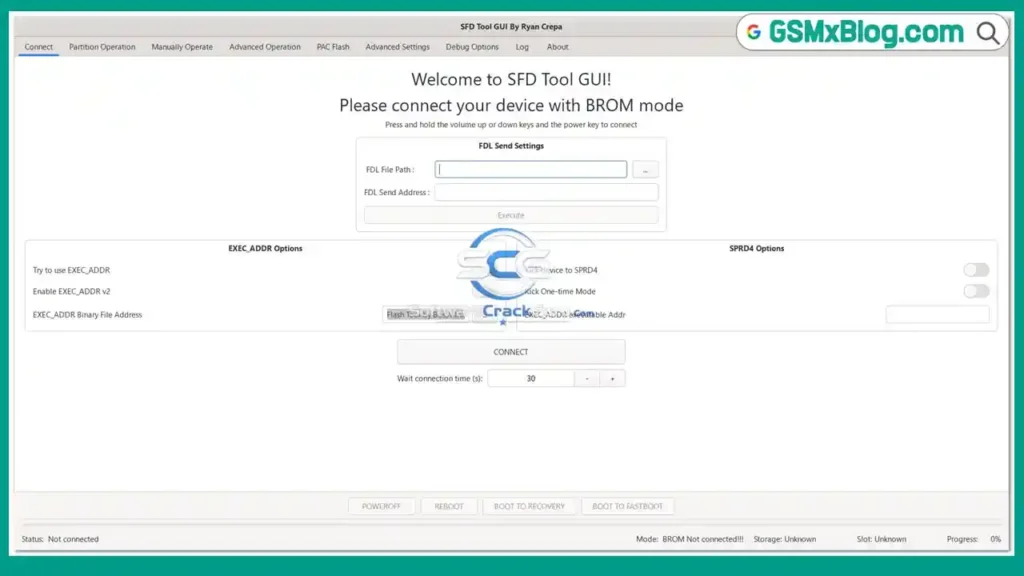
What Is SFD Tool GUI?
SFD Tool GUI is a free, open-source graphical interface designed for Spreadtrum and UNISOC device repair on Windows PC. It communicates with devices through BROM mode and gives technicians a structured way to flash PAC firmware, manage partitions, switch boot slots, and debug storage issues — without needing separate utilities for each task.
Because the project lives on GitHub, the latest release is always available from the official source. There are no paid tiers, no credit systems, and no activation requirements. You download it, install it, and run it as Administrator.
Key Features of SFD Tool GUI v2.5.2
🔌 Connection & Boot Options
- Connect phones in BROM mode via USB
- Set custom FDL files and FDL send addresses
- Enable EXEC_ADDR and EXEC_ADDR v2 options
- Kick device into SPRD4 mode
- Adjustable connection waiting timer
- Power Off, Reboot, Recovery, and Fastboot device controls
🗂️ Partition Management
- Backup complete partitions
- Restore saved partitions
- Write partition images back to the device
- Erase selected partitions
- Erase all partitions
- Extract partition information
- Resize existing partitions
- Add new partitions
- Delete partitions
- Rename partition entries
🛠️ Manual Operations
- Write a single partition without touching others
- Extract a single partition individually
- Erase a single partition by name
⚙️ Advanced Functions
- Switch between Boot Slot A and Boot Slot B
- XML repartition support
- Export partition layout into an XML file
📦 PAC Flash
- Load and unpack PAC firmware packages
- View and select individual partitions before flashing
- Flash support for Slot A, Slot B, and Non-AB devices
🔍 Debug Tools
- Read Chip UID
- Read Pactime
- Check NAND storage information
⚙️ Additional Settings
- Block size configuration
- Rawdata mode
- Timeout controls
- Language options
- Operation log viewer
- Version update history
Download SFD Tool GUI v2.5.2
| Detail | Info |
|---|---|
| Version | v2.5.2 |
| EXE Installer Size | 31.8 MB |
| ZIP Package Size | 24.2 MB |
| Platform | Windows PC (64-bit) |
| Activation | Free — no login required |
| Source | GitHub (Open Source) |
How to Install SFD Tool GUI v2.5.2
- Download the EXE installer or ZIP package from the GitHub release page above.
- Install Spreadtrum or UNISOC USB Drivers on your PC before proceeding.
- Run the EXE installer (or extract the ZIP if you chose that package).
- If Windows SmartScreen appears, click More Info and then Run Anyway — this is a standard false positive.
- Complete the installation normally.
- Right-click the desktop shortcut and select Run as Administrator.
- A black command prompt window will open first — this is normal. The GUI launches automatically after it.
⚠️ Important: Do not close the command prompt window while using the tool. Closing it will immediately shut down the entire application.
How to Use SFD Tool GUI v2.5.2
▶️ Connecting a UNISOC Device in BROM Mode
- Open the tool as Administrator.
- On the welcome screen, read the BROM mode connection instructions.
- Hold the volume buttons and power key on the device simultaneously.
- While holding those buttons, plug in the USB cable to the PC.
- The tool will detect the device and display the connection status.
▶️ Flashing PAC Firmware
- Go to the PAC Flash tab.
- Click to load your PAC firmware file.
- The tool unpacks the file and lists available partitions.
- Select which partitions to flash.
- Choose Slot A, Slot B, or Non-AB depending on your device.
- Start the flash and wait for completion.
▶️ Backing Up and Restoring Partitions
- Go to the Partition Operation tab.
- Click Backup to save the full partition set to your PC.
- To restore, click Restore and select the saved backup.
- Use Write if you only need to push a specific image file back to the device.
▶️ Manual Single Partition Work
- Open the Manually Operate tab.
- Type the partition name you want to work on.
- Choose Write, Extract, or Erase for that partition only.
- This saves time when you don’t need to touch the full firmware.
▶️ Switching Boot Slots
- Go to the Advanced Operation tab.
- Click Switch to Slot A or Switch to Slot B depending on your need.
- The tool applies the change without requiring a full flash.
▶️ XML Repartition
- In the Advanced Operation tab, load your XML partition layout file.
- Click Repartition to apply the new layout to the device.
- Use Export XML to save the current device partition layout for reference.
What the Interface Shows During Operation
The tool keeps key information visible throughout any job:
- Device connection status
- BROM mode confirmation
- Detected storage type
- Current active boot slot
- Progress bar during flashing or reading operations
- Full operation log
- Version update history
System Requirements
| Component | Requirement |
|---|---|
| Operating System | Windows PC (64-bit) |
| USB Drivers | Spreadtrum / UNISOC USB Driver required |
| Connection | USB 2.0 or 3.0 |
| Permissions | Run as Administrator |
| Supported Devices | UNISOC / Spreadtrum chipset phones |
⚠️ Warning
Before performing any partition erase, repartition, or firmware flash operation, always back up the existing partitions first using the built-in backup function. XML repartition and full erase operations will overwrite the existing partition layout and are not reversible without a backup. Always confirm the device chipset before connecting — SFD Tool GUI is designed for UNISOC hardware only and should not be used on other chipset families.
Important Notes
🛡️ Virus Status: The installer may trigger a Windows SmartScreen warning because the application is not widely recognized yet. This is a standard false positive for open-source repair tools distributed outside major software stores. Always download from the official GitHub release page only.
📌 Credit: Full credit goes to the SFD Tool GUI development team (GitHub: C-Hidery) for building and maintaining this free open-source project.
💻 Command Prompt Window: When you launch SFD Tool GUI, a black command prompt window opens alongside the main GUI. This is part of the application and must remain open. Closing it ends the entire session immediately.
🔌 USB Drivers: Make sure Spreadtrum or UNISOC USB drivers are already installed before connecting any device. Without the correct driver, BROM mode detection will not work.
Frequently Asked Questions (FAQs)
❓ Is SFD Tool GUI completely free? Yes. SFD Tool GUI is a free, open-source tool available on GitHub. There is no activation, no login, and no credit system required for any function.
❓ Which devices does SFD Tool GUI support? It supports phones running on UNISOC (Spreadtrum/SPD) chipsets only. MediaTek and Qualcomm devices are not supported.
❓ What is BROM mode? BROM stands for Boot ROM mode. It is a low-level hardware mode that lets the tool communicate directly with the device chipset before the Android OS loads. You enter it by holding volume and power while plugging in the USB cable.
❓ Why does a black command prompt window open with the tool? The command prompt is a backend component that the GUI depends on. It must stay open throughout your session. Do not close it manually or the entire application will shut down.
❓ Why does Windows SmartScreen block the installer? Because the application isn’t widely recognized by Windows security systems yet. It is a false positive. Download only from the official GitHub release page, then click More Info → Run Anyway to proceed.
❓ Can I flash only one partition instead of the full firmware? Yes. Use the Manually Operate tab to write, extract, or erase a single partition by name without affecting the rest of the firmware.
❓ Does the tool support A/B slot devices? Yes. The PAC Flash tab lets you choose Slot A, Slot B, or Non-AB, and the Advanced Operation tab includes direct boot slot switching controls.
Conclusion
SFD Tool GUI v2.5.2 is one of the most complete free options available for technicians who regularly work with UNISOC and Spreadtrum devices. PAC firmware flashing, full partition management, XML repartition support, boot slot switching, and debugging tools are all built into one organized interface — with no activation, no credits, and no subscription required.
If your daily repair work includes UNISOC phones, download SFD Tool GUI from the official GitHub release and test it with your devices. It’s a solid free tool that covers most common software repair tasks without needing multiple utilities open at the same time.
Have you used SFD Tool GUI on a real device? Share your experience in the comments below!
Related Posts
- FRPFILE A5-A6 Activator – Full iCloud Activation Without Arduino
- Download WinRa1n v2.1 – Free Windows Jailbreak Tool for iPhone 6 to X
- Download Ghost Auth Tool v3.3.0 (Latest Version) Free 2026