CheckX Tool (Latest Version) for Windows – UniSoc Production Testing & Verification Utility
If you work with UniSoc (formerly Spreadtrum) chipset devices on a manufacturing line or in a professional repair environment, you already understand how critical it is to confirm that every device parameter is correctly set before it ships. CheckX Tool is the official solution for exactly that — a lightweight, Windows-based production testing utility developed by UniSoc Technologies Co., Ltd. to verify software and hardware information on UniSoc platform devices during and after manufacturing.
This page covers everything you need: what CheckX does, its full feature set, download link, step-by-step usage, customization options, and FAQs.
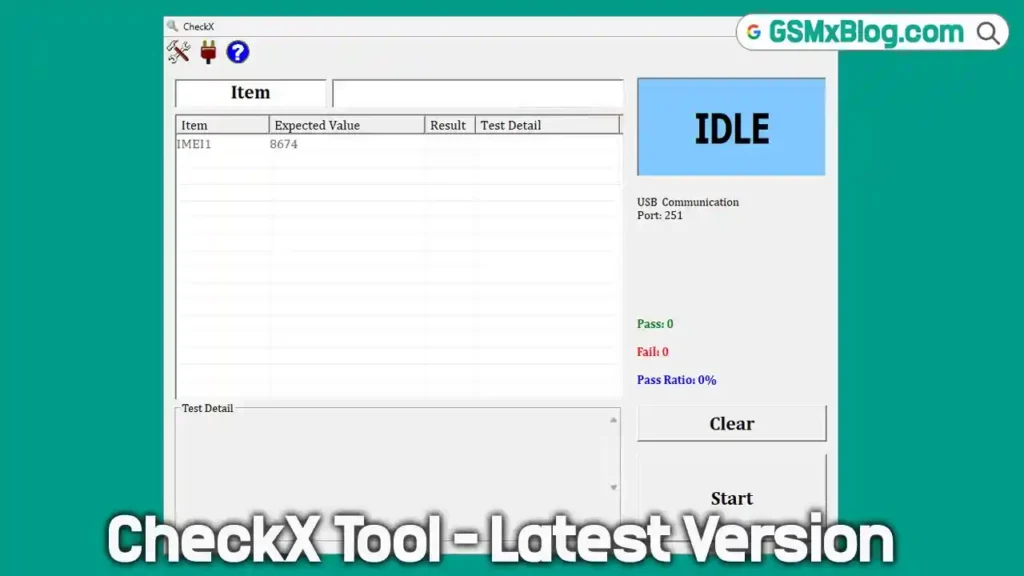
What Is CheckX Tool?
CheckX Tool is a lightweight NPI (New Product Introduction) post-calibration verification utility built specifically for the UniSoc production workflow. Once calibration is complete, CheckX runs a final round of checks to confirm that all critical device parameters — IMEI, MAC addresses, serial numbers, calibration flags, security markers, software versions, and power measurements — are correct and meet expected values before the device moves forward.
It supports scanning gun input for fast operation on the production line and works alongside other UniSoc production tools including Factory Download, CFT, and Simba.
If you work on Samsung Android devices and need a reliable flashing and FRP tool alongside this, check out the Samsung Tools section on GSMxBlog for the latest options.
CheckX Tool Key Details
| Detail | Info |
|---|---|
| Tool Name | CheckX Tool |
| Latest Version | R21.0.0001 |
| Developer | UniSoc Technologies Co., Ltd. |
| Platform | Windows (32-bit & 64-bit) |
| Primary Use | UniSoc device production testing & post-calibration verification |
| Device Mode Required | Calibration Mode (0x81 / 0x8E) |
| Input Support | Scanning gun / manual |
| Config Files | CheckX.ini / PhaseCheck.ini |
| Price | Free |
Features of CheckX Tool
CheckX simplifies post-calibration verification on the production line. It quickly checks critical device parameters and ensures quality before shipping. Here is a breakdown of every function it covers:
🔹 IMEI, BT, Wi-Fi & SN Verification
CheckX verifies IMEI (1, 2, and 3), Bluetooth address, Wi-Fi MAC address, and Serial Number against expected values or prefix rules. Scanning gun input is supported for fast, high-volume operation.
🔹 Phase Check & Station Verification
The tool reads PhaseCheck station flags — including Download, WriteSN, CFT, BBAT, and others — to confirm that all previous production stages were completed successfully before the device proceeds to the next step.
🔹 Calibration & Security Flag Check
CheckX inspects GSM, WCDMA, TD, LTE, and ADC calibration flags, along with Secure Boot status, SIM Lock, IFAA, SOTER, Attestation Keybox, and other security deployment markers to confirm correct configuration.
🔹 Version & Hardware Information
The tool reads and verifies AP and Modem software versions, memory size, and SIM ICCID (in BBAT mode). It also supports custom MMI flag checks for the whole phone, PCBA, and BBAT stations.
🔹 Voltage & Current Testing
With a programmable power supply connected, CheckX measures AUX/FGU voltages and Power On, Charge, Deep Sleep, and Power Off currents — all checked against configurable SPEC limits.
Customization Options
CheckX is configurable for different production setups without modifying the core tool:
CheckX.ini — adjust the following parameters:
- Serial Number length
- Loop counts
- Scanner gun support on/off
- Timeout settings
- Station name
PhaseCheck.ini — define custom station names and flags to match your specific production flow.
Related Tools in the UniSoc Production Flow
CheckX is the final verification step in a sequence of UniSoc production utilities:
| Tool | Stage |
|---|---|
| Factory Download | Flashes firmware to the device |
| CFT | Runs hardware calibration and functional testing |
| Simba | Handles additional production stage tasks |
| CheckX | Final post-calibration verification pass |
All previous stages must complete successfully before running CheckX — the PhaseCheck flag inspection will catch any stage that was skipped or failed.
Download CheckX Tool
File Name: CheckX_R21.0.0001.zip
Version: R21.0.0001
File Size: 2.10 MB
How to Use CheckX Tool – Step by Step
- Download and extract the CheckX Tool package on your Windows PC.
- Configure CheckX.ini — set your station name, SN length, timeout, loop counts, and enable scanning gun support if needed for your setup.
- Configure PhaseCheck.ini — define all custom production stage flags relevant to your workflow.
- Place the UniSoc device into Calibration Mode (0x81 / 0x8E).
- Connect the device to your PC via USB cable.
- If using a programmable power supply, connect it before opening the tool.
- Open CheckX Tool on your Windows PC.
- If using a scanning gun, scan the device barcode to input the serial number automatically. Otherwise, enter it manually.
- The tool will run through all configured checks — IMEI, MAC addresses, SN, PhaseCheck flags, calibration flags, security markers, software versions, memory size, and power measurements.
- ✅ A pass result confirms the device is correctly configured and all previous production stages completed successfully. A fail result identifies exactly which parameter did not meet the expected value.
System Requirements
Before using CheckX Tool, make sure the following are ready:
- ✅ Windows PC — 32-bit or 64-bit
- ✅ UniSoc platform device under test
- ✅ Device placed in Calibration Mode (0x81 / 0x8E) — this is mandatory
- ✅ USB connection between device and PC
- ✅ Programmable power supply (required for voltage and current measurement only)
- ✅ Scanning gun (optional — supported for fast production line operation)
- ✅ CheckX.ini and PhaseCheck.ini correctly configured for your station and device
⚠️ Important: CheckX requires the device to be in Calibration Mode (0x81 / 0x8E). Running it outside of Calibration Mode will prevent the tool from reading the necessary device parameters correctly.
Advantages & Limitations
✅ Advantages
- Covers identity, calibration, security, software, and power checks all in one lightweight tool
- Scanning gun input support speeds up operation significantly on production lines
- Fully configurable via .ini files — no core tool modifications needed for different setups
- Custom MMI flag support for whole phone, PCBA, and BBAT station configurations
- Works as the final step in the complete UniSoc production flow alongside Factory Download, CFT, and Simba
- Available for both Windows 32-bit and 64-bit
- Free to download
- Developed directly by UniSoc Technologies Co., Ltd. — official source, not a third-party build
⚠️ Limitations
- UniSoc devices only — not designed for Qualcomm, MediaTek, or any other chipset platform
- Windows only — no macOS or Linux support
- Calibration Mode (0x81 / 0x8E) required — the tool will not function correctly outside of this mode
- Programmable power supply required for voltage and current testing — standard USB power is not sufficient for those checks
- Requires correct .ini file configuration — incorrect settings will produce inaccurate or incomplete results
- Best suited for production and NPI environments rather than basic end-user repair tasks
FAQs
Q1: What chipsets does CheckX Tool support? CheckX is developed by UniSoc Technologies and works exclusively with UniSoc (formerly Spreadtrum) chipset devices. It is not compatible with Qualcomm, MediaTek, or other platforms.
Q2: Is CheckX Tool free? Yes. CheckX Tool is free to download for Windows 32-bit and 64-bit systems.
Q3: What mode does the device need to be in? The device must be placed in Calibration Mode (0x81 / 0x8E) before connecting to CheckX. Running the tool outside of this mode will prevent it from reading the device parameters it needs.
Q4: Is a scanning gun required? No. Scanning gun input is optional but supported for faster production line operation. You can enter values manually if you do not have a scanner.
Q5: What is CheckX.ini used for? CheckX.ini lets you configure SN length, loop counts, scanner support, timeout values, and station name — all without modifying the tool itself.
Q6: Can CheckX measure device current consumption? Yes, but a programmable power supply must be connected. With one in place, CheckX measures Power On, Charge, Deep Sleep, and Power Off currents against your configured SPEC limits.
Q7: Which tools work alongside CheckX in the UniSoc workflow? CheckX works as the final verification step after Factory Download, CFT, and Simba complete their respective stages in the UniSoc production flow.
Q8: Who developed CheckX Tool? CheckX Tool was developed and distributed by UniSoc Technologies Co., Ltd. All credit belongs to their engineering team.
Related Posts
- Download Flash Tools – GSMxBlog
- Download Samsung Tools – GSMxBlog
- UMT Samsung Tool v0.9 – Flash, Unlock & Repair Samsung Devices
- WinRa1n v2.1 – Free Windows Jailbreak Tool for iPhone 6 to X
- FRPFILE A5-A6 Activator – Full iCloud Activation Without Arduino
Conclusion
CheckX Tool R21.0.0001 is a clean, lightweight, and highly configurable final-stage verification utility for anyone working within the UniSoc production ecosystem. It handles everything from IMEI and MAC address verification to calibration flag inspection, security marker confirmation, software version checks, and power measurement — all in one Windows tool that runs directly from a USB-connected device in Calibration Mode.
The .ini-based configuration keeps it flexible across different production setups, and scanning gun support makes it fast enough for high-volume environments. If your workflow involves UniSoc chipset devices and you need a reliable post-calibration verification step, CheckX is built precisely for that job.
Have you used CheckX Tool in your production or repair setup? Leave a comment with your device model and UniSoc chipset — it helps other technicians working with the same hardware.