Download Infinity-Box CM2 MT2 v3.16 Latest Setup 2026
If you work with MediaTek-powered devices, the CM2 MT2 Tool is essential in your arsenal. This software allows you to flash stock ROMs, remove FRP locks, reset screen and explicit privacy locks, and even repair IMEI issues. Developed by Infinity Box, the latest version, v3.16, brings enhanced functionality and improved compatibility, helping users address various device issues efficiently.
In this guide, we’ll provide you with an official download link for the CM2 MT2 Tool and a detailed tutorial on how to use it for various tasks. Read on for step-by-step instructions on how to get started with the CM2 MT2 setup.
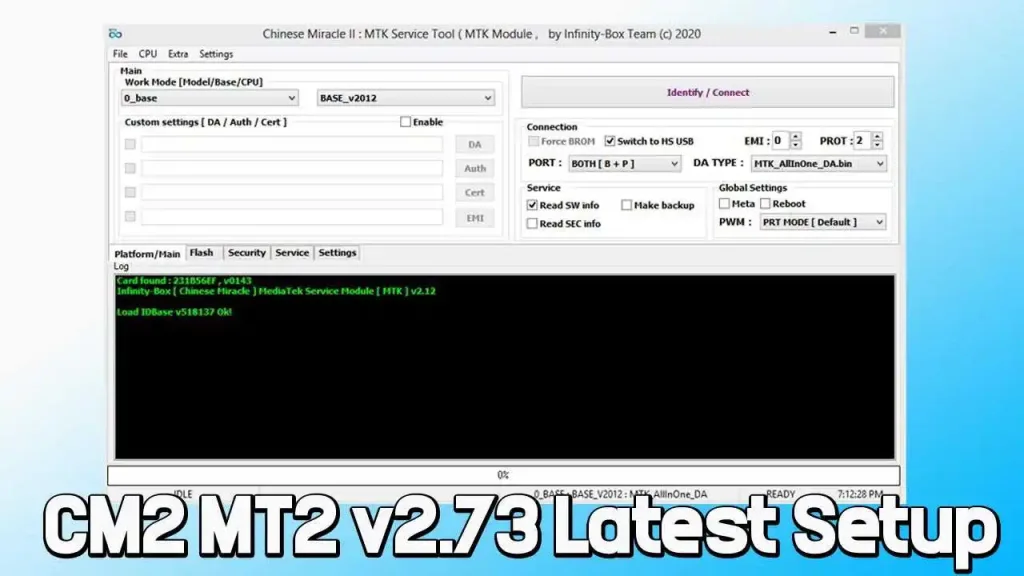
What is the CM2 MT2 v3.16 Module?
The CM2 MT2 Module Tool is software created by Infinity Team specifically for devices running on MediaTek (MTK) processors. Repair technicians and advanced users use it to flash firmware, remove various locks, and fix IMEI issues.
With its user-friendly interface, the CM2 MT2 tool makes it easy to perform advanced device operations, even if you’re not a technical expert.
Features of CM2 MT2 v3.16 Module
The CM2 MT2 Tool v2.73 has features designed to simplify device maintenance. Here are some of its primary functions:
- Firmware Management: Flash stock ROMs to restore or update device firmware efficiently.
- Unlock Functions: Bypass FRP, remove screen locks, and clear privacy locks with ease.
- IMEI Repair: Fix and restore IMEI numbers on supported devices.
- Bootloader Unlocking: Unlock bootloaders for various brands, including Xiaomi.
- App Control: Enable/disable system apps and install user APKs permanently.
- Memory Utilities: Backup and restore critical data, including ext_csd memory info.
- Security Functions: Reset user locks, Google accounts, and execute OTA-related tasks.
- Diagnostics Tools: View detailed startup logs and gather essential device information.
- Advanced Features: Perform operations such as PSN read/write and manage MDM restrictions.
Download CM2 MT2 Latest Setup v3.16
- Tool Name: InfinityBox_install_CM2MT2.zip
- Version: v3.16 (Latest)
- Author: Infinity-Box
- File Size: 58 MB
- Password: 1111
CM2 MT2 Old Version Setup Download
| Version | LINK- 1 | LINK- 2 |
|---|---|---|
| v3.15 | Jiocloud | MediaFire |
| v3.14 | Jiocloud | MediaFire |
| v3.12 | Jiocloud | MediaFire |
| v3.08 | Jiocloud | MediaFire |
| v3.07 | Jiocloud | MediaFire |
| v3.04 | Jiocloud | MediaFire |
| v3.03 | Jiocloud | MediaFire |
| v3.00 | Jiocloud | MediaFire |
| v2.99 | Jiocloud | MediaFire |
| v2.95 | Disk Yandex | MediaFire |
| v2.90 | jiocloud | MediaFire |
| v2.89 | MEGA | MediaFire |
| v2.76 | MEGA | MediaFire |
| v2.73 | MEGA | Google Drive |
| v2.69 | MEGA | Google Drive |
| v2.66 | MEGA | Google Drive |
| v2.64 | MEGA | Google Drive |
| v2.61 | MEGA | Google Drive |
| v2.60 | MEGA | Google Drive |
| v2.59 | MEGA | Google Drive |
| v2.58 | MEGA | Google Drive |
| v2.57 | MediaFire | Google Drive |
| v2.54 | MediaFire | Google Drive |
| v2.53 | MediaFire | Google Drive |
How to Install the CM2 MT2
Before you can start using the CM2 MT2 Tool, install it on your computer. Here’s a quick installation guide:
- Download the Tool: Click on one of the official download links above and save the file to your computer.
- Extract the File: Unzip the downloaded package (usually in .zip format) to a folder on your computer.
- Run the Installer: Open the extracted folder, locate
InfinityBox_install_CM2MT2.zip, and run the installer file. - Follow the On-Screen Instructions: The installation wizard will guide you. Once installed, restart your computer.
Using CM2 MT2
Once you have the CM2 MT2 Tool installed, here’s how you can use it to manage MediaTek devices:
Flashing Stock ROM
- Open the CM2 MT2 Tool and navigate to the Flasher tab.
- Select the Stock ROM (scatter file) for your device.
- Click on Flash: Connect your MediaTek device in Flash Mode (usually with the volume down button pressed).
- The tool will begin flashing the ROM onto the device. Don’t disconnect the device until the process is complete.
Resetting FRP Lock
- Go to the Service tab in the CM2 MT2 Tool.
- Choose FRP and click Format FS.
- Connect your device to the computer in Flash Mode, and the tool will remove the FRP lock, restoring device access.
Removing Screen Locks
- In the Service tab, choose Full Factory Reset (ALL).
- Click on Format FS to initiate the reset.
- Connect the device in Flash Mode, and the screen lock will be removed, allowing access.
Resetting Privacy Lock
- Go to the User Data tab in CM2 MT2.
- Click on Reset Privacy Lock.
- Connect your device and the privacy lock will be cleared, enabling unrestricted access.
Infinity CM2MT2 v3.16 – What’s New
🛠 Fixed Issues
- Fixed GUI issue with repeated DA/EMI file selection
- Improved DA/EMI loading stability
⚙️ Updated Features
- Updated Meizu operations
- Updated “Can’t Make a Call” repair method
- Updated bootloader unlock method
- Updated TCL DA support
- [MemTool] Added option to save PMT into GPT file for latest devices
📱 Newly Supported Devices
Teclast
- M40-Plus
Hotwav
- Hyper-7-Pro
- Cosmos-U
- Cosmos-V5
- Cosmos-V9
- Cyber-7
- Cyber-8
- Cyber-9-Pro
- Cyber-16-Pro
- Cyber-X
- Cyber-X-Pro
- H1
- H3
- Hot-6
- M5
- M5i
- M5-Plus
- M6
- Magic-5-Plus
- Magic-8
- Magic-13
- Magic-Q8
- Pearl-A60
- Pearl-K2
- Pearl-K2-Prime
- Pearl-K3
- Pearl-K3-Prime
- Symbol-M1
- Symbol-Max
- Symbol-Pro
- Symbol-R60
- T5-Max
- T7
- T7-Pro
- Tab-R5
- Tab-R6-Pro
- Tab-R6-Ultra
- V17
- Venus
- Venus-X1
- Venus-X5
- Venus-X8
- Venus-X10
- Venus-X16
- W10
- W11
- LT
- X9
- E13
- S40
- E18
- E16
- C26
- E11
- S22
- E6707
Calme
- 4G-Platinum
Herofun
- BH502G
Positivo
- L400
Wiko
- W-K610
- Kenny
- W-V673
DuoQin
- Qin F25
GO
- T3
Lava
- Iris50
- Iris820
Patters
- P9
Helio
- 30
- 40
- 45
- 55
- S2
Telma
- IFeel-Max-4G
Oukitel
- C10
ZTE
- T815
Vgo-Tel
- New-26-Lite
- New-17
- New-16-Pro
Mecer
- 101P51C
Mustek
- 101P51C
Telzeal
- P800
Gigaset
- GX290
- GS370-Plus
- GS290
- GDL
- GigaX-Y21
Umidigi
- A7
- Z1-Pro
Sun-King
- EZ-3-Pro
Ulefone
- Armor-X31-Pro B19
Alldocube
- IPlay-60-Pad
XByte
- X1-T8123B
RXD
- Ruby
Freeme
- CM5
Conclusion
The CM2 MT2 v2.89 offers powerful capabilities for managing and troubleshooting MediaTek devices. Whether you need to flash firmware, reset security locks, or repair IMEI, this tool is designed to make complex tasks easy to execute. Follow the instructions in this guide, and you’ll be well-equipped to handle common device issues confidently.
Download the CM2 MT2 Tool from official sources to ensure compatibility and security. We hope this guide has provided everything you need to successfully install and use the CM2 MT2 Tool!
Related Post
FAQs
Is the CM2 MT2 Tool compatible with all MediaTek devices?
Yes, CM2 MT2 is compatible with most MediaTek-powered devices, but make sure your device model is supported in the tool’s documentation.
Do I need to install MediaTek USB Drivers?
Yes, installing the MediaTek USB drivers on your computer is essential. Without these drivers, CM2 MT2 may not recognize your device.
Is it safe to use CM2 MT2 for IMEI repair?
Yes, but note that the law may restrict or prohibit altering IMEI in some regions. Ensure compliance with local regulations.
What should I do if my device doesn’t connect to Flash Mode?
Confirm that the correct drivers are installed and try connecting again. You may also want to use a different USB cable or port.