GSM6 Pixel Tool Pro v1.260716 (Latest Version) Free – Google Pixel Flash Tool
If your repair shop handles Google Pixel phones and you are still juggling multiple ADB and Fastboot utilities for different jobs, GSM6 Pixel Tool Pro v1.260716 is worth checking out. This free Windows tool brings firmware flashing, FRP removal, bootloader unlock, root, IMEI repair, and Fastboot operations together in one place — all without asking for a paid license or activation.
In this complete guide, you will find the full feature breakdown, Technician Mode details, installation steps, usage guide, and download link for GSM6 Pixel Tool Pro v1.260716 so you know exactly what is inside before running it on a customer’s device.
What Is GSM6 Pixel Tool Pro?
GSM6 Pixel Tool Pro is a free Windows-based repair and servicing tool built specifically for Google Pixel phones. Developed by the GSM6 Team, the software covers everyday operations like ADB commands and Fastboot controls alongside advanced repair functions that are normally locked behind paid tools — including IMEI repair, CPID fix, QCN read/write, and root management.
The tool also includes a Technician Mode that stays hidden by default. Enabling it from the Settings tab unlocks two additional tabs — Tensor and Qualcomm — each containing chipset-specific repair functions for supported Pixel devices.
Key Features of GSM6 Pixel Tool Pro v1.260716
🔧 Main Tab
- Read Device Info
- Flash Firmware
- Custom Flash
- ADB Sideload
- Root via Server
- Root Direct
- Unroot via Server
📲 ADB Tab
- Read Info
- Reboot Device
- Reboot Bootloader
- Reboot Recovery
- FRP Remove
- Backup Partition
- Restore Partition
- Install APK
- Install Magisk
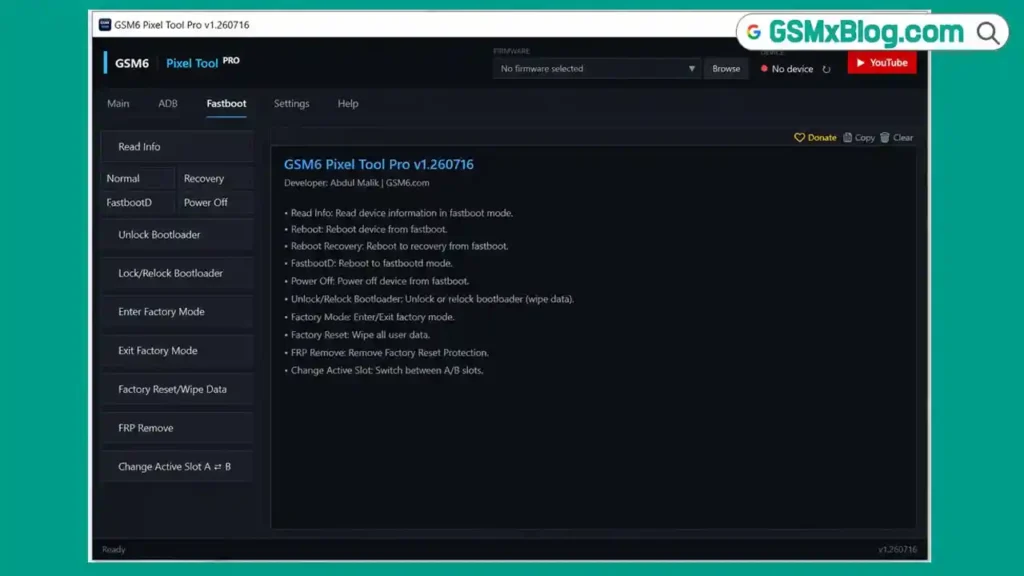
⚡ Fastboot Tab
- Read Info
- Normal Reboot
- Recovery Reboot
- FastbootD Reboot
- Power Off
- Unlock Bootloader
- Lock / Relock Bootloader
- Enter Factory Mode
- Exit Factory Mode
- Factory Reset / Wipe Data
- FRP Remove
- Change Active Slot A ⇌ B
🔬 Tensor Technician Mode (Hidden — enable from Settings)
- Read Config (ADB$)
- Get Compatible Firmware
- Fix IMEI 0 (Temporary)
- Fix CPID (All — Permanent)
- Disable Beta (Test)
🔩 Qualcomm Technician Mode (Hidden — enable from Settings)
- Enable Diag (Root)
- Fix WiFi
- Reset EFS
- Read QCN
- Write QCN
- Fix Corrupted IMEI
⚙️ Settings Tab
- Enable Technician Mode
- Automatically Check for Updates
- Reset to Default Settings
ℹ️ Help Tab
- Official Website
- Forum / Facebook / Telegram / YouTube
- Email Support
- Download Drivers
- Privacy Policy & Terms of Service
GSM6 Pixel Tool Pro v1.260716 Setup Download
- File Name: GSM6_PixelToolPro_v1.260716.Setup.rar
- Version: v1.260716 (Latest)
- File Size: 6.9 MB
- Developer: GSM6 Team
- Platform: Windows PC
Unzip Password: 12345
How to Install GSM6 Pixel Tool Pro v1.260716
- Download the RAR file using one of the links above.
- Extract the archive and enter password 12345 when prompted.
- Right-click GSM6_PixelToolPro_v1.260716.Setup.exe and select Run as Administrator.
- The setup window opens — click OK to continue.
- Choose the installation folder or leave the default path as-is and click Next.
- If Windows asks to create the folder, click Yes.
- Leave the Start Menu folder as default and click Next.
- Tick Create a desktop shortcut and click Install.
- Wait a few seconds while the files are copied.
- Keep Launch GSM6 Pixel Tool Pro checked and click Finish.
How to Use GSM6 Pixel Tool Pro v1.260716
▶️ Enable Technician Mode
- Open the tool and click the Settings tab.
- Tick the Enable Technician Mode option.
- A warning message will appear — click Yes to confirm.
- Two new tabs appear instantly: Tensor and Qualcomm.
- These tabs contain all advanced chipset-specific repair functions.
⚠️ Technician Mode functions require a supported Google Pixel device connected via USB. Do not run advanced repair options without confirming device compatibility first.
▶️ Flash Firmware
- Open the tool and go to the Main tab.
- Click Flash Firmware and load your firmware file.
- Connect the Pixel device in the correct mode.
- Start the flash and wait for the process to complete.
- The device will reboot automatically after a successful flash.
▶️ Remove FRP Lock
- Enable USB Debugging on the device if possible.
- Connect the phone and go to the ADB tab.
- Click FRP Remove and wait for the process to finish.
- Alternatively, go to the Fastboot tab and use the FRP Remove option there if ADB mode is not available.
▶️ Unlock Bootloader
- Connect the device in Fastboot mode via USB.
- Go to the Fastboot tab.
- Click Unlock Bootloader and follow the on-screen steps.
- After unlocking, use Lock / Relock Bootloader when the repair work is complete.
▶️ Switch Active Slot
- Connect the device in Fastboot mode.
- Go to the Fastboot tab.
- Click Change Active Slot A ⇌ B to switch between partitions.
- This is useful when one slot fails to boot after a firmware update.
▶️ Backup and Restore Partitions
- Connect the device in ADB mode with USB Debugging enabled.
- Go to the ADB tab.
- Click Backup Partition before making any changes to the device.
- Use Restore Partition to push the saved backup back to the phone if something goes wrong.
▶️ Repair IMEI — Tensor Devices
- Enable Technician Mode from the Settings tab.
- Go to the Tensor tab.
- Connect the supported Pixel device.
- Use Fix IMEI 0 (Temporary) for a quick IMEI fix.
- Use Fix CPID (All — Permanent) for a permanent CPID repair on supported models.
▶️ QCN Read and Write — Qualcomm Devices
- Enable Technician Mode from the Settings tab.
- Go to the Qualcomm tab.
- Connect the Qualcomm-based Pixel device in the required mode.
- Click Read QCN to save the current QCN backup to your PC.
- Click Write QCN to restore a saved QCN file back to the device.
System Requirements
| Component | Requirement |
|---|---|
| Operating System | Windows 10 / Windows 11 |
| Permissions | Run as Administrator |
| USB Driver | Google Pixel USB Driver (download link inside the Help tab) |
| Connection | USB Cable |
| Internet | Required for server-based Root and online functions |
| Supported Devices | Google Pixel Phones |
⚠️ Warning
Always back up partitions before running any flash, root, IMEI repair, or CPID fix operation. Fastboot operations like Factory Reset and Wipe Data are permanent and cannot be undone. Bootloader unlock wipes all user data on Google Pixel devices — confirm this with the customer before proceeding. Technician Mode functions should only be used by experienced technicians who understand the repair process for each specific Pixel model.
Important Notes
🛡️ Virus Status: The installer may trigger a Windows SmartScreen warning because the application is not yet widely recognized. This is a standard false positive for independently distributed repair tools. Download only from the official links above and click More Info → Run Anyway to proceed.
📌 Credit: Full credit goes to the GSM6 Team for developing and releasing GSM6 Pixel Tool Pro as a free tool for the mobile repair community.
🔌 USB Drivers: Install the Google Pixel USB Driver before connecting any device. The driver download link is available inside the Help tab of the tool itself — no need to search for it separately.
🔬 Technician Mode: The Tensor and Qualcomm tabs are hidden by default. Go to Settings → Enable Technician Mode and click Yes on the warning prompt to make them visible. Both tabs appear immediately without restarting the tool.
Frequently Asked Questions (FAQs)
❓ Is GSM6 Pixel Tool Pro free to use? Yes. The tool opened without any activation window, login screen, or license purchase after installation. All visible features are accessible for free.
❓ Which devices does it support? GSM6 Pixel Tool Pro is made for Google Pixel phones. Tensor-based and Qualcomm-based Pixel models each have dedicated Technician Mode tabs inside the software.
❓ What is Technician Mode and how do I enable it? Technician Mode is a hidden set of advanced repair functions. Enable it from Settings → Enable Technician Mode → Yes. Once enabled, Tensor and Qualcomm tabs appear immediately with chipset-specific repair options.
❓ Does the tool support ADB and Fastboot? Yes. There are separate ADB and Fastboot tabs with dedicated operation buttons for each mode. No manual command typing is needed.
❓ Can I repair IMEI with this tool? The Tensor tab includes Fix IMEI 0 (Temporary) and the Qualcomm tab includes Fix Corrupted IMEI. These require a supported Pixel device to test.
❓ What does Change Active Slot A ⇌ B do? Pixel phones use A/B partition slots. This option switches the active boot slot between Slot A and Slot B directly from Fastboot mode — useful when a firmware update causes one slot to fail.
❓ What is the archive password? The archive password is 12345. Enter it when extracting the RAR file.
❓ Does the Root function need internet? The Root (Server) and Unroot (Server) options connect to the GSM6 server and require internet. The Root (Direct) option may work differently — confirm with the developer’s Telegram for specific requirements.
Conclusion
GSM6 Pixel Tool Pro v1.260716 is one of the most complete free tools available specifically for Google Pixel repair work in 2026. With firmware flashing, FRP removal, bootloader unlock, ADB and Fastboot operations, root management, and a hidden Technician Mode covering IMEI repair, CPID fix, QCN read/write, WiFi repair, and EFS reset — everything is organized in one clean interface without any activation barrier.
If your daily repair work includes Google Pixel phones, this tool is worth keeping on your workshop PC. Download GSM6 Pixel Tool Pro v1.260716 from the links above, enable Technician Mode, and explore what it can do on your next Pixel job.
Tested it on a real Pixel device? Drop your results in the comments below!
Related Posts
- DFT PRO Tool v8.0.0 (Latest Version)
- HSD AIO Tool Beta v1.02 (Latest Version)
- Ghost Auth Tool v3.3.0 (Latest Version)