Genda Tool v1.2 Download – Latest Vivo FRP 1-Click Done
Vivo FRP bypass has become one of the most searched repair operations in 2026 — covering MTK, Qualcomm, and SPD chipsets across Android 14, 15, and 16 security patches — and Genda Tool v1.2 has emerged as one of the most effective free Windows tools for handling it. Built by the Genda Tool team as a professional mobile device flash and service platform, Genda Tool covers Vivo FRP bypass via Fastboot mode across all MTK and Qualcomm Vivo models, alongside a complete toolkit for firmware flashing, NV backup and restore, userdata erase, demo mode removal, partition management, A/B slot switching, and live device info reading across 2,300+ models from 20+ brands.
What Is Genda Tool?
Genda Tool is a free professional mobile device flash and service software developed by the Genda Tool team. It has rapidly grown into one of the most popular Vivo repair and FRP bypass tools in the GSM repair community — particularly known for its Fastboot-based Vivo FRP bypass that works across all Vivo MTK and Qualcomm models without requiring hardware modification, CPU drilling, ISP, or JTAG.
Beyond Vivo, the platform covers a wide cross-section of Android brands running Qualcomm Snapdragon and MediaTek chipsets — accessing devices via EDL (Emergency Download Mode) for Qualcomm and Download Agent mode for MediaTek — protocols that work regardless of bootloader lock status. No bootloader unlock is needed for any operation.
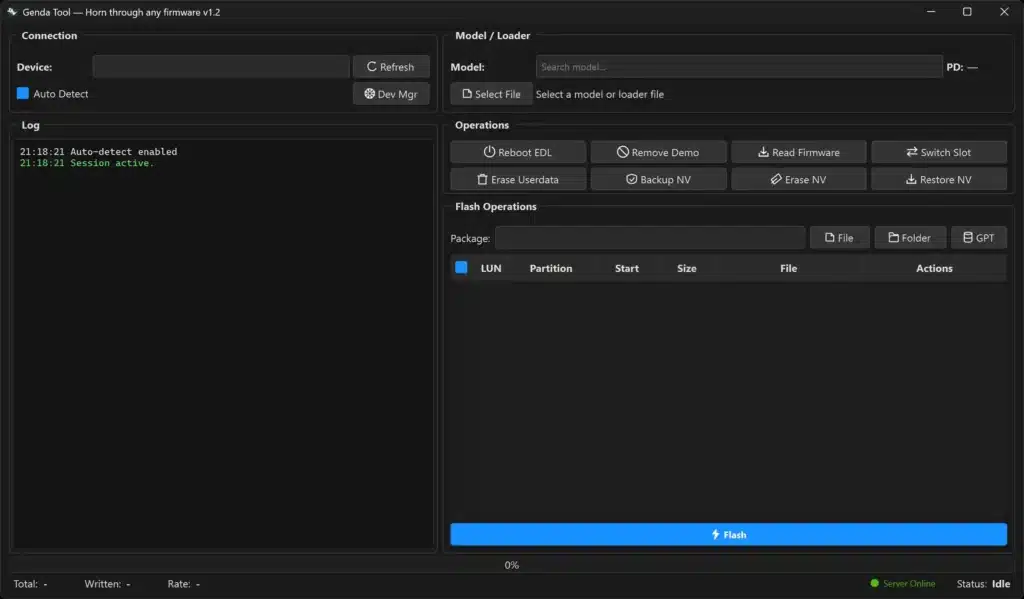
Key Features of Genda Tool
- 1-Click FRP Bypass — Remove Factory Reset Protection from Vivo and other supported devices quickly without extra steps
- Flash Firmware — Flash complete firmware packages or individual partitions automatically after selecting the firmware folder
- Erase Userdata — Safely reset user data and remove screen locks with built-in bricking protection
- Remove Demo Mode — One-click removal of retail demo mode from display unit devices
- NV Backup & Restore — Backup and restore critical modem data, IMEI, and RF parameters
- Read Firmware — Dump full device images or individual partitions for backup and analysis
- Partition Management — View, read, erase, and flash individual partitions with full GPT table display
- Live Device Info — Instantly shows brand, model, Android version, build number, and storage on connection
- Slot Switching — Switch between A/B partition slots for recovery and troubleshooting
- Plug & Play Detection — Automatic device detection the moment you connect via USB
Download Genda Tool v1.2
- Version: v1.2
- Platform: Windows 10 / 11 (64-bit)
- Developer: Genda Tool Team
How to Install Genda Tool v1.2
- Download Genda Tool v1.2 installer from the official link above.
- Right-click the installer and select Run as Administrator.
- Follow the on-screen setup prompts to complete installation.
- Once installed, launch Genda Tool from the desktop shortcut.
- Make sure your PC has an active internet connection — the tool uses cloud authentication on launch.
- The tool opens immediately — no login, no activation code, no credits needed. ✅
Note: Genda Tool requires Windows 10 or 11 (64-bit). It does not support 32-bit Windows or older OS versions.
How to Use Genda Tool v1.2
▶ Vivo FRP Bypass (MTK & Qualcomm)
- Open Genda Tool on your Windows PC with internet active
- Boot your Vivo device into Fastboot Mode (hold Volume Down + Power)
- Connect via USB — the tool auto-detects the chipset
- Go to Vivo FRP Bypass and click Remove FRP
- Wait for the log to complete, then reboot ✅
Broken screen? Skip USB Debugging — boot directly into Fastboot Mode and the tool handles it automatically.
▶ Vivo ID / Account Remove
- Boot into Fastboot Mode and connect via USB
- Navigate to Vivo ID Remove
- Click the operation button and wait
- Reboot — account lock cleared ✅
▶ PIN / Pattern / Password Remove
- Boot into Fastboot Mode and connect via USB
- Go to Screen Unlock and click Remove Screen Lock
- Reboot and verify ✅
▶ Flash Firmware (Qualcomm – EDL Mode)
- Boot device into EDL Mode and connect via USB
- Click Flash Firmware and select your firmware folder
- Tool auto-detects partitions and begins flashing
- Wait for completion, then reboot ✅
▶ Flash Firmware (MediaTek – Download Agent Mode)
- Power off the device, hold Volume Down, and connect via USB
- Tool auto-detects and selects the correct loader
- Click Flash Firmware, choose the firmware folder, and confirm
- Wait for flash to complete, then reboot ✅
▶ NV Backup & Restore
- Backup: Connect device → click NV Backup → choose save location ✅
- Restore: Connect after flash → click NV Restore → load backup file ✅
Always back up NV before flashing to protect IMEI and modem data.
Supported Brands (20+ Brands, 2,300+ Models)
| Brand | Brand | Brand | Brand |
|---|---|---|---|
| Vivo | iQOO | Samsung | OPPO |
| Realme | Xiaomi | Redmi | POCO |
| OnePlus | HONOR | Huawei | Motorola |
| Google Pixel | Nothing | ASUS / ROG | Sony Xperia |
| Nubia / Red Magic | Black Shark | Nokia | Meizu |
System Requirements
| Component | Requirement |
|---|---|
| OS | Windows 10 / 11 (64-bit only) |
| Processor | Intel / AMD Dual-Core or faster |
| RAM | 4 GB minimum (8 GB recommended for large firmware) |
| Storage | Sufficient free space for firmware dumps and backups |
| USB Port | USB 2.0 or USB 3.0 |
| Internet | Required (cloud authentication on launch) |
| Bootloader | Unlock NOT required — EDL and Fastboot access |
⚠️ Warning
Genda Tool accesses devices at the chipset level via EDL and Fastboot modes — operations directly modify device partitions. Always back up NV data before flashing any firmware to avoid permanent IMEI and modem data loss. Partition Management operations are advanced — only erase or flash individual partitions if you are fully confident about the partition name and file compatibility. Flashing incorrect or mismatched firmware will result in a brick. Built-in safety guards protect critical partitions by default — read all confirmation prompts carefully before proceeding.
Important Notes
🌐 Cloud Authentication: An active internet connection is required when launching and running Genda Tool. All device operations run locally after the tool opens.
📌 Credit: Full development credit goes to the Genda Tool Team This article is for informational and educational purposes only.
🔌 USB Driver: Install MTK USB Driver for MediaTek Vivo phones or Qualcomm USB Driver for Snapdragon Vivo phones if device detection fails.
📣 Updates & Support: Join the official Telegram channel at t.me/Genda_Tool for tool updates, new model support, and community support.
Frequently Asked Questions (FAQs)
❓ What is Genda Tool best known for? Genda Tool is most widely used for Vivo FRP bypass via Fastboot mode across all MTK and Qualcomm Vivo models on Android 14, 15, and 16 — without hardware modification, ISP, JTAG, or CPU drilling. It also covers firmware flashing, NV backup, demo removal, and partition management across 2,300+ models from 20+ brands.
❓ Does Genda Tool Vivo FRP bypass require opening the phone? No. Genda Tool performs Vivo FRP bypass entirely via software through Fastboot mode — no back panel removal, no CPU drill, no hardware modification of any kind is required.
❓ Is Genda Tool completely free? Yes. Genda Tool v1.2 is completely free — no credits, no dongle, no activation code, and no account registration required.
❓ What Android versions does Vivo FRP bypass support? Genda Tool supports Vivo FRP bypass on Android 14, 15, and 16 across all MTK and Qualcomm Vivo models.
❓ Does it work on locked bootloader Vivo devices? Yes. Genda Tool uses Fastboot-level and EDL-level access that works regardless of bootloader lock status on Vivo and other supported devices.
❓ Can I do Vivo FRP bypass on a broken screen device? Yes. Since the bypass uses Fastboot Mode (hardware button combination), ADB authorization on the device screen is not required — making it suitable for broken or unresponsive screen devices.
❓ Does Genda Tool work on Windows 11? Yes. Genda Tool requires Windows 10 or 11 (64-bit). It does not support 32-bit Windows or older OS versions.
Conclusion
Genda Tool v1.2 has established itself as the go-to free Windows tool for Vivo FRP bypass in 2026 — covering all MTK and Qualcomm Vivo models across Android 14, 15, and 16 via a clean Fastboot-based method that requires zero hardware modification. Combined with its full suite of professional repair functions — firmware flashing via EDL and Download Agent, NV backup and restore, demo mode removal, partition management, A/B slot switching, and live device info reading — across 2,300+ models from 20+ brands, it is one of the most capable free Android repair tools available on Windows PC today.
Tested Genda Tool on a specific Vivo model or Android version? Drop the model and result in the comments — your feedback helps the repair community confirm support across more devices.
Related Posts
- Penguine Multi Tool (Latest Version)
- NCK Online MTK Preloader Tool v0.2.5 (Latest Version)
- Muslim Odin (Latest Version)
- Q-Unlocker Tool (Latest Version)