Download PixelFlasher Tool v7.9.3.3 (Latest Version) Free – Complete Guide
If you’re a Google Pixel smartphone user, especially one looking to flash firmware , unbrick your device , or root your phone , then the PixelFlasher Tool v7.9.3.3 is an essential utility for you. This comprehensive guide will walk you through everything you need to know about downloading and using this powerful tool, including its features, how-to guides, and why it stands out from other flashing tools.
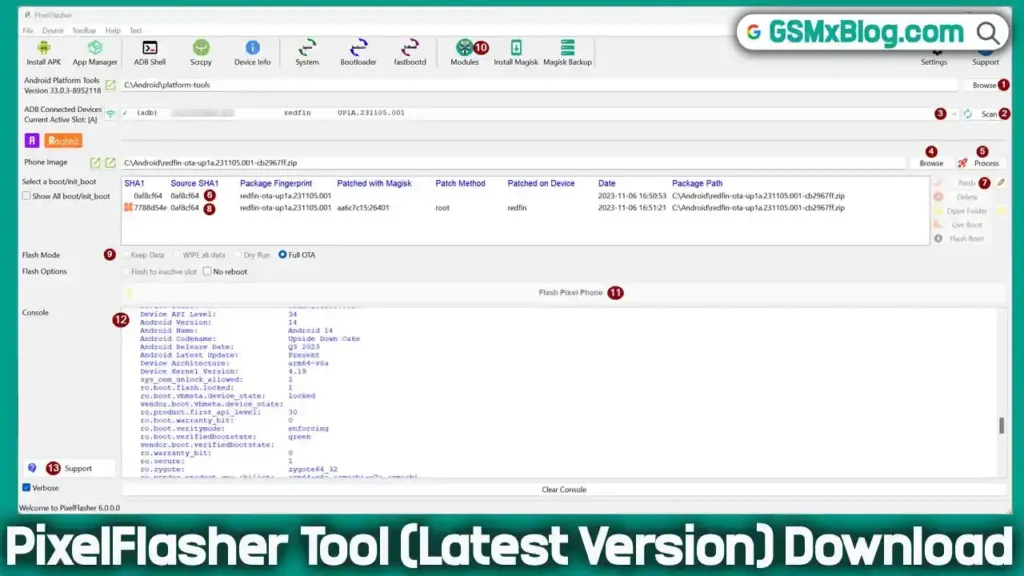
What is PixelFlasher Tool?
PixelFlasher Tool v7.9.3.3 is a powerful, all-in-one GUI-based utility designed to flash, root, repair, and manage Google Pixel™ smartphones and potentially other Android™ devices. Built as a user-friendly interface over ADB/Fastboot commands, it provides both basic and expert modes for beginners and advanced users alike. Whether you’re fixing a bricked Pixel device, bypassing FRP locks, upgrading/downgrading firmware, or managing Magisk root—PixelFlasher handles it all with a few clicks.
Key Features of PixelFlasher v7.9.3.3
🔹 Basic Mode (Beginner-Friendly)
✅ One-Click Firmware Flashing – No command-line knowledge needed.
✅ Magisk Root Retention – Keep root access after updates.
✅ Boot.img Patching – Automatically patch boot images for rooting.
✅ Device Info Display – View hardware, firmware, and root status.
✅ Wireless ADB Support – Connect devices without USB.
✅ Play Integrity Fix – Bypass SafetyNet & Google restrictions.
🔹 Expert Mode (Advanced Users)
⚡ Custom ROM Flashing – Install custom firmware like LineageOS.
⚡ Partition Management – Backup, erase, or restore partitions.
⚡ Bootloader Unlock/Lock – Secure or unlock bootloader.
⚡ Multi-Slot Flashing – Flash to inactive slots (A/B partitions).
⚡ Temporary Root Access – Test modifications without permanent changes.
🔹 Additional Tools
📌 Magisk Module Manager – Install/disable modules.
📌 APK Installer – Directly install apps via ADB.
📌 Play Integrity Checker – Verify device certification.
📌 Logcat & Debugging – Troubleshoot errors easily.
Download PixelFlasher Tool v7.9.3.3 (Latest Version Free)
- File Name: Pixel_Flasher_Tools.rar
- Version: v7.9.3.3
- Size: 41MB
- Developer: badabing2005
- OS Support: Windows 64-bit
- Official Download Link: Click Here (Github)
How to Use PixelFlasher Tool (Step-by-Step Guide)
📥 Prerequisites:
✔ Download PixelFlasher v7.9.3.3 (Link Below)
✔ Enable USB Debugging (Settings > Developer Options)
✔ Install Google USB Drivers (For Windows)
✔ Unlock Bootloader (If flashing custom firmware)
⚙ Step-by-Step Flashing Process:
- Download & Extract PixelFlasher on your PC.
- Launch
PixelFlasher.exeas Administrator. - Connect your Pixel phone via USB (ensure ADB is authorized).
- Select Firmware – Browse and load the correct firmware file.
- Choose Mode – Basic (Keep Data) or Expert (Full Wipe).
- Patch Boot Image (If rooting with Magisk).
- Click “Flash Device” – Wait for the process to complete.
- Reboot – Your Pixel phone will restart with the new firmware.
💡 Pro Tip: Always backup data before flashing to avoid data loss.
Supported Devices
- Google Pixel 1 to Pixel 8 Pro
- Pixel Watch (limited functionality)
- Some AOSP-based devices (YMMV)
- Custom ROMs (EvolutionX, PixelOS, EliteROM, etc.)
SafetyNet, Play Integrity & Rooting – All in One
PixelFlasher ensures your rooted device retains access to apps like GPay, Netflix, and Banking through:
- Magisk integration
- TrickyStore spoofing
- PIF backup/restore
- KernelSU & alternative root solutions
Final Thoughts
PixelFlasher v7.9.3.3 is the best tool for Pixel users who want to flash firmware, root, or repair their devices without complex commands. With Basic & Expert modes, it caters to all skill levels.
Related Tools
- Octoplus FRP Tool (Latest Version)
- Download FRT Tool (Flash Repair Tool)
- Android Multi Tool (Latest Version)
FAQs & Troubleshooting
Is PixelFlasher Safe?
Yes! It’s an open-source tool widely used by developers. Always download from official sources.
Does It Work on Non-Pixel Devices?
Partially. Some features (like ADB tools) work on other Android phones, but full firmware flashing is optimized for Pixels.
How to Fix “Device Not Detected” Error?
Reinstall USB Drivers
Enable USB Debugging & OEM Unlock
Try a different USB cable/port
Can I Relock Bootloader After Flashing?
Yes, but it will wipe your data. Use Expert Mode for bootloader locking.