Samsung Flashing Utility (Latest 2026) – Free Download
If you work with Samsung devices regularly, you know that having a reliable Samsung flash tool on your PC makes a big difference. Samsung Flashing Utility is a free GSM tool built specifically for flashing Samsung firmware files on Windows. It gives technicians a clean, focused interface for loading BL, AP, CP, CSC, and PIT files — and getting the job done without relying on Odin. Whether you’re fixing a bootloop, restoring stock firmware after an FRP bypass, or working through a batch of Samsung devices in your Android repair shop, this flash tool handles the process smoothly.
In this guide, the GSMxblog team covers everything you need to know about Samsung Flashing Utility — what it does, how to use it step by step, and where to download the latest 2026 version for free.
What is Samsung Flashing Utility?
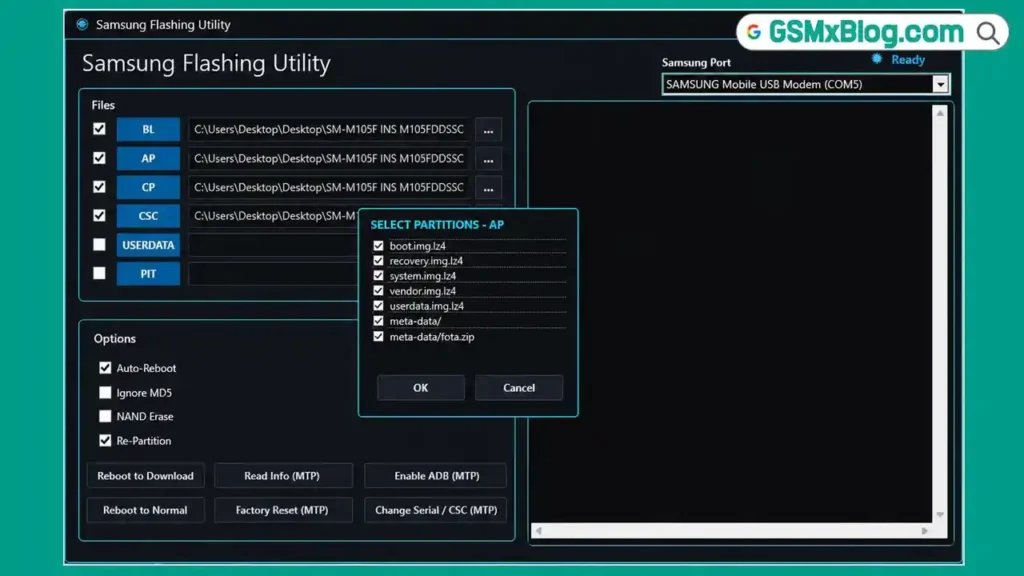
Samsung Flashing Utility is a lightweight Samsung flash tool for Windows that lets you flash official firmware files directly to Samsung smartphones and tablets. Instead of loading every partition at once blindly, the tool gives you a partition selection window when you load the AP file — so you can choose exactly what gets written to the device.
The tool works with Samsung devices connected in Download Mode. Once connected, it detects the COM port automatically and shows a Ready status before you start loading any files. The interface separates each firmware component clearly: BL, AP, CP, CSC, USERDATA, and PIT. This makes the whole process faster and less confusing, especially when you’re doing Android repair work and flashing multiple devices in a single session.
Key Features of Samsung Flashing Utility
- Detects Samsung devices in Download Mode automatically
- Supports BL, AP, CP, CSC, USERDATA, and PIT file loading
- Partition selection window when loading the AP file
- Real-time flash log showing every step of the process
- Auto Reboot option after flashing completes
- Re-Partition support with PIT file verification
- Read Info via MTP
- Enable ADB via MTP
- Factory Reset via MTP
- Change Serial / CSC via MTP
- Automatic COM port detection
- Device log window for monitoring the flash in real time
What We Tested
The GSMxblog team connected a Samsung phone in Download Mode and launched the tool as Administrator. The device was detected right away. The COM port showed up as Samsung Mobile USB Modem (COM5) and the status moved to Ready.
We loaded the BL, AP, CP, and CSC files from a full firmware package. When we selected the AP file, a partition selection window opened and let us choose which partitions to write. We left all required partitions selected and continued.
We also tested the Re-Partition option without a PIT file. The tool immediately displayed an alert warning that a PIT file must be selected first — which is exactly what you want. That kind of check stops you from accidentally starting a risky flash mid-job.
After loading the correct PIT file, we started the flash. The log window displayed every step in real time: firmware analysis, USB detection, PIT verification, partition checking, and each image file being transferred. The entire process finished in approximately 1 minute and 55 seconds, and the log window showed Flashing done at the end.
One thing worth mentioning: the tool does not explain what BL, AP, CP, CSC, or PIT files are. If you’re new to Samsung firmware, take a few minutes to understand the package structure before you start. The log window also uses small text, so scroll carefully while monitoring a long flash.
File Information & Download
- File Name: Samsung Flashing Utility.7z
- File Size: 1.89 MB
- Version: Latest 2026
- Supported OS: Windows PC
Before downloading, make sure you have Samsung USB Driver installed on your PC. Without it, the tool won’t detect your device.
How to Use Samsung Flashing Utility
Step 1: Install Samsung USB Driver
Download and install the Samsung USB Driver on your Windows PC before doing anything else. The tool needs these drivers to detect your device over USB.
Step 2: Extract the Tool
Extract the downloaded Samsung Flashing Utility.7z file using 7-Zip or WinRAR. Open the extracted folder.
Step 3: Boot Your Samsung Device into Download Mode
Power off your Samsung phone. Then boot it into Download Mode using the button combination for your specific model, or use a tool like Samsung 300K Tool if the hardware buttons are not responding.
Step 4: Connect and Launch
Connect your Samsung device to the PC via a USB cable. Right-click the tool executable and select Run as Administrator. Wait for the COM port to appear and the status to show Ready.
Step 5: Load Firmware Files
Click the BL, AP, CP, and CSC fields and load the matching files from your firmware package. When you select the AP file, a partition selection window will open. Choose the partitions you want to flash and confirm.
Step 6: Start Flashing
Click the flash button to begin. Watch the log window for real-time progress. The tool will go through firmware analysis, USB detection, PIT verification, and partition writing. Once it reaches 100%, the log will display Flashing done.
Step 7: Device Reboot
If the Auto Reboot option is enabled, your Samsung device will restart automatically. Otherwise, manually reboot the device after the flash completes.
Something Important to Know Before You Flash
If you plan to use the Re-Partition option, always load a PIT file first. The tool will block the flash and display an alert if you try to re-partition without one. This is a useful safety check that prevents accidental damage to your device’s partition table.
Also keep in mind that the tool file itself is only 1.89 MB. The large storage usage you’ll notice comes from the Samsung firmware package — not from the flashing utility.
Benefits of Samsung Flashing Utility
- Focused Interface: The tool only shows what you need for Samsung flashing — no extra menus or unrelated features cluttering the screen.
- Partition Control: The AP file partition selection window gives you control over what gets written instead of flashing everything blindly.
- Real-Time Log: Every step of the flash process shows up in the log window so you can catch problems immediately.
- Built-In Safety Checks: The PIT file alert before re-partitioning protects you from making mistakes that could brick a device.
- MTP Functions: Read Info, Enable ADB, Factory Reset, and Change Serial / CSC are all accessible directly through the tool via MTP.
- Lightweight: At just 1.89 MB, Samsung Flashing Utility is one of the most compact free Samsung flash tools available for Windows PC.
Conclusion
Samsung Flashing Utility is a solid free flash tool for any mobile technician or Android repair professional who works with Samsung devices on Windows. Device detection is automatic, firmware loading is clean and organized, and the real-time log keeps you informed throughout the entire process. The partition selection window and PIT file safety check are both genuinely useful features that you’ll appreciate the more you use this GSM tool in your daily repair work.
The GSMxblog team tested Samsung Flashing Utility with a complete firmware package and the flash finished successfully in under two minutes. Once you’ve handled FRP bypass or any unlocking step, this tool makes it easy to reflash clean stock firmware and get the device back to normal. Download the latest 2026 version below and give it a try on your next Samsung repair job.
If you run into any issues or have questions, drop a comment below and we’ll help you out.
Related Articles:
- Samsung 300K Tool – Samsung Download Mode Tool Free Download
- Download Samsung USB Driver – Latest Version
- Download Samsung Odin Flash Tool – Latest Version
FAQs
Is Samsung Flashing Utility safe to use?
Yes. The tool was tested by the GSMxblog team on a Samsung device in Download Mode. Device detection, firmware loading, and the complete flash process all finished without errors.
Do I need to install USB drivers before using this tool?
Yes, Samsung USB drivers must be installed on your Windows PC before connecting the device. Without them, the tool will not detect your phone.
Can I use this tool on non-Samsung devices?
No. Samsung Flashing Utility is built specifically for Samsung smartphones and tablets. It will not work on other Android brands.
What should I do if the device is not detected?
Make sure your USB drivers are installed and updated, your USB cable is working properly, and your Samsung device is in Download Mode before connecting.
Do I need to flash every partition?
No. When you load the AP file, the tool opens a partition selection window. You can select only the partitions you want to write. You don’t have to flash all of them at once.
⚠️ Disclaimer: All tools and files shared on GSMxblog are for educational and testing purposes only. Always scan files before use. Use everything at your own risk.