FRPFILE RamDisk A12-A13 V1.0.2 Download Free – Windows Tool
If you work on iPhone passcode bypass and activation jobs, getting the RamDisk boot process right is the most critical part. FRPFILE RamDisk A12-A13 is a free Windows tool built for mobile technicians who need to bypass passcode, disable iCloud activation lock, perform factory resets, and activate devices on supported iPhone models running iOS 13 through iOS 26. It uses a hardware exploit via the RP2350 board to complete the PWN step, then boots a RamDisk environment that gives you access to passcode backup, hardware info, and device activation — all from one interface.
In this guide, the GSMxblog team covers everything about FRPFILE RamDisk A12-A13 V1.0.2 — what it does, what we found during testing, how to use it correctly step by step, and where to download it free for Windows PC.
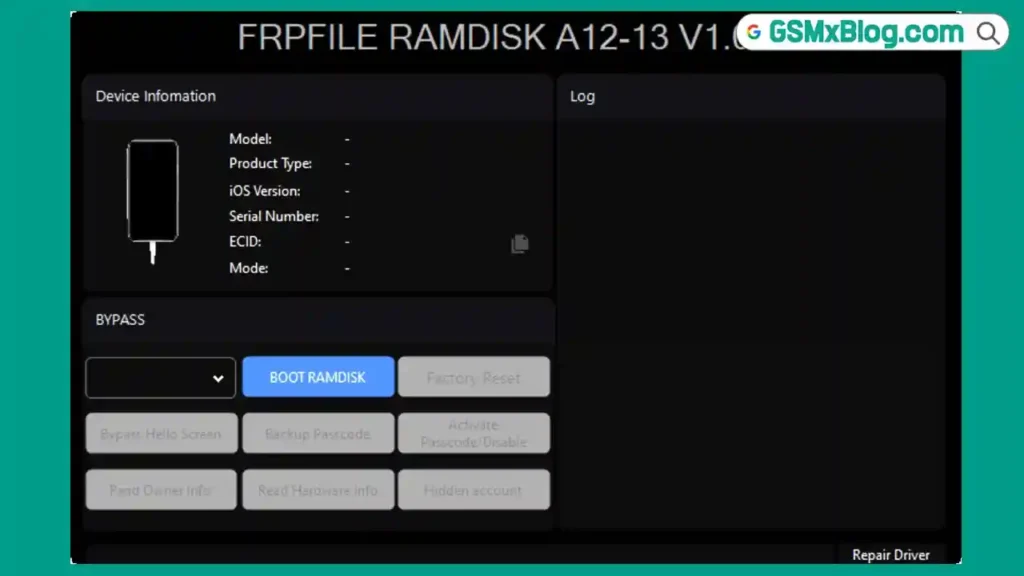
What is FRPFILE RamDisk A12-A13?
FRPFILE RamDisk A12-A13 is a free Windows-based iOS repair tool that boots a RamDisk environment on supported iPhone models using a hardware exploit. It targets devices powered by Apple A12 and A13 Bionic chips and covers a wide iOS range from iOS 13 all the way through iOS 26.
Once the RamDisk boots successfully, the tool gives you access to passcode bypass, iCloud activation lock disable, factory reset while keeping the current iOS version, passcode backup, device activation, and detailed hardware and owner information reading. The tool detects the connected iOS version automatically, so you don’t need to manually select the correct RamDisk file.
The hardware exploit step requires a Waveshare RP2350 USB-A board. Without this board, the PWN process cannot run and the RamDisk boot will not complete.
Key Features of FRPFILE RamDisk A12-A13
- Automatic iOS version detection after connecting in Recovery Mode
- RamDisk boot via RP2350 hardware exploit
- Bypass Passcode on supported devices
- Disable iCloud Activation Lock — iOS 13 to iOS 26.5
- Untethered Hello Screen bypass
- Support for Baseband problem devices on iOS 15 to 18.7.2 and iOS 26.0 to 26.1
- Backup Passcode function
- Factory Reset while keeping the current iOS version
- Device Activation after restoring backup ticket
- Read Owner Information
- Read Hardware Information
- Read Hidden Account Details
- Real-time RamDisk boot progress and mount status display
- DATA partition mount confirmation before Backup Passcode becomes available
Supported Devices
FRPFILE RamDisk A12-A13 V1.0.2 supports the following iPhone and iPad models:
| Device | |
|---|---|
| iPhone XS | iPhone XS Max |
| iPhone XR | iPhone 11 |
| iPhone 11 Pro | iPhone 11 Pro Max |
| iPhone SE (2nd Generation) | iPad Air (3rd Generation) |
| iPad mini (5th Generation) | iPad (8th Generation) |
| iPad (9th Generation) |
What We Tested
The GSMxblog team downloaded FRPFILE RamDisk A12-A13 V1.0.2, extracted the ZIP file, and launched the tool on a Windows PC. We connected a supported iPhone in Recovery Mode first.
The tool detected the iOS version automatically right after the device was connected. We did not have to select the RamDisk file manually — the correct one was picked up without any input from our side.
After that, we put the device into DFU Mode. We connected the Waveshare RP2350 USB-A board to the PC first, then connected the iPhone to the board. We waited until the LED on the RP2350 board turned green again before moving forward — this confirms the exploit completed successfully.
Once the PWN step finished, we disconnected the iPhone from the RP2350 board and reconnected it directly to the PC. The RamDisk boot completed and the tool showed mount DATA OK in the progress area.
After the DATA partition was mounted, the Backup Passcode button became available. We clicked it and waited for the backup to complete, then clicked Factory Reset. After that, we closed and reopened the tool, repeated the DFU and PWN exploit process, and clicked Activate Device to finish the activation.
Every step matched the expected behavior. The tool handled the boot process automatically after the initial exploit, and each stage was visible in the real-time progress display.
FRPFILE RamDisk A12-A13 Download – Latest Version
- File NameFRPFILE_RAMDISK_A12-A13-V1.0.2.zip
- File Size: 36.2 MB
- Version: V1.0.2
- Required Hardware: Waveshare RP2350 USB-A Board
- Supported OS: Windows PC
Official Video Guide
Requirements Before You Start
Before launching FRPFILE RamDisk A12-A13, make sure everything below is ready:
- Waveshare RP2350 USB-A Board — This is mandatory. The PWN exploit step runs through this board. Without it, the RamDisk boot cannot complete.
- Two USB Cables — One for connecting the RP2350 board to the PC, and one for connecting the iPhone to the board during the exploit step.
- Supported iPhone Model — Check the supported devices list above before starting. The tool will not work on unsupported chipsets.
- Supported iOS Version — The tool covers iOS 13 through iOS 26.5 for passcode bypass and disable functions. Check the feature list for iOS-specific limitations.
- Data Backup Awareness — The Factory Reset function erases all user data. Back up anything important before running that step.
How to Use FRPFILE RamDisk A12-A13
Step 1: Download and Extract
Download FRPFILE_RAMDISK_A12-A13-V1.0.2.zip from the MEGA link above and extract it to a folder on your Windows PC.
Step 2: Launch the Tool
Open the extracted folder and run the FRPFILE RamDisk tool executable. No installation is required.
Step 3: Connect iPhone in Recovery Mode
Boot your iPhone into Recovery Mode and connect it to the PC via USB cable. The tool will detect the connected iOS version automatically and select the correct RamDisk file without any manual input.
Step 4: Enter DFU Mode
Put the iPhone into DFU Mode using the correct button combination for your iPhone model. The screen should go completely black when DFU Mode is active.
Step 5: Connect the RP2350 Board
Connect the Waveshare RP2350 USB-A board to your PC via USB. Then connect the iPhone to the RP2350 board using a separate USB cable. Wait until the LED on the board turns green again. This confirms the hardware exploit completed successfully.
Step 6: Reconnect iPhone Directly to PC
Disconnect the iPhone from the RP2350 board and reconnect it directly to the PC. This step is important — skipping it will stop the process. Wait for the RamDisk boot to complete.
Step 7: Wait for DATA Mount
Watch the tool’s progress display until it shows mount DATA OK. The Backup Passcode button will become available only after the DATA partition is mounted successfully.
Step 8: Backup Passcode and Factory Reset
Click Backup Passcode and wait for the backup to complete. Then click Factory Reset to reset the device while keeping the current iOS version.
Step 9: Activate the Device
Close the tool and reopen it. Repeat the DFU and PWN exploit process from Step 4. Once the RamDisk boots again, click Activate Device to complete the activation.
Device Information It Displays
When the iPhone is connected and the RamDisk boots, FRPFILE RamDisk A12-A13 displays the following information:
- Detected iOS Version (auto-detected in Recovery Mode)
- RamDisk Boot Progress
- DATA Partition Mount Status
- Owner Information
- Hardware Information
- Hidden Account Details
All values displayed during the GSMxblog team’s test session matched the connected device correctly.
Known Issue and Fix
/mnt2 Not Mounted or Empty
This error can appear during the RamDisk boot process. If you see it, the recommended fix is to restore the device to the latest supported iOS version using iTunes or Finder, then repeat the full process from the beginning.
Support for newer iOS versions released after Apple updates may also require waiting for a newer version of the tool. If the error persists after restoring, check the FRPFILE official channel for an updated release.
Benefits of FRPFILE RamDisk A12-A13
- Automatic iOS Detection: The tool identifies the connected iOS version in Recovery Mode without any manual selection, which saves time and reduces the chance of loading the wrong RamDisk file.
- Wide iOS Coverage: Passcode bypass and disable functions cover iOS 13 through iOS 26.5, making this tool useful across a broad range of iPhone repair jobs — not just older devices.
- All Functions in One Interface: Passcode backup, factory reset, device activation, owner info reading, and hardware info reading are all available inside the same tool window without switching between different iOS repair tools.
- Baseband Problem Device Support: The tool specifically supports Baseband problem devices on iOS 15 to 18.7.2 and iOS 26.0 to 26.1, which covers a common issue in iPhone repair work.
- Real-Time Progress Display: Every step of the RamDisk boot, DATA mount status, and tool activity is shown in real time so you always know where the process stands.
- Free to Download: FRPFILE RamDisk A12-A13 V1.0.2 is distributed free with no credits, no activation fee, and no subscription required.
Conclusion
FRPFILE RamDisk A12-A13 V1.0.2 is a capable free iOS repair tool for mobile technicians who regularly handle iPhone passcode bypass, activation lock removal, and device activation jobs on Windows PC. The automatic iOS version detection, hardware exploit via the RP2350 board, and real-time RamDisk boot progress display make it a well-structured tool for A12 and A13 iPhone models.
The GSMxblog team tested FRPFILE RamDisk A12-A13 on a supported iPhone and completed the full process — from Recovery Mode detection through to Factory Reset and Device Activation — without errors. The steps must be followed in the correct order, and the Waveshare RP2350 USB-A board is non-negotiable before you start.
If you work with A12 and A13 iPhones regularly, download FRPFILE RamDisk A12-A13 V1.0.2 from the MEGA link above and watch the official video guide before your first run. If you have questions or run into any issues, drop a comment below and we’ll help you out.
Related Articles:
- iAndroFix DFU Helper v1.0.0 – Free Download for Windows PC
- iRemoval Pro – Free Download for Windows
- MTK USB Driver – Free Download for Windows
FAQs
Is the Waveshare RP2350 board required for this tool?
Yes, it is mandatory. The PWN exploit step that enables the RamDisk boot runs through the RP2350 board. The tool cannot complete the process without it.
Which iPhone models does FRPFILE RamDisk A12-A13 support?
The tool supports iPhone XS, XS Max, XR, iPhone 11 series, iPhone SE 2nd Gen, iPad Air 3rd Gen, iPad mini 5th Gen, and iPad 8th and 9th Gen — all A12 and A13 chipset devices.
What does the tool do after the DATA partition is mounted?
Once the tool shows mount DATA OK, the Backup Passcode button becomes available. You can then back up the passcode, run a Factory Reset to clear the device, and later activate it using the Activate Device function.
What should I do if the tool shows “/mnt2 not mounted or empty”?
Restore the device to the latest supported iOS version using iTunes or Finder and repeat the full process from the beginning. If the issue continues, wait for an updated version of the tool.
Does FRPFILE RamDisk A12-A13 work on iPhone 12 or newer?
No. This version supports A12 and A13 chipset devices only. iPhone 12 and newer models use A14 and above, which are not covered by this release.
⚠️ Disclaimer: All tools and files shared on GSMxblog are for educational and testing purposes only. Always scan files before use. Use everything at your own risk.