iAndroFix DFU Helper v1.0.0 Download – Free Tool
When an iPhone gets stuck and won’t respond through normal recovery steps, getting it into DFU mode quickly is the first priority. iAndroFix DFU Helper is a free Windows tool built specifically for that job. It helps technicians and everyday users check their iOS device status, read recovery information, enter or exit Recovery Mode, and start the DFU process — all from one clean interface without any console window opening in the background. The latest v1.0.0 release also removes the old third-party console dependency and replaces it with a fully native API, making the tool faster and more stable than before.
In this guide, the GSMxblog team covers everything about iAndroFix DFU Helper v1.0.0 — what it does, what we found during testing, how to use it step by step, and where to download it free for Windows PC.
What is iAndroFix DFU Helper?
iAndroFix DFU Helper is a free, portable iOS repair tool for Windows that helps you manage DFU and Recovery Mode on iPhone devices. It detects whether your device is in DFU or Recovery Mode, reads device information directly from the connected iPhone, and gives you one-click buttons to enter Recovery Mode, exit Recovery Mode, and start the DFU helper process.
Unlike many similar tools that rely on a third-party console running in the background, iAndroFix DFU Helper v1.0.0 now uses its own native API. This means no extra command prompt windows appear during use, and the log updates instantly after every action. The tool is also fully portable — no installation needed. Just extract and run.
Key Features of iAndroFix DFU Helper
- Detects iPhone in DFU Mode or Recovery Mode automatically
- Reads device information: mode, Product ID, Board, PWNED status
- One-click Enter Recovery Mode button
- One-click Exit Recovery Mode button
- Start DFU Helper function
- iRecovery Info reader
- Check Device button for instant detection
- Real-time log window showing every step clearly
- Clear Log button for a fresh session
- Native API — no third-party console dependency
- Fully portable — no installation required
- Lightweight 7z package with password protection
What’s New in v1.0.0 (2026)
- Removed third-party console dependency completely
- Now uses a fully native API implementation
- Cleaner interface with no background console windows
- Faster and more stable device detection
What We Tested
The GSMxblog team downloaded iAndroFix DFU Helper v1.0.0, extracted the 7z archive with the password iAndroFix, and launched the executable directly — no installation required.
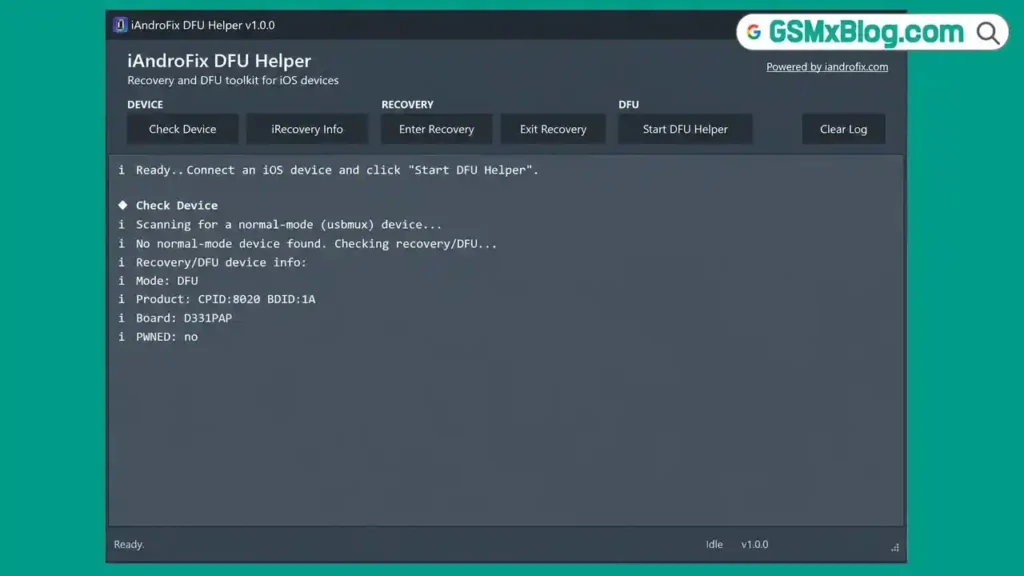
We connected an iPhone that was already in DFU Mode via USB cable and clicked Check Device. The tool detected the device immediately and the log window displayed the following information:
- Recovery/DFU device detected
- Mode: DFU
- Product ID: CPID:8200 BDID:1A
- Board: D331PAP
- PWNED: no
Every step of the USB scan appeared in the log in real time, so there was no guessing about what the tool was doing at each stage. Detection was instant and accurate — the tool confirmed DFU Mode without any errors.
We also tested the Enter Recovery and Exit Recovery buttons. Both responded immediately after clicking. The interface stayed clean throughout the entire session, with no console window opening in the background at any point — which is the biggest improvement in this version.
The tool is genuinely portable. We ran it straight from the extracted folder on a USB drive and it worked without requiring any additional setup on the Windows PC.
iAndroFix DFU Helper Download
- File Name: iAndroFixDFUHelper.7z
- File Size: 5.67 MB
- Version: v1.0.0
- Archive Password: iAndroFix
- Tool Type: Free / Portable
- Supported OS: Windows PC
Download iAndroFix DFU Helper v1.0.0
Make sure you have Apple’s iTunes or the Apple USB Driver installed on your Windows PC before connecting your iPhone. Without it, the tool will not detect the device.
How to Use iAndroFix DFU Helper
Step 1: Download and Extract
Download iAndroFixDFUHelper.7z from the link above. Extract it using 7-Zip and enter the password iAndroFix when prompted.
Step 2: Launch the Tool
Open the extracted folder and double-click the executable file to launch iAndroFix DFU Helper. No installation is needed — the tool runs directly.
Step 3: Put Your iPhone into DFU Mode
Boot your iPhone into DFU Mode using the correct button combination for your specific iPhone model. The screen should remain completely black when DFU Mode is active.
Step 4: Connect Your iPhone
Connect your iPhone to the Windows PC via a USB cable. Make sure the Apple Mobile Device USB Driver is installed so the tool can detect the device.
Step 5: Click Check Device
Click the Check Device button in the tool. The log window will update immediately and display your device’s current mode, Product ID, Board information, and PWNED status.
Step 6: Use the Required Function
Depending on what you need to do, click the matching button:
- iRecovery Info — Read detailed recovery information from the connected device
- Enter Recovery — Force the device into Recovery Mode
- Exit Recovery — Exit Recovery Mode and return to normal boot
- Start DFU Helper — Begin the DFU helper process for the connected iPhone
Step 7: Monitor the Log
Watch the log window throughout the process. Every step is displayed in real time so you can confirm the action completed successfully. Use the Clear Log button to reset the log between sessions.
Device Information It Displays
When an iPhone is connected and Check Device is clicked, iAndroFix DFU Helper shows the following details inside the log window:
- Current Device Mode (DFU or Recovery)
- Product ID (CPID and BDID values)
- Board Information
- PWNED Status
- Recovery / DFU Detection Status
All values matched our test device correctly during the GSMxblog team’s testing session.
Something to Know Before You Start
The tool works with iPhones connected in DFU Mode or Recovery Mode. It will not detect a device that is in normal boot or completely powered off. Make sure your iPhone is in one of these two modes before connecting and clicking Check Device.
Since the tool is fully portable, you can run it from any folder or USB drive. There is no need to copy it to a specific directory or run any installer before use.
If you have iTunes installed on your Windows PC, the Apple Mobile Device USB Driver is likely already present. If not, install iTunes first to make sure the driver is available before connecting the iPhone.
Benefits of iAndroFix DFU Helper
- Native API — No Console Windows: The biggest improvement in v1.0.0 is the removal of the third-party console dependency. The tool runs cleanly without opening any background command prompt windows.
- Instant Device Detection: The GSMxblog team’s test showed that device detection happened the moment we clicked Check Device, with no delay and no errors.
- Real-Time Log: Every USB scan step and every action is displayed immediately in the log window, so you always know exactly what the tool is doing.
- All DFU Functions in One Place: Check Device, iRecovery Info, Enter Recovery, Exit Recovery, and Start DFU Helper are all available from one simple interface without switching between different iOS repair tools.
- Fully Portable: At just 5.67 MB, the tool extracts and runs from anywhere — no installation, no registry changes, no setup wizard.
- Completely Free: iAndroFix DFU Helper v1.0.0 is free to download and use with no credits, no activation, and no subscription required.
Conclusion
iAndroFix DFU Helper v1.0.0 is a clean, focused, and genuinely useful free iOS tool for any mobile technician or iPhone user who regularly deals with DFU and Recovery Mode tasks on Windows PC. Device detection works instantly, the log window keeps you informed at every step, and the removal of the third-party console dependency in this version makes the whole experience noticeably smoother than older tools in this category.
The GSMxblog team tested iAndroFix DFU Helper v1.0.0 with a real iPhone in DFU Mode and it detected the device correctly on the first try, displaying accurate Product ID, Board, and PWNED status information without any errors. If you need a lightweight, portable, and free DFU helper tool for Windows, this one is worth keeping in your iPhone repair toolkit.
Download iAndroFix DFU Helper v1.0.0 from the link above and try it on your next iPhone repair job. If you have any questions or run into issues, drop a comment below and we’ll help you out.
Related Articles:
- iRemoval Pro – Free Download for Windows
- MTK USB Driver – Free Download for Windows
- Qualcomm USB Driver – Free Download for Windows
FAQs
Does iAndroFix DFU Helper work on Android devices?
No. iAndroFix DFU Helper is built specifically for iPhone (iOS) devices. It works with iPhones connected in DFU Mode or Recovery Mode and will not detect Android phones.
What is the archive password for the 7z file?
The password is iAndroFix. Enter it when 7-Zip or WinRAR prompts you during extraction.
Why is my iPhone not being detected?
Make sure your iPhone is in DFU Mode or Recovery Mode before connecting. Also confirm that the Apple Mobile Device USB Driver is installed on your Windows PC — installing iTunes will add this driver automatically.
Do I need to install anything before running this tool?
No installation is needed for the tool itself. It is fully portable and runs directly from the extracted folder. However, the Apple Mobile Device USB Driver must be present on your PC for device detection to work.
What does the PWNED status mean in the log?
The PWNED status indicates whether the device has been checkm8 exploited. During the GSMxblog team’s test, the connected iPhone showed PWNED: no, which means the device was in standard DFU Mode without any prior exploit applied.
⚠️ Disclaimer: All tools and files shared on GSMxblog are for educational and testing purposes only. Always scan files before use. Use everything at your own risk.