ADBTool Beta v1.3.2 (Latest Version) Free Download for Windows PC 2026
If you work with Android devices daily and want a simple way to manage apps, run ADB commands, and scan for malware — all without typing a single line of code — ADBTool Beta v1.3.2 is worth checking out. This free GSM tool brings together the most common ADB functions into one clean Windows interface, making it easy for both mobile technicians and regular users to get things done faster on their Android repair workflow.
This article covers everything about ADBTool Beta v1.3.2, including its full feature list, how to use it, and the direct free download link.
What Is ADBTool Beta?
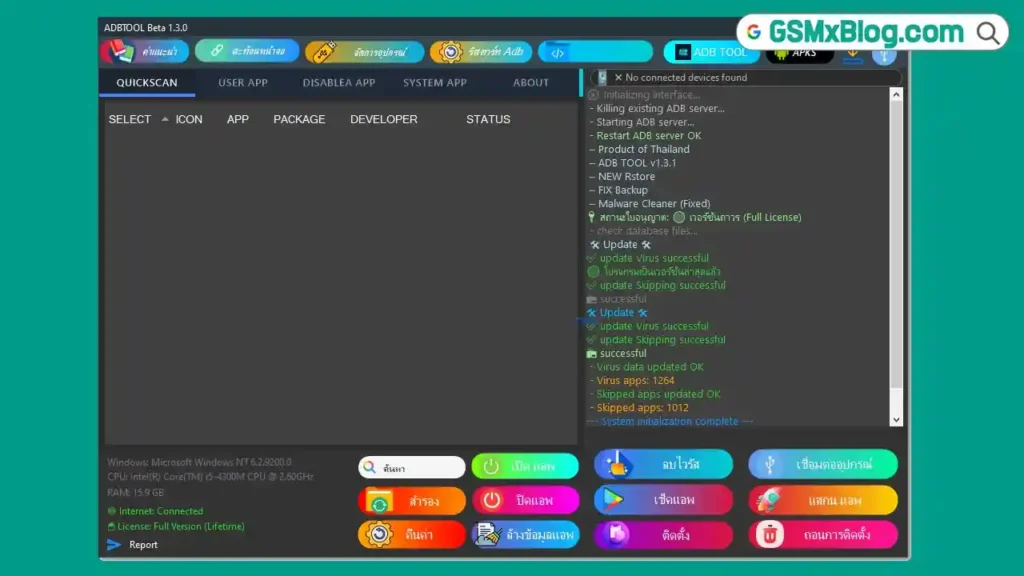
ADBTool Beta v1.3.2 is a Windows-based Android management utility that runs through ADB mode to handle app management, backup and restore, system app control, and malware scanning — all from a single screen. Unlike the standard Android Debug Bridge command line, this tool puts everything on the main interface so you don’t have to dig through menus or memorize commands.
Once you connect your phone with USB debugging enabled, ADBTool Beta detects the device automatically and lists all installed apps along with package names and developer details. The console panel on the right side of the interface shows real-time status updates — from ADB server initialization to virus database updates — so you always know exactly what the tool is doing. It’s a practical free download built for everyday Android tasks rather than deep chipset-level repairs.
The tool runs as a Full License version and displays system info including your Windows version, CPU, and RAM directly on the main screen. Internet connectivity is checked on startup to handle virus definition updates automatically.
Key Features of ADBTool Beta v1.3.2
🔍 QuickScan Module
- Scan installed applications
- View app details and package information
- Malware and virus detection built-in
- Displays app icon, name, package, developer, and status in a sortable list
📱 User App Management
- View and manage user-installed apps
- Backup and restore applications
- Uninstall unwanted user apps
🚫 Disable App Module
- Disable selected applications
- Manage and re-enable disabled apps
⚙️ System App Control
- View all system applications
- Disable system apps
- Remove unwanted system apps via ADB method
🔧 ADB Functions
- Start, restart, and kill the ADB server
- Device detection and ADB interface initialization
- APK management and installation
- NEW RStore integration
🛡️ Security Features
- Malware Cleaner (Fixed in this version)
- Virus database with 1,264 known virus apps
- Skipped apps database with 1,012 entries
- Virus data update and definition refresh on startup
- Virus app detection and skipped app detection
💾 Backup & Restore
- Full app backup and restore
- FIX Backup option for corrupted backup files
- Clear app data function
📊 System Information
- Windows version, CPU, and RAM info displayed on main screen
- Internet status and license status shown in real time
- Report generation built in
Download ADBTool Beta v1.3.2
- File Name: ADB TOOL 1.3.2 NEW.rar
- Version: v1.3.2
- File Size: 58.3 MB
- Platform: Windows PC
How to Install ADBTool Beta v1.3.2
- Download the RAR file from the link above.
- Extract the archive using WinRAR or 7-Zip.
- Open the extracted folder and locate the main executable.
- Right-click the tool and select Run as Administrator.
- Allow any Windows security prompts that appear.
- The tool launches directly — no installation wizard required.
✅ Make sure your antivirus doesn’t block the executable, as some security programs flag ADB-based tools as false positives. Use it on a dedicated repair PC for best results.
How to Use ADBTool Beta v1.3.2
▶️ Connecting Your Android Device
- On your Android phone, go to Settings → About Phone and tap Build Number seven times to enable Developer Options.
- Open Developer Options and turn on USB Debugging.
- Connect the phone to your Windows PC via USB.
- Open ADBTool Beta v1.3.2 as Administrator.
- Click Connect Device — the tool detects your phone automatically and confirms in the console panel.
▶️ Scanning and Managing Apps
- Click QuickScan to scan all installed apps.
- The tool lists every app with icon, package name, and developer info.
- Select any app and use the bottom buttons to Open App, Backup, Uninstall, or Check App.
- Click Delete Virus to remove any flagged malicious apps from the scan results.
▶️ Backing Up and Restoring Apps
- Select the app you want to back up from the list.
- Click the Backup button — the file saves locally on your PC.
- To restore, click Restore and select the saved backup file.
- If a backup file is corrupted, use FIX Backup to attempt repair.
▶️ Disabling System Apps
- Navigate to the Disable App or System App tab.
- Find the app you want to disable from the list.
- Select it and click Disable — the app stops running without being uninstalled.
- You can re-enable it at any time from the same section.
System Requirements
| Component | Requirement |
|---|---|
| OS | Windows 10 / 11 (32-bit or 64-bit) |
| RAM | 2 GB minimum (15.9 GB tested) |
| CPU | Intel / AMD Dual-Core or faster |
| Storage | 100 MB free space |
| USB Port | USB 2.0 or 3.0 |
| Android | USB Debugging must be enabled |
| Internet | Required for virus database updates |
⚠️ Warning
Always back up your important data before disabling or removing system apps. Removing the wrong system application can cause your phone to malfunction or bootloop. If you’re not sure what an app does, research its package name before taking action. Test the tool on a non-critical device first.
Important Notes
🛡️ Antivirus Notice: Some antivirus programs may flag ADBTool Beta as a potential threat due to its ADB-based functionality. This is typically a false positive. Run it on a dedicated mobile repair PC. 📌 Credit: Full credit goes to the ADBTool Beta development team for building and maintaining this utility. 🔌 USB Driver: Make sure the correct MTK USB Driver or Qualcomm USB Driver is installed on your PC before connecting any Android device. ⚠️ Beta Notice: This is a beta release — some minor issues may be present. Test carefully and report any bugs through the official channel.
Frequently Asked Questions (FAQs)
❓ Is ADBTool Beta v1.3.2 completely free? Yes, this tool is available as a free download with no login required. The Full License version is included.
❓ Does ADBTool Beta work on all Android devices? It works on most Android phones that support USB debugging and ADB communication. Compatibility may vary by device model and Android version.
❓ Do I need to root my phone to use this tool? No. Most features like app management, backup, and scanning work without root. Some advanced system app removal functions may require root access depending on the device.
❓ Is USB debugging required? Yes, USB debugging must be enabled on your Android device before ADBTool Beta can detect and connect to it.
❓ Why does my antivirus flag this tool? ADB-based tools often trigger antivirus alerts because they interact with device systems at a deep level. This is usually a false positive. Scan the file independently and use it on a dedicated repair machine.
Conclusion
ADBTool Beta v1.3.2 is a practical free download for any mobile technician or Android user who wants to manage apps, handle backups, and scan for malware without touching the command line. The interface keeps all the key functions in one place across the QuickScan, User App, Disable App, System App, and APKS tabs, so there’s no need to jump between different GSM tools for basic Android repair tasks. With a built-in virus database of over 1,264 threat definitions and real-time console logging, it’s more capable than it looks. If you regularly work on Android devices and need a no-fuss ADB solution for your Windows PC, download ADBTool Beta v1.3.2 and add it to your toolkit today.
Found this tool useful? Drop a comment below with your experience.