Amlogic USB Burning Tool Free Download (All Versions) 2026 for Windows
If you own an Android TV box powered by an Amlogic chipset and need to flash stock firmware, recover a bricked device, or push a clean operating system image — Amlogic USB Burning Tool is the official flash tool made exactly for that job. Whether your TV box is stuck on a boot logo, running buggy software, or completely unresponsive, this free Windows utility gives you full low-level access to push firmware directly to Amlogic-based hardware without complicated workarounds.
This article covers everything about the Amlogic USB Burning Tool, including all available versions, key features, installation steps, and a complete firmware flashing guide.
What Is Amlogic USB Burning Tool?
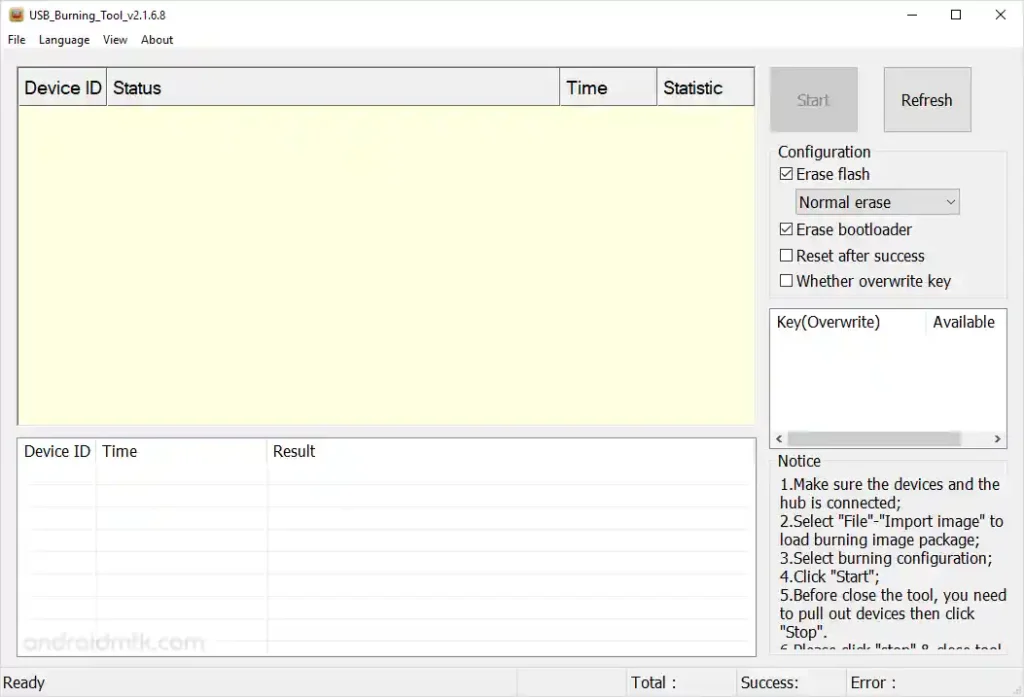
Amlogic USB Burning Tool — also commonly called the Amlogic Flash Tool — is the original desktop utility built specifically for flashing stock firmware images onto devices running Amlogic processors. This chipset family powers a huge range of Android TV boxes, OTT media streaming players, smart set-top boxes (STBs), and open-source development hardware modules used all over the world.
🔧 Unlike generic flash tools, the Amlogic USB Burning Tool works at the processor level — it can push firmware even when the device is completely non-responsive, making it one of the few reliable recovery options for badly bricked Amlogic TV boxes.
The tool comes in two main stable builds: v3.1.8 (the modern version for current Amlogic SOCs) and v2.1.6 (the legacy build recommended for older chipset generations). Both are covered below.
Key Features of Amlogic USB Burning Tool
📦 Firmware Flashing
- Flash stock .img firmware files directly to Amlogic devices
- Supports full system flashing from a Windows PC
- Works even on completely bricked or non-booting devices
- Processes standard Amlogic .img format only — not OTA ZIP files
🔌 Integrated Driver Package
- Installer bundle includes Worldcup and specialized processor connectivity drivers
- No need to manually install third-party USB drivers separately
- Drivers are auto-configured during the setup wizard process
🛡️ Firmware Verification
- Automatically scans and validates firmware checksum hashes before flashing
- Protects your device from corrupt or mismatched firmware builds
- Verification runs locally — no internet connection needed
🧹 Low-Level Partition Management
- Integrated memory wipers for structural block formatting
- Can clean broken bootloader code zones
- Normal Erase and Full Erase options available
🖥️ Interface
- Clean dashboard-style interface
- Language toggle available (English and Chinese)
- Real-time progress bar and status log
- Connection status shown clearly on screen
🖥️ Windows Compatibility
- Supports Windows 7, 8, 10, and 11
- Works on both 32-bit and 64-bit systems
Download Amlogic USB Burning Tool (All Versions)
- File Name: Amlogic_USB_Burning_Tool_v3.3.4.zip
- File Size: 52.84 MB
- Platform: Windows PC
- Firmware Format: .img only
- License: Free
✅ Which version should you use? Use v3.1.8 for modern Amlogic TV boxes. Use v2.1.6 if your device runs an older Amlogic chipset generation and v3.1.8 fails to detect it.
How to Install Amlogic USB Burning Tool
- Download your preferred version (v3.1.8 or v2.1.6) from the table above.
- Extract the ZIP archive using WinRAR or 7-Zip to any folder on your PC.
- Open the extracted folder and locate Install_Wizard.exe (or the matching version setup file).
- Right-click it and select Run as Administrator.
- Accept the License Agreement and click Next to proceed through the setup.
- When a Windows Security prompt appears asking to install device drivers, click Install to allow the driver mapping to complete.
- The tool is now ready to use.
How to Flash Firmware via Amlogic USB Burning Tool
▶️ Step 1 — Open the Tool
- Launch the Amlogic USB Burning Tool from your desktop shortcut.
- If the interface opens in Chinese, click the second menu tab from the left in the top menu bar and switch the language to English.
▶️ Step 2 — Import the Firmware File
- In the tool, go to File → Import Image.
- A file browser window will open.
- Browse to your unzipped .img firmware file built for your exact Amlogic TV box model.
- Select it and click Open.
- Wait a moment while the tool verifies the firmware checksum automatically.
⚠️ Only load .img firmware files. Standard OTA recovery ZIP files are not compatible with this tool and will cause errors.
▶️ Step 3 — Configure Settings and Start Standby
- Check the right-side configuration panel — for most standard flashing jobs, leave it on Normal Erase.
- Click the Start button at the top right of the interface.
- The tool enters active listening standby, waiting for your device to connect.
▶️ Step 4 — Connect Device in Recovery Mode
- Power off your Amlogic TV box completely.
- Locate the hidden reset/restore button on your device. On most Amlogic TV boxes, this is found inside the AV output jack hole or a secondary pin port.
- Press and hold the reset button firmly using a toothpick, paperclip, or pin tool.
- While holding the button, connect the TV box to your PC using a male-to-male USB cable.
- The tool will detect the device and display a green “Connect Success” message in the status log.
- Release the reset button once connection is confirmed.
💡 If detection fails, try the USB port closest to the main DC power input jack on your TV box.
▶️ Step 5 — Monitor Flashing and Reboot
- The tool automatically starts pushing the firmware and displays a live progress bar.
- Do not disconnect or touch the USB cable during this process.
- Once flashing reaches 100%, the status banner turns solid green and displays “Burning Successful”.
- Click the Stop button inside the tool.
- Disconnect the USB cable, connect the TV box to your TV, and power it on.
System Requirements
| Component | Requirement |
|---|---|
| OS | Windows 7 / 8 / 10 / 11 (32-bit & 64-bit) |
| USB Cable | Male-to-male USB data cable |
| Firmware Format | .img only (no OTA ZIP) |
| Device Power | Minimum 50% charge or DC power connected |
| Internet | Not required |
⚠️ Warning
Back up all data before flashing. The flashing process permanently erases all apps, accounts, and data stored on the device. Flashing the wrong firmware for a different device model can cause a hard brick. Always confirm your TV box model before selecting a firmware file. Maintain at least 50% device battery or keep the DC power supply connected throughout the operation to prevent accidental cutoffs.
Important Notes
🛡️ Antivirus Notice: Some antivirus programs may flag the installer or drivers as a false positive. Add the tool folder to your exclusion list and run it on a dedicated repair machine. 📌 Firmware Format: Only .img firmware packages work with this tool. Do not attempt to load standard OTA recovery ZIP files — the tool will not flash them. 🔌 USB Driver: The integrated driver package is included in the installer. No separate driver download is needed. ⚠️ Language: If the interface opens in Chinese, switch to English from the top menu bar before starting any operation.
Frequently Asked Questions (FAQs)
❓ Which version should I download — v3.1.8 or v2.1.6? Use v3.1.8 for modern Amlogic devices. If your device is older and v3.1.8 doesn’t detect it, switch to v2.1.6.
❓ Can I use this tool to flash any Android TV box? No. This tool only works with TV boxes and devices running Amlogic chipsets. It will not work on Rockchip, AllWinner, or other processor families.
❓ What firmware format does this tool support? Only .img firmware files. Standard OTA ZIP archives are not supported.
❓ My TV box is completely dead. Can this tool still recover it? In most cases, yes. The Amlogic USB Burning Tool bypasses the bootloader entirely and pushes firmware at the chipset level, making it effective for recovering bricked or non-booting devices.
❓ Do I need to install USB drivers separately? No. The installer package includes all necessary drivers and configures them automatically during setup.
Conclusion
Amlogic USB Burning Tool is the go-to free download for anyone working with Amlogic-powered Android TV boxes. Whether you need to flash a fresh firmware, fix a bricked device, or push a clean stock ROM for Android repair purposes, this tool handles it cleanly from Windows PC without needing separate USB drivers or third-party utilities. With two stable versions covering both modern and legacy Amlogic chipsets, there’s a build for every supported device. If you work on Amlogic TV boxes and need a reliable flash tool, download Amlogic USB Burning Tool today and keep it in your permanent GSM toolkit.
Have questions or experience with this tool? Drop a comment below.