Download Venom Auth Tool Free Version – Xiaomi & POCO Auth Tool
Hello GSM friends! If you are a mobile technician who regularly works on Xiaomi and POCO devices, you already know how important it is to have a reliable GSM tool that handles authentication, FRP bypass, and chipset-level operations. Today we are covering the Venom Auth Tool Free Version, a Windows-based utility designed specifically for Qualcomm and MediaTek Xiaomi devices. Read through this complete guide to understand what this tool does, how to set it up, and what to expect before you download it.
What Is Venom Auth Tool?
Venom Auth Tool is a free Windows PC utility built for mobile technicians and repair professionals working with Xiaomi and POCO Android devices. It targets both Qualcomm and MediaTek chipsets and brings together several essential repair functions into one interface — including MiCloud removal, FRP bypass, bootloader unlock, EDL mode reboot, and ADB/Fastboot operations.
The tool has its own venomauthtool where registration and download are available. It runs a credit-based login system, meaning account creation is free but certain operations may require credits to execute.
Key Features of Venom Auth Tool Free Version
📱 Qualcomm Device Support
- Reboot Fastboot to EDL (Qualcomm 9008 Mode)
- Instant Bootloader Unlock
- Force BROM Mode
- Auto Device Detection
🔧 MediaTek Device Support
- Write Engineering Preloader
- Force BROM Mode
- MediaTek Android Functions
🔓 Android & Security Functions
- Remove FRP
- Erase FRP and Userdata
- Remove MiCloud++
- Security Tab Functions
🛠️ ADB & Fastboot Tools
- ADB Support
- Fastboot Support
- Device Manager Shortcut
- TestPoint Access Button
- Live Operation Log Window
📋 Supported Devices
- Xiaomi Devices (Multiple Models)
- POCO Devices
Tool Information
| Detail | Info |
|---|---|
| File Name | Venom_Auth_Tool_Free_Version.rar |
| File Size | 49 MB |
| Platform | Windows PC |
| Chipset Support | Qualcomm, MediaTek |
| Activation | Free Account + Credit System |
Download Venom Auth Tool Free Version
- File Name: Venom_Auth_Tool_Free_Version.rar
- File Size: 49 MB
- Platform: Windows PC
How to Install Venom Auth Tool on Windows PC
Setting up this flash tool on your Windows PC is straightforward. Follow these steps carefully:
- Download the RAR package using the download link below.
- Extract the downloaded file using WinRAR or 7-Zip.
- Open the extracted folder and locate Launcher.exe.
- Right-click on Launcher.exe and select Run as Administrator.
- The login window will open. Enter your registered username and password.
- Connect your Xiaomi or POCO device using a USB cable.
- Select the correct chipset tab (Qualcomm or MediaTek).
- Choose the operation you want to run and click the function button.
- Watch the live log window to monitor the operation in real time.
- Wait for the success message before disconnecting your phone.
✅ Make sure the correct USB driver is installed before connecting your device. You can grab the MediaTek USB Driver or Qualcomm USB Driver from our drivers section.
Understanding the Login and Credit System
Venom Auth Tool uses a free-access, credit-based model. Here is what you need to know before getting started:
- ✅ Free: Account registration on the official website (venomauthtool.com)
- ✅ Free: Downloading and opening the tool interface
- ⚠️ Requires Credits: Most device operations require an active credit balance
- ⚠️ No In-App Registration: You must register through the website first, then log in through the tool
One thing worth noting — new users can create an account quickly without email verification, but the software will block actual operations until your account has credits. The tool does not currently show clear instructions inside the interface for how to purchase or add credits, so check the official website for that information.
💡 Tip: If you only need the Reboot to EDL function for Qualcomm Android repair, this GSM tool does deliver. The function was confirmed working on a Redmi 4X, with the device entering Qualcomm 9008 mode successfully — verified through Windows Device Manager.
What the Interface Shows
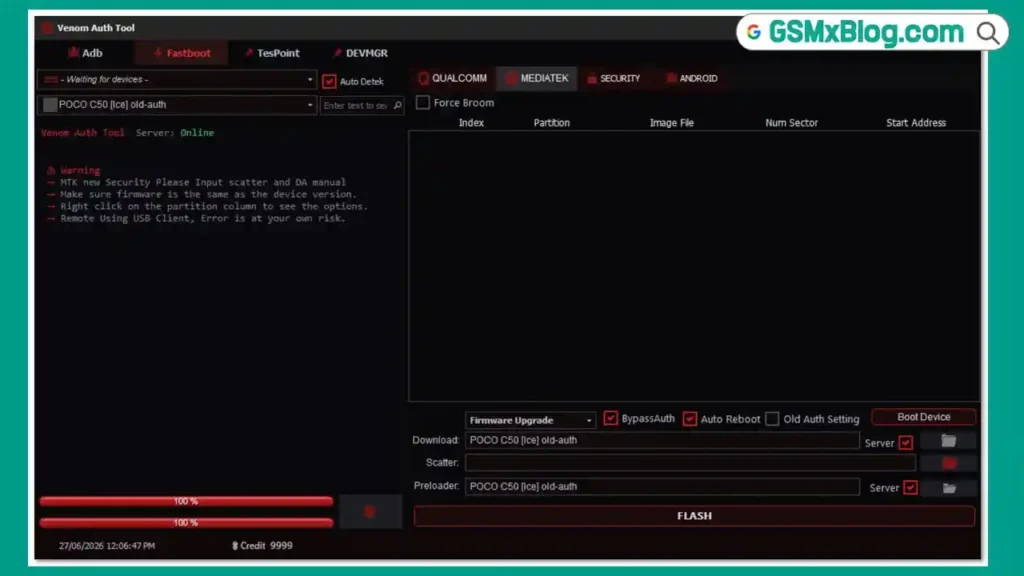
After logging in, you land on a clean dashboard with separate tabs for Qualcomm and MediaTek devices. The Android tab covers general repair functions while the Security tab focuses on authentication and protection-related operations.
The top menu gives quick access to ADB, Fastboot, TestPoint, and Device Manager buttons — useful for checking your device connection before running any operation. The live log window updates in real time and shows connection status, chipset detection, command responses, and operation results as they happen.
System Requirements
| Component | Requirement |
|---|---|
| OS | Windows 7 / 10 / 11 (PC) |
| Processor | Intel or AMD Dual-Core |
| RAM | 2 GB minimum |
| Storage | Sufficient free space |
| USB Port | USB 2.0 or 3.0 |
| Internet | Required for login and server operations |
⚠️ Warning
Before running any FRP bypass, erase, or MiCloud removal operation, always back up user data where possible. Results can vary between device models — just because an operation works on one Xiaomi model does not guarantee it will work on every model. Test on non-critical devices first and proceed carefully.
Important Notes
🛡️ Antivirus Alert: Launcher-based tools like this are commonly flagged by antivirus software as false positives due to how they communicate with servers. Use on a dedicated repair PC and disable antivirus only during launch if needed.
📌 Credit: Full credit goes to the Venom Auth Tool development team for building and maintaining this free Android repair utility.
🔌 USB Drivers: Install the correct drivers before connecting devices. Visit our Flash Tools section for driver downloads.
Frequently Asked Questions (FAQs)
❓ Is Venom Auth Tool completely free? Account creation and the tool download are free. However, most device operations run through a credit system, so you will need to add credits before performing repairs.
❓ Does it support MediaTek devices? Yes. The tool includes a dedicated MediaTek tab with functions like Write Engineering Preloader and Force BROM Mode alongside the Qualcomm section.
❓ Why can’t I register inside the software? Registration is only available on the official website at venomauthtool.com. Once your account is created, you can log in through the tool.
❓ Is the Reboot to EDL function confirmed working? Yes — the Reboot Fastboot to EDL function was tested on a Redmi 4X and the device entered Qualcomm 9008 EDL mode successfully, confirmed through Windows Device Manager.
❓ What USB driver do I need? For Qualcomm Xiaomi devices, install the Qualcomm USB Driver. For MediaTek models, use the MTK USB Driver.
❓ Will antivirus flag this tool? Launcher-based tools are often flagged as false positives. This is a common behavior for GSM tools that use server authentication. Use it on a dedicated repair workstation.
Conclusion
Venom Auth Tool Free Version is a straightforward GSM tool targeting Xiaomi and POCO device repair on Windows PC. It covers both Qualcomm and MediaTek chipsets and delivers useful functions including MiCloud removal, FRP bypass, EDL reboot, ADB support, and instant bootloader unlock — all from one interface. The free account model makes it accessible for mobile technicians who want to test it before committing to credits.
The login and credit system may feel limiting for first-time users, but the core functions work as described when your account is active. If your daily repair work involves Xiaomi Android repair or Qualcomm-based flashing tasks, download the Venom Auth Tool and give it a proper test on your bench devices.
Have you tested Venom Auth Tool on your devices? Drop your results and experience in the comments below — your feedback helps other technicians in the GSM community!