Mobileuncle MTK Tools APK Download
If you own a MediaTek (MTK) Android phone and want to access hidden engineering settings, backup your IMEI, fix GPS issues, flash custom recovery, or check deep hardware information — Mobileuncle MTK Tools is the one app you need on your device.
In this complete 2026 guide, we’ll cover everything about Mobileuncle MTK Tools — what it is, all its features explained in detail, how to download and install the APK safely, step-by-step usage guide, and answers to the most common questions. Whether you’re a mobile technician or a curious Android enthusiast, this guide has everything you need.
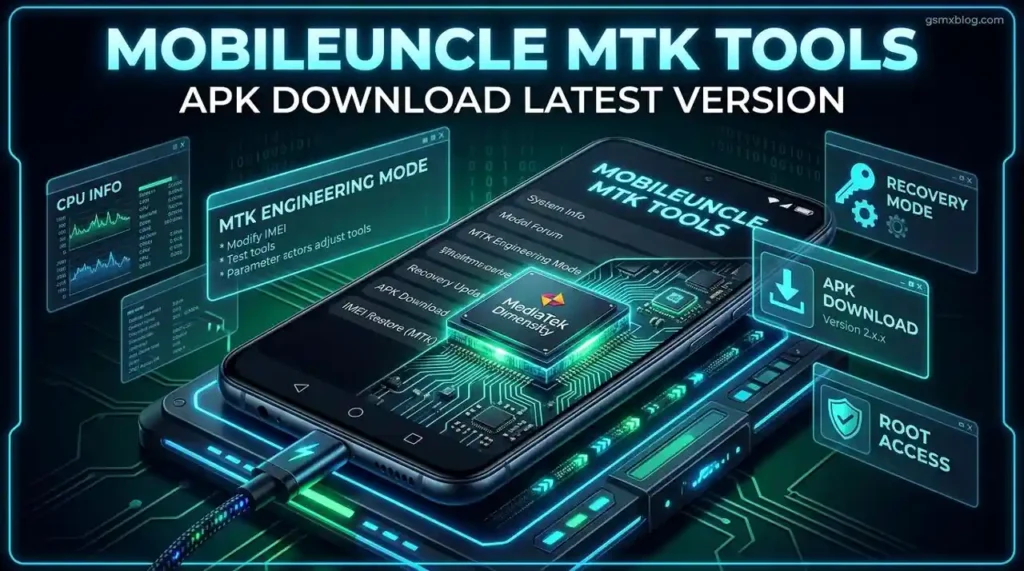
What Is Mobileuncle MTK Tools?
Mobileuncle MTK Tools is a small but powerful Android app that lets you view device info, back up the IMEI on MTK devices, search for or flash recovery, and quickly reboot the device to recovery mode.
Developed by a Chinese developer known as NJava, this app was specifically built for MediaTek-powered Android smartphones. MediaTek (MTK) is a fabless semiconductor company based in Taiwan whose chips are found in the majority of budget and mid-range Android phones worldwide — including popular brands like Tecno, Infinix, Itel, Symphony, Realme (MTK models), Xiaomi Redmi (MTK models), Walton, and hundreds of Chinese brands.
MTK means MediaTek, a company whose chips are really affordable and come by default inside most cheap Android devices. MediaTek is also the company that manufactures chips for almost all Dual-SIM devices.
What makes Mobileuncle MTK Tools special is that it unlocks the hidden Service Mode and Engineering Mode on MTK devices — settings that are normally locked by the manufacturer. Through these hidden menus, you can perform advanced operations that are not accessible through normal Android settings.
⚠️ Important Notice: This app requires root access for most of its advanced features. Without root, only basic device information will be accessible.
App Info & File Details
| Detail | Information |
|---|---|
| App Name | Mobileuncle MTK Tools |
| Developer | NJava |
| Package Name | com.mobileuncle.toolbox |
| Platform | Android |
| Category | Tools / Developer Tools |
| Root Required | Yes (for advanced features) |
| Price | Free |
| File Format | APK |
| Compatible OS | Android 4.0 and above |
| Compatible Chipsets | MediaTek (MTK) only |
| File Size | ~2–5 MB |
| Available On | Direct APK download |
Mobileuncle MTK Tools APK Download
Key Features of Mobileuncle MTK Tools
The Mobileuncle app offers many great tools for your phone. You can easily manage your system, fix common issues, and customise your device settings with just a few taps. Here is a complete breakdown of every feature:
📱 1. Device Info Display
This feature displays your CPU type, Kernel version, IMEI numbers, screen resolution, RAM status, and internal storage capacity on a single screen. It’s the fastest way to see everything about your MTK device hardware and software at once.
⚙️ 2. Engineering Mode & MTK Engineering Mode
Access hidden settings specifically for MediaTek devices. Use this mode to modify IMEI numbers, run hardware test tools, and adjust various system parameters that the manufacturer usually locks. This is the most powerful feature of the app — it opens the full service menu used by factory technicians.
🔁 3. Backup & Restore IMEI
The Backup and Restore IMEI feature is used to either backup or restore the device’s IMEI number. It serves as a way of retrieving IMEI number when it gets corrupted. This is critical for technicians — always back up your IMEI before flashing any ROM.
🔧 4. Recovery Update / Flash Recovery
Easily update your system recovery to a custom version. Mobileuncle allows you to search for compatible recovery files online or flash a specific file directly from your local storage.
📡 5. Power GPS Search
Fix slow or non-responsive GPS signals on your Android phone. Mobileuncle refreshes your location data and optimises the search parameters to help your device lock onto satellites much faster.
📂 6. App to SD Card
Free up internal storage by moving installed applications to your external SD card. This is perfect for devices that normally restrict moving apps, helping you manage your memory more effectively.
🔄 7. Reboot to Recovery
Enter the recovery environment without using complex hardware button combinations. One tap will safely restart your device into recovery mode, making it easier to perform wipes or flash new files.
💾 8. APK Backup
Safeguard your mobile applications by creating local backups of your APK files. This feature ensures you can reinstall your favourite tools quickly without using any extra data later.
📶 9. GPRS Operator Lock Removal
Remove the network access restriction that some operators apply via GPRS on MTK devices. This unlocks limited network access for full connectivity.
📶 10. Wi-Fi Information & Diagnostics
Wi-Fi Information has 3 sub-options: Wi-Fi API — allows you to disconnect network and get connection info like IP Address, Gateway & Bandwidth capability; Wi-Fi Config — shows your device’s behavior settings; Wi-Fi Status — shows everything related to the connection between device and Router, including the MAC ID of the router.
🔊 11. Sound Output Control
Sound Output allows you to change the sound intensity of your device beyond the normal volume limits set by the manufacturer.
📊 12. App Usage Statistics
View which apps are using the most memory, when they were last used, and their total uptime — helping you identify battery drains and performance issues.
Supported Devices & Chipsets
Mobileuncle MTK Tools works exclusively on MediaTek chipset devices. It does NOT work on Qualcomm Snapdragon, Samsung Exynos, or Unisoc phones.
Supported MTK Chipsets:
| Generation | Chipset Examples |
|---|---|
| Budget MTK | MT6580, MT6572, MT6582, MT6592 |
| Mid-range MTK | MT6735, MT6737, MT6739, MT6750 |
| Popular MTK | MT6761, MT6762, MT6765, MT6768 |
| Helio Series | Helio G85, G88, G96, G99, P60, P70 |
| Dimensity Series | MT6833, MT6877, MT6893 (limited support) |
Supported Brands (MTK models only):
- Tecno — Spark, Camon, Pop series (MTK)
- Infinix — Hot, Note, Zero series (MTK)
- Itel — A series, S series (MTK)
- Symphony — All MTK models
- Walton — Primo series (MTK)
- Realme — MTK-based models
- Xiaomi / Redmi — MTK-based models (Redmi A, Redmi Note MTK)
- Oppo / Vivo — MTK-based budget models
- Samsung — MTK-based Galaxy A/M budget models
- Chinese brands — Most budget phones with MTK chips
⚠️ Note: This app will NOT work on Qualcomm, Exynos, or Unisoc/Spreadtrum devices.
How to Download & Install Mobileuncle MTK Tools APK
Since Mobileuncle MTK Tools is not available on the Google Play Store, you need to install it as an APK file. Follow these steps carefully:
Step 1 — Enable Unknown Sources
Before installing any APK outside the Play Store, you must enable installation from unknown sources:
Android 7 and below:
- Go to Settings → Security
- Toggle on Unknown Sources
Android 8 and above:
- Go to Settings → Apps & Notifications
- Tap Advanced → Special App Access
- Tap Install Unknown Apps
- Select your browser or file manager → Toggle Allow from this source
Step 2 — Download the APK
Download the latest Mobileuncle MTK Tools APK from a trusted source. Always check that the package name is com.mobileuncle.toolbox to confirm authenticity.
💡 Tip: Scan the downloaded APK with an antivirus before installing — this is good practice for any APK downloaded outside the Play Store.
Step 3 — Install the APK
- Open your File Manager
- Navigate to your Downloads folder
- Tap on the Mobileuncle MTK Tools APK file
- Tap Install
- Wait for installation to complete
- Tap Open to launch the app
Step 4 — Grant Root Permission
When you open the app for the first time:
- A SuperSU or Magisk prompt will appear asking for root permission
- Tap Grant to allow root access
- The app will now have full access to all MTK features
How to Use Mobileuncle MTK Tools — Step by Step
1. View Device Info
Steps:
- Open Mobileuncle MTK Tools
- Tap Device Info from the main menu
- The app will display: CPU model, Kernel version, Android version, Build number, IMEI 1 & 2, screen resolution, RAM total/available, internal storage, and more
This is useful when you need your phone’s full specs before flashing firmware or troubleshooting.
2. Open Engineering Mode / MTK Engineering Mode
This is the most used feature for mobile technicians.
Steps:
- Open Mobileuncle MTK Tools
- Tap Engineer Mode (for standard engineering menu)
- OR tap MTK Engineer Mode (for MediaTek-specific deeper settings)
- The full Engineering Mode menu will open
- From here you can access:
- Connectivity → CDS Information → Radio Information → Send AT commands for IMEI
- Hardware Testing → Test microphone, speaker, vibration, sensors
- Band Selection → Force LTE-only, 3G-only, or 2G-only mode
- BT & Wi-Fi → Advanced Bluetooth and Wi-Fi settings
- Telephony → SIM status, signal strength, network info
💡 Pro Tip: This is the gateway to the AT command method for IMEI repair. See our full guide: How to Repair IMEI on MediaTek Phone Without Box Free
3. Backup & Restore IMEI
BEFORE flashing any ROM, always back up your IMEI using this method!
To Backup IMEI:
- Open Mobileuncle MTK Tools
- Tap Backup/Restore IMEI
- Tap Backup IMEI
- The app will save your IMEI 1 and IMEI 2 to your phone’s storage
- Note down the backup file location (usually
/sdcard/mobileuncle/)
To Restore IMEI:
- Open Mobileuncle MTK Tools
- Tap Backup/Restore IMEI
- Tap Restore IMEI
- Select the previously saved IMEI backup file
- Confirm the restore
- Reboot your phone
⚠️ Warning: Only restore your phone’s own original IMEI. Changing to a different IMEI number is illegal.
4. Flash Custom Recovery
Steps:
- Download a compatible custom recovery (TWRP or CWM) for your exact phone model
- Open Mobileuncle MTK Tools
- Tap Recovery Update
- Choose Select Recovery from SD Card or Search Online
- Select your downloaded recovery file
- Tap Flash Recovery
- Wait for completion — your phone will reboot with the new recovery
⚠️ Critical Warning: Flashing the wrong recovery using Mobileuncle Tool will cause a bootloop on the device. Always make sure the recovery file matches your exact phone model and chipset before flashing.
5. Fix GPS Signal Issues
If your MTK phone has weak or slow GPS signal:
Steps:
- Open Mobileuncle MTK Tools
- Tap Power GPS Search
- Tap Start GPS or AGPS Reset
- The app will refresh GPS satellite data and optimize search parameters
- Go outdoors in an open area and wait 1–2 minutes
- GPS signal should now lock on much faster
6. Move Apps to SD Card
Steps:
- Open Mobileuncle MTK Tools
- Tap Apps Info
- Find the app you want to move
- Tap on it → Select Move to SD Card
- The app will transfer to your external storage
7. Reboot to Recovery Mode
Steps:
- Open Mobileuncle MTK Tools
- Tap Reboot to Recovery
- Confirm the action
- Your phone will immediately reboot into Recovery Mode
This is much easier than holding the Power + Volume button combination, especially on phones where the button combination is tricky.
8. APK Backup
Steps:
- Open Mobileuncle MTK Tools
- Tap Apps Info
- Long press on any app
- Select Backup APK
- The APK will be saved to
/sdcard/mobileuncle/apkbackup/
Do You Need Root for Mobileuncle MTK Tools?
| Feature | Root Required? |
|---|---|
| View Device Info | ❌ No |
| View App Info | ❌ No |
| Wi-Fi Information | ❌ No |
| Open Engineering Mode | ✅ Yes |
| Backup & Restore IMEI | ✅ Yes |
| Flash Custom Recovery | ✅ Yes |
| Move Apps to SD Card | ✅ Yes |
| GPRS Lock Removal | ✅ Yes |
| Reboot to Recovery | ✅ Yes |
| APK Backup | ⚠️ Partial (some apps) |
Summary: Basic device information viewing works without root. For all the powerful features — IMEI backup/restore, Engineering Mode, recovery flashing — your phone must be rooted.
Common Errors & Fixes
❌ “This app is not compatible with your device”
Cause: Your phone uses a non-MTK chipset (Qualcomm, Exynos, or Unisoc). Fix: Mobileuncle MTK Tools only works on MediaTek phones. Check your phone’s chipset in Settings → About Phone → Processor.
❌ “Root access denied” or app crashes on open
Cause: Root permission was not granted or root is not properly installed. Fix: Open Magisk or SuperSU, find Mobileuncle MTK Tools in the app list, and manually grant root permission. Try relaunching the app.
❌ Engineering Mode opens but options are greyed out
Cause: Some manufacturer ROMs restrict access to certain engineering settings. Fix: Try using a custom ROM or use the AT command method through CDS Information → Radio Information instead.
❌ IMEI backup/restore fails with “Permission Denied”
Cause: Root is not granted or the storage permission is not enabled. Fix: Grant both root and storage permissions to the app in Settings → Apps → Mobileuncle MTK Tools → Permissions.
❌ App not detecting MTK chipset correctly
Cause: Some newer Dimensity chipsets may not be fully supported. Fix: For newer Dimensity (MT6833, MT6877) phones, try MTK Engineering Mode app instead — it has better support for newer chipsets.
Mobileuncle MTK Tools vs MTK Engineering Mode App
Both apps serve similar purposes. Here’s how they compare:
| Feature | Mobileuncle MTK Tools | MTK Engineering Mode App |
|---|---|---|
| Device Info | ✅ Detailed | ✅ Detailed |
| Engineering Mode | ✅ Yes | ✅ Yes |
| IMEI Backup/Restore | ✅ Built-in feature | ❌ Not available |
| Flash Recovery | ✅ Yes | ❌ No |
| GPS Fix | ✅ Yes | ❌ No |
| App to SD Card | ✅ Yes | ❌ No |
| APK Backup | ✅ Yes | ❌ No |
| Newer Chipset Support | ⚠️ Limited (Dimensity) | ✅ Better for newer chips |
| Root Required | ✅ Yes (most features) | ⚠️ Partial |
| App Size | ~2–5 MB | ~3–8 MB |
Verdict: Mobileuncle MTK Tools is the more feature-complete app overall. However, for newer MediaTek Dimensity phones, the dedicated MTK Engineering Mode app may work better for accessing engineering settings.
Frequently Asked Questions (FAQs)
❓ Is Mobileuncle MTK Tools safe to use? Yes, the app itself is safe. However, the operations it performs (IMEI modification, recovery flashing, system-level changes) can damage your phone if done incorrectly. Always make sure you know what you’re doing before using advanced features.
❓ Does Mobileuncle MTK Tools work on Samsung phones? Only on Samsung phones that use a MediaTek chipset (some budget Galaxy A and M series). It does NOT work on Samsung Exynos or Qualcomm models.
❓ Can I use Mobileuncle MTK Tools to change my IMEI to a different number? Changing to a different IMEI is illegal in most countries. This app should only be used to restore your phone’s original IMEI that was corrupted or lost during flashing.
❓ Does Mobileuncle MTK Tools work on Android 13 and 14? On Android 13 and 14, Engineering Mode access is more restricted by the OS. The app may open but some features (especially IMEI modification via Engineering Mode) may show “This command is not allowed.” In that case, use SN Write Tool via PC instead — see our guide: How to Repair IMEI on MediaTek Phone Without Box Free
❓ My phone shows “Unfortunately, Mobileuncle MTK Tools has stopped.” What to do? Try clearing the app’s cache (Settings → Apps → Mobileuncle → Clear Cache), then reopen and grant root permission when prompted. If it still crashes, your chipset may not be fully supported — try MTK Engineering Mode app instead.
❓ Where is the IMEI backup file saved? The IMEI backup is saved to /sdcard/mobileuncle/ folder on your phone’s internal storage. After backing up, copy this file to your PC or cloud storage for safekeeping.
❓ Can I flash TWRP recovery using Mobileuncle MTK Tools? Yes, but make sure you download the TWRP version specifically built for your exact phone model. Flashing the wrong recovery file will bootloop your device. Check our site for compatible flash files and tools.
❓ Is root permanent after using Mobileuncle MTK Tools? Mobileuncle MTK Tools does not root your phone — it only uses existing root access. Rooting must be done separately using Magisk before using this app.
Conclusion
Mobileuncle MTK Tools remains one of the most essential Android apps for anyone working with MediaTek devices in 2026. Whether you’re a mobile technician who needs quick access to Engineering Mode and IMEI backup, or an Android enthusiast who wants to flash custom recovery or fix GPS — this single app handles it all for free.
The most important things to remember:
- It works only on MediaTek (MTK) chipset phones — not Qualcomm or Exynos
- Root access is required for all advanced features
- Always backup your IMEI before flashing any ROM using this app
- Never flash a recovery file that doesn’t match your exact phone model
Download Mobileuncle MTK Tools today, and take full control of your MediaTek Android phone!
Have questions or ran into an issue not covered here? Drop a comment below — we’ll help you out!
Related Posts:
- How to Repair IMEI on MediaTek Phone Without Box Free 2026
- Download MediaTek USB Driver (VCOM) Latest Version
- SP Flash Tool BROM ERROR S_BROM_CMD_STARTCMD_FAIL Fix Guide
- Download Miracle Box Latest Setup Free 2026
- Miracle Box vs UMT Box: Which Is Better in 2026?
