LiveSuit Flash Tool Free Download (Latest Version) for Windows 2026
If you work on Allwinner-powered Android tablets, TV boxes, media players, or car navigation units and need to flash stock firmware or recover a bricked device, LiveSuit Flash Tool is the official utility built for exactly that purpose. Developed by Allwinner Technology, this free Windows flash tool pushes raw firmware images directly to the device at the chipset level — making it one of the most reliable recovery options when a device refuses to boot or gets stuck on a frozen startup screen.
This article covers everything about LiveSuit Flash Tool, including all available versions, key features, installation steps, and a complete firmware flashing guide for Allwinner devices.
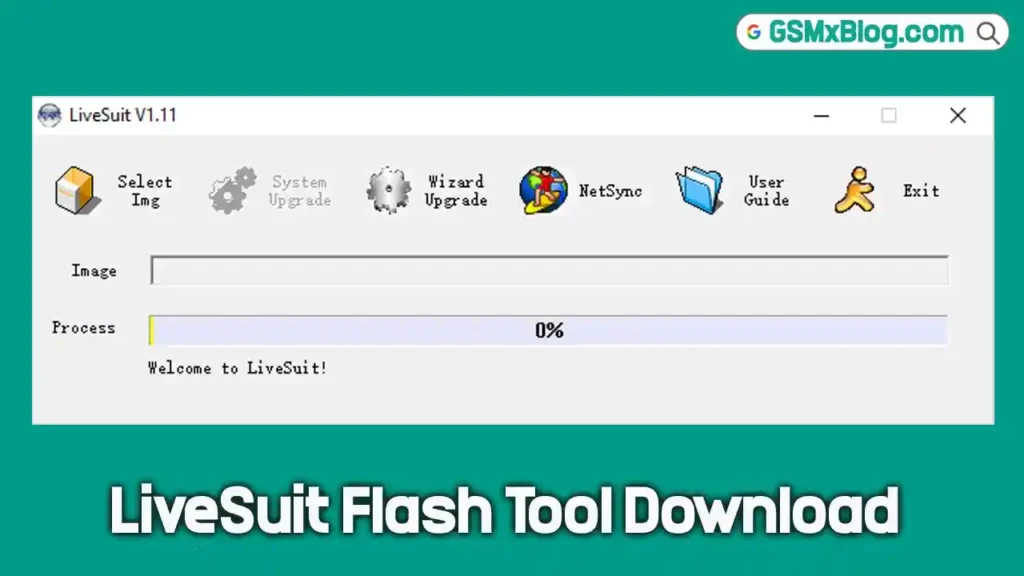
What Is LiveSuit Flash Tool?
LiveSuit Flash Tool — also known as LiveSuit Pack — is the official legacy desktop flashing utility developed by Allwinner Technology Co., Ltd. It is engineered specifically for writing stock operating system images onto consumer electronics built on Allwinner processors, covering Android tablet PCs, streaming TV boxes, automotive navigation systems, and portable media players.
🔧 Unlike standard ADB-based tools, LiveSuit communicates directly with the low-level boot sectors of your device. This means it can flash firmware even when the device is completely non-responsive — making it one of the few genuine recovery tools for Allwinner hardware that won’t boot.
The tool is available in multiple versions to cover both modern and legacy Allwinner chipsets. The latest stable build is v1.11, with older builds v1.10 and v1.07 available for devices where the newer version fails to connect.
Key Features of LiveSuit Flash Tool
📦 Firmware Flashing
- Flash official stock .img firmware images directly onto Allwinner devices
- Works on Android tablets, TV boxes, media players, and car navigation units
- Supports both standard bootloader transfer mode and low-level Emergency Download (EDL) configurations
- Recovers bricked devices that are completely stuck or non-booting
🔌 Automated USB Driver Deployment
- Self-extracting installer automatically installs Allwinner USB filter communication drivers
- No need to source or install third-party USB drivers separately
- Drivers are configured during the extraction initialization process
🛡️ Safe Integrity Scanning
- Automatically analyzes the firmware file structure before flashing begins
- Confirms package integrity to protect devices from corrupt or mismatched firmware
- Verification runs locally — no internet connection required
🧹 Advanced Partition Formatting
- Automatic partition cleaning mechanism runs before writing new system sectors
- Formats damaged flash storage layers to prevent corrupted blocks from halting the flash
- Normal and full format options available depending on device condition
Download LiveSuit Flash Tool (Latest Version)
- Tool Name: LiveSuit Flash Tool (LiveSuit Pack)
- Version: v1.11
- File Size: 9.7 MB
- Developer: Allwinner Technology Co., Ltd.
- Platform: Windows PC
- Firmware Format: .img only
- License: Free
How to Install LiveSuit Flash Tool
- Download the LiveSuit Pack ZIP archive from the table above.
- Extract the archive contents into a dedicated folder on your desktop using WinRAR or 7-Zip.
- Open the extracted folder and locate the main setup file (e.g., LiveSuit_v1.11.exe).
- Right-click it and select Run as Administrator.
- The tool initializes a script that extracts the working flash tool files and installs the Allwinner USB communication drivers automatically.
- Accept any Windows security prompts asking to authorize the driver installation.
- Once complete, the main LiveSuit.exe file will be ready inside the working folder.
✅ Do not skip the extraction initialization step — the USB drivers are installed during this process. Skipping it means the tool will not detect your device.
How to Flash Allwinner Firmware via LiveSuit Flash Tool
▶️ Step 1 — Open LiveSuit
- Navigate to the working folder created during installation.
- Locate LiveSuit.exe, right-click it, and select Run as Administrator.
- The main graphical dashboard will open on your screen.
▶️ Step 2 — Import Your Firmware Image
- Click the large Select Image button at the upper left area of the interface.
- A file browser window will open.
- Browse to your unzipped stock .img firmware file built specifically for your Allwinner device model.
- Select it and click Open.
- The tool scans the firmware file automatically to verify its integrity before proceeding.
⚠️ Only .img firmware files work with LiveSuit. Do not attempt to load OTA recovery ZIP files — the tool will not process them.
▶️ Step 3 — Put Your Device Into Flash Mode
For Allwinner tablets:
- Power off the device completely.
- Press and hold the Volume Up button firmly.
- While holding Volume Up, connect the device to your PC using a USB data cable.
- Immediately tap the Power button 3 to 5 times in quick succession.
- This forces the Allwinner chipset to register as a raw upgrade interface on your PC.
For Allwinner TV boxes and media players:
- Power off the device completely.
- Locate the hidden reset switch inside the AV output jack hole using a toothpick or pin.
- Press and hold the reset switch firmly.
- While holding the switch, connect the device to your PC via USB cable.
- Tap the Power button 3 to 5 times rapidly while still holding the reset switch.
▶️ Step 4 — Authorize and Start Flashing
- Once LiveSuit detects the device, a confirmation prompt will appear asking whether to format storage blocks.
- Click Yes (or select System Update from the prompt options) to begin flashing.
- The progress bar will start moving — do not touch or disconnect the USB cable at any point.
- When the bar reaches 100% and shows a success confirmation message, the flash is complete.
- Disconnect the USB cable and power your device on normally.
System Requirements
| Component | Requirement |
|---|---|
| OS | Windows 7 / 8 / 10 / 11 (32-bit & 64-bit) |
| USB Cable | Good quality USB data cable |
| Firmware Format | .img only (no OTA ZIP) |
| Supported Devices | Allwinner Android tablets, TV boxes, media players, car navigation units |
| Internet | Not required |
⚠️ Warning
Back up all personal data before flashing. The flashing process completely wipes all apps, accounts, and files stored on your device. Loading firmware built for a different device model can cause permanent damage. Always confirm your exact Allwinner device model and download the matching firmware before starting. Keep the USB cable connected throughout the entire process — disconnecting mid-flash can leave the device in an unrecoverable state.
Important Notes
🛡️ Antivirus Notice: Some antivirus programs may flag LiveSuit or its USB driver installer as a potential threat. This is a false positive due to the low-level driver interaction. Add the tool folder to your antivirus exclusion list and run it on a dedicated repair machine. 📌 Firmware Format: Only .img firmware packages are supported. OTA ZIP files are not compatible. 🔌 USB Driver: The Allwinner USB filter driver is bundled inside the installation pack and deploys automatically during the extraction process — no separate driver download is needed. ⚠️ Version Note: If v1.11 fails to detect your device, try v1.10 or the legacy v1.07 build depending on your chipset generation.
Frequently Asked Questions (FAQs)
❓ Which version of LiveSuit should I download? Start with v1.11 — the latest stable build. If your Allwinner device isn’t detected, move down to v1.10 or v1.07 based on the chipset age.
❓ Can LiveSuit flash any Android device? No. LiveSuit works exclusively with devices built on Allwinner processors — tablets, TV boxes, car navigation units, and media players. It will not work on Qualcomm, MediaTek, or Amlogic hardware.
❓ What firmware format does LiveSuit support? Only uncompressed .img firmware files. Standard OTA recovery ZIP packages are not supported.
❓ My tablet is completely bricked. Can LiveSuit recover it? In most cases, yes. LiveSuit communicates directly with the Allwinner chipset at the boot sector level, bypassing the operating system entirely — which makes it effective for recovering devices that won’t boot at all.
❓ Do I need to install USB drivers separately? No. The LiveSuit Pack installer handles Allwinner USB driver deployment automatically during the extraction initialization process.
❓ Why do I need to tap the Power button multiple times when connecting? Tapping the Power button 3 to 5 times while holding the Volume Up or reset switch forces the Allwinner chipset to enter raw upgrade mode so LiveSuit can detect it as a flash-ready connection.
Conclusion
LiveSuit Flash Tool remains the most reliable free download for flashing stock firmware on Allwinner-powered Android devices. Whether you need to restore a frozen tablet, recover a bricked TV box, or push a clean firmware build onto a car navigation unit, this GSM tool handles it all from Windows PC without requiring separate drivers or third-party utilities. The built-in integrity scanner, automatic partition formatter, and self-deploying USB driver package make it beginner-friendly while still being powerful enough for experienced mobile technicians. With three version builds covering modern and legacy Allwinner chipsets, there is a compatible release for virtually every supported device. Download LiveSuit Flash Tool today and keep it ready the next time you need to recover an Allwinner device.
Have questions or tips from your own experience with LiveSuit? Leave a comment below.