XTM Multi Tool Vivo Special Edition v1.0.0 (Latest Version) Download Free
If you specialize in Vivo device servicing and need a dedicated Windows tool covering root exploitation, ADB/MTP connectivity, Fastboot operations, and FRP service in one package, XTM Multi Tool Vivo Special Edition v1.0.0 is the first release of a tool built specifically around Vivo hardware. It stands out by offering five different root exploit methods — RootMyVivo, GhostLock App, OpenRoot Engine, KernelSU, and DFRoot Legacy — giving you multiple fallback options when one method does not work on a specific Vivo model or Android version.
This guide covers the complete feature list, all five root methods explained, installation steps, usage guide, and download link for XTM Multi Tool Vivo Special Edition v1.0.0 so you know exactly what is inside before connecting your first Vivo device.
What Is XTM Multi Tool Vivo Special Edition?
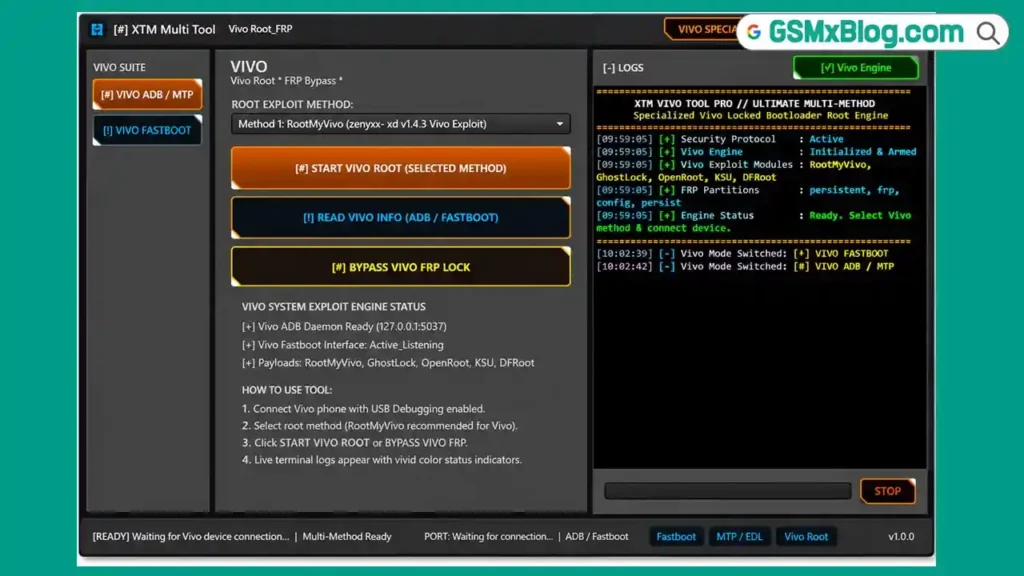
XTM Multi Tool Vivo Special Edition is a Windows-based servicing utility built specifically for Vivo mobile devices. As the first release (v1.0.0), it focuses on root access methods, device connectivity across ADB, MTP, and Fastboot modes, device information reading, and a dedicated Vivo FRP service section for authorized device servicing. The interface includes a live terminal log panel with color-coded status indicators, engine initialization status, and real-time ADB daemon and Fastboot interface status displays.
What sets this tool apart is its approach to rooting — instead of relying on a single exploit method that may fail on certain devices or Android security patches, it bundles five independent root methods so you can try alternatives without switching to a different tool entirely.
Key Features of XTM Multi Tool Vivo
📲 Vivo ADB / MTP
A dedicated connection mode for Vivo devices through ADB and MTP — covering standard device communication for info reading and service operations.
⚡ Vivo Fastboot
A separate Fastboot mode section for operations that require the device to be in the bootloader interface rather than a running Android state.
🔓 Five Root Methods
The tool includes five independent root exploit methods, selectable from a menu before starting the operation — giving you multiple approaches if one method does not succeed on a specific device.
▶️ Start Vivo Root
A dedicated button that starts the currently selected root method — select your method from the dropdown first, then click to begin.
📋 Read Vivo Info
Reads Vivo device information using either ADB or Fastboot, depending on the current connection mode.
🔒 Vivo FRP Section
A separate dedicated section offering FRP service options for authorized device servicing.
⚙️ Vivo Engine
Displays the engine initialization and security protocol status — confirming the tool’s internal engine is ready before attempting any operation.
🖥️ Live Terminal Logs
Displays operation messages with different color status indicators — making it easy to visually distinguish successful steps from warnings or errors as they happen.
📡 ADB Daemon Status
Shows the current ADB daemon connection status — confirming whether the ADB service is active and communicating correctly.
🔌 Fastboot Interface Status
Displays the Fastboot interface status — confirming the device is properly recognized in Fastboot mode.
🔗 Connection Status
Shows the current device connection and the selected working mode — ADB, MTP, or Fastboot — at a glance.
Available Vivo Root Methods
XTM Multi Tool Vivo Special Edition provides five selectable root exploit methods:
| Method | Name | Technique |
|---|---|---|
| Method 1 | RootMyVivo | zenyxx-xd v1.4.3 Vivo Exploit |
| Method 2 | GhostLock App | YuKong ADB-2026-43499 |
| Method 3 | OpenRoot Engine | hexo141 Multi-Exploit |
| Method 4 | KernelSU | KSU Superuser Manager |
| Method 5 | DFRoot Legacy | Auto Temp Root |
Each method uses a different underlying technique, so if one method fails to root a specific Vivo model or Android/security patch combination, you can select and try the next without leaving the tool.
XTM Multi Tool Vivo Special Edition Download
- File Name: XTMROOT_Setup_v1.0.exe
- Version: v1.0.0 (First Release)
- File Size: 52 MB
- Platform: Windows PC
- Supported Devices: Vivo Mobile Devices
- Connection Modes: ADB / MTP / Fastboot
⚠️ Important Note: All tools, files, and guides shared alongside this release are only for educational and testing purposes. Always scan files before use and use everything at your own risk. Downloading or using this software means you automatically agree to and accept this policy.
How to Install XTM Multi Tool Vivo Special Edition v1.0.0
- Download the XTM Multi Tool Vivo Special Edition setup file from the MediaFire download link.
- After downloading, locate the installer on your computer.
- Right-click the setup file (XTMROOT_Setup_v1.0.exe) and select Run as Administrator.
- When the installation wizard opens, click Next to continue.
- Follow the installation wizard by clicking Next until you reach the installation options.
- Tick the Create Desktop Shortcut option so you can easily open the program later.
- Click Install and wait for the setup process to finish.
- After installation, launch XTM Multi Tool using the desktop shortcut.
✅ Tip: Always run the tool as Administrator. Without admin rights, ADB daemon communication and Fastboot interface detection may not work correctly.
How to Use XTM Multi Tool Vivo Special Edition v1.0.0
▶️ Connect the Vivo Device
- Connect your Vivo phone to the computer using a USB cable.
- Enable USB Debugging on the device for ADB operations — go to Settings → About Phone → tap Build Number 7 times → Developer Options → USB Debugging.
- Accept the ADB authorization prompt on the phone when it appears.
- Open XTM Multi Tool and select the required Vivo connection mode — ADB/MTP or Fastboot.
- Check the Connection Status display to confirm the device and mode are correctly detected.
▶️ Read Vivo Device Information
- Connect the device in ADB or Fastboot mode as needed.
- Click Read Vivo Info.
- The tool displays device details read through the active connection mode.
- Confirm the correct model is detected before proceeding with any operation.
▶️ Root the Device Using a Selected Method
- Connect the Vivo device via ADB with USB Debugging enabled.
- Select a root method from the dropdown — start with Method 1 (RootMyVivo) or whichever method is best suited to your device’s Android version and security patch.
- Click Start Vivo Root.
- Monitor the Live Terminal Logs for color-coded status updates throughout the process.
- If the selected method fails, try the next method in the list:
- Method 2 (GhostLock App)
- Method 3 (OpenRoot Engine)
- Method 4 (KernelSU)
- Method 5 (DFRoot Legacy)
- Check the Vivo Engine status indicator to confirm the engine initialized correctly before each attempt.
▶️ Vivo FRP Service
- Go to the Vivo FRP Section.
- Connect the device in the required mode for the FRP service option.
- Use the available FRP service function for authorized device servicing only.
- Monitor the terminal log for operation status.
▶️ Fastboot Operations
- Boot the Vivo device into Fastboot mode and connect via USB.
- Select the Vivo Fastboot mode inside the tool.
- Check the Fastboot Interface Status to confirm detection.
- Use Read Vivo Info to pull device details via Fastboot.
- Proceed with the supported Fastboot operation needed for your service job.
System Requirements
| Component | Requirement |
|---|---|
| Operating System | Windows PC |
| Permissions | Run as Administrator |
| USB Debugging | Must be enabled for ADB operations |
| Connection | USB data cable |
| Supported Devices | Vivo mobile devices |
| Installation | Windows Installer (setup wizard) |
⚠️ Warning
All tools, files, and guides shared alongside this release are for educational and testing purposes only. Always scan the downloaded file with your antivirus before running it, and use the software entirely at your own risk. By downloading or using this software, you automatically accept this policy. Use root exploit methods and FRP service functions only on devices you own or are explicitly authorized to service. Always back up important data before attempting any root method — some exploits can affect device stability if interrupted mid-process.
Important Notes
🛡️ Virus Status: The setup installer may trigger a Windows SmartScreen or antivirus warning because it is not widely recognized. This is a standard situation for specialized root and service tools distributed outside major software stores. Scan the file before running it and proceed only if you trust the source.
📌 Credit: This tool bundles multiple independently credited root methods — zenyxx-xd for the v1.4.3 Vivo Exploit (RootMyVivo), YuKong for the ADB-2026-43499 method (GhostLock App), hexo141 for the Multi-Exploit (OpenRoot Engine), the KernelSU project for KSU Superuser Manager, and the DFRoot project for the Auto Temp Root (DFRoot Legacy) method.
🔌 USB Debugging: USB Debugging must be enabled under Developer Options before connecting the device for any ADB-based operation, including all five root methods.
Conclusion
XTM Multi Tool Vivo Special Edition v1.0.0 fills a specific niche for technicians who regularly work with Vivo devices and need more than one root method in their toolkit. Five independent exploit techniques — RootMyVivo, GhostLock App, OpenRoot Engine, KernelSU, and DFRoot Legacy — give you genuine fallback options when a single method doesn’t work on a particular Vivo model or security patch, alongside a dedicated FRP service section and full ADB/MTP/Fastboot connectivity with live color-coded terminal logging.
Have you tested XTM Multi Tool Vivo Special Edition on a real Vivo device? Share your experience in the comments below!
Related Posts
- Pixel Utility Tool (Latest Version)
- FalconMulti Tool V13.0 (Latest Version)
- Z3X Pandora Tool (Latest Version)
Frequently Asked Questions (FAQs)
❓ Is XTM Multi Tool Vivo Special Edition free to use?
The tool is available as a direct download. No specific activation or login process is described for this release — download the setup file and install directly.
❓ Which devices does it support?
The tool is built specifically for Vivo mobile devices, supporting ADB, MTP, and Fastboot connection modes.
❓ What are the five root methods?
Method 1 is RootMyVivo (zenyxx-xd v1.4.3 Vivo Exploit), Method 2 is GhostLock App (YuKong ADB-2026-43499), Method 3 is OpenRoot Engine (hexo141 Multi-Exploit), Method 4 is KernelSU (KSU Superuser Manager), and Method 5 is DFRoot Legacy (Auto Temp Root).
❓ What should I do if one root method fails?
Try the next method in the list. Since the tool includes five independent root techniques, a device that does not root with Method 1 may succeed with Method 2, 3, 4, or 5.
❓ Does the tool support FRP removal?
Yes. The tool includes a dedicated Vivo FRP Section for authorized device servicing.
❓ Is this a permanent root method?
This depends on the specific method selected. DFRoot Legacy is described as an “Auto Temp Root” method, suggesting temporary root, while KernelSU is a more persistent root solution via KSU Superuser Manager. Confirm the behavior of each method on your specific device before relying on it.
❓ Is USB Debugging required for all functions?
USB Debugging is required for ADB-based operations, including device info reading in ADB mode and all five root methods. Fastboot-mode operations work through the bootloader interface instead.
❓ Is this tool safe to use?
The source explicitly states that all tools, files, and guides are shared for educational and testing purposes only. Scan the downloaded file before running it and use at your own risk.