FalconMulti Tool V13.0 (Latest Version) Download Free – for Windows
If your repair shop handles Xiaomi MTK/Qualcomm flashing, Samsung FRP, Realme/OnePlus/Oppo partition management, Tecno/Itel/Infinix META and Anti-Crack removal, Apple Hello Bypass and MDM removal, and now Nokia HMD and Vivo servicing — FalconMulti Tool V13.0 brings all of that into one multi-brand Windows dashboard with each brand organized under its own dedicated tab. This release adds two brand-new tabs — Vivo and Nokia HMD — alongside additional bug fixes, and the tool is available completely free with any-username login.
This guide covers the complete feature breakdown by brand, full changelog, the important Xiaomi FMI warning, installation steps, and download link for FalconMulti Tool V13.0 so you have everything you need before connecting your first device.
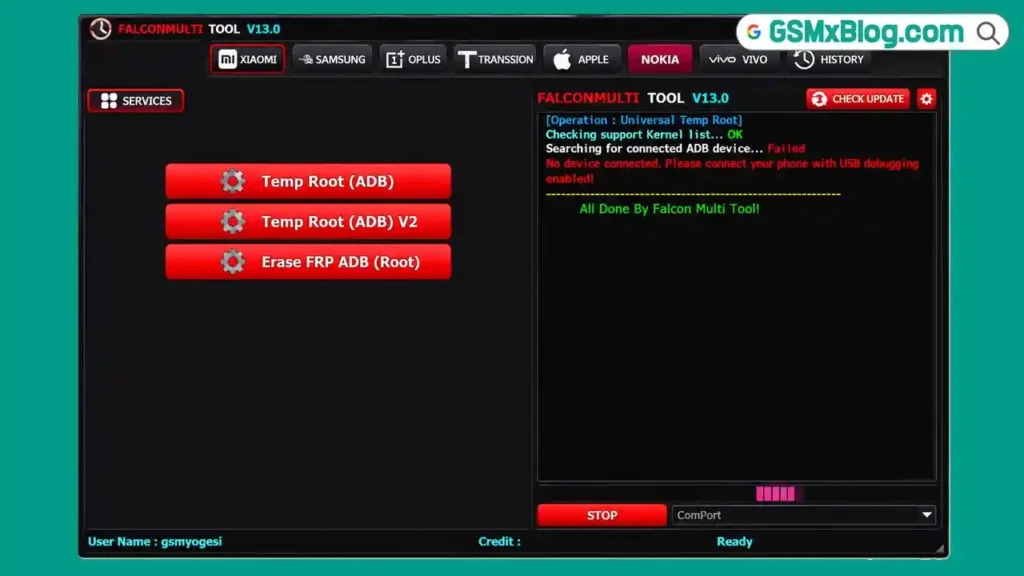
What Is FalconMulti Tool?
FalconMulti Tool is a Windows-based multi-brand mobile servicing application covering Xiaomi, Samsung, Realme/OnePlus/Oppo (Oplus), Tecno/Itel/Infinix (Transsion), Apple, Nokia HMD, and Vivo devices — each with its own dedicated tab and separate set of operations. The tool covers MTK and Qualcomm firmware flashing, Fastboot operations, FRP removal, ADB and temp root functions, partition management with custom DA/SIG support, firmware downloads, and a full suite of Apple services including Hello Bypass and MDM removal.
V13.0 is a meaningful expansion release — adding entirely new Vivo and Nokia HMD tabs that were not present in earlier versions, alongside bug fixes across the existing feature set.
Key Features of FalconMulti Tool V13.0
📱 Xiaomi Features
Flash MTK
- Server DA / Custom DA / Custom EMI
- Auto SV5
- Xiaomi Auth
- Dump Preloader / Crash BROM
- Bypass Auth
- Auto Reboot / Flash
Flash QC (Qualcomm)
- Auto Reboot / Flash
Fastboot
- Read Info / Flash
- Fastboot to EDL
Mi Assistant
- Reset / Format (Sideload FRP + Userdata)
- Xiaomi FRP (Reset FRP Only)
Mi China
- Read Info (ADB)
- Temp Root (ADB)
- Reset FRP (China Devices)
📲 Samsung Features
Services
- Reset FRP
🔵 Oplus Features (Realme / OnePlus / Oppo)
Service
- Oplus Token Decrypt
- One Click
- Custom Sig / Use Server Data
- Auto Reboot
- Factory Reset + FRP
- Oplus Demo Remove (ADB)
Partition Manager
- Custom DA / Custom SIG / Use Server Data
- Read / Write / Erase
- Load / Disconnect & Reboot Device
IMEI Checker
- IMEI Info Query
ADB / Root Service
- Root ADB
- Temp Root (ADB) / Temp Root (ADB) V2
- Erase FRP ADB (Root)
- Read / Write / Read GPT
📡 Transsion Features (Tecno / Itel / Infinix)
Service
- Server FDL
- FDL 1 / FDL 2
- Reset FRP
- Factory Reset + FRP
META
- Reboot to Meta
- Read Information
- Remove PayJoy Lock
- Unlock BL (BETA)
- Read / Write / Erase
- Read GPT
Anti-Crack
- Remove Anti-Crack (MediaTek)
- Remove Anti-Crack (Spreadtrum)
RPMB
- Disable RPMB (MTK)
Flash
- Firmware Upgrade / Firmware Flash
Firmware Download
- Transsion Firmware Download
🍎 Apple Features
General / Device Info
- Copy ECID / Register ECID
Hello
- Boot Ramdisk
- New Hello No SN
- Change Serial
- Bypass Hello Change SN
Utility
- Read Info / Reboot Device
Passcode
- Boot Ramdisk
- Backup Passcode / Activate Passcode
- Factory Reset
MDM
- Remove MDM
📱 Nokia HMD Features (New in V13.0)
Services
- Read Info
- Factory Reset + FRP
- Reboot to Bootloader
📲 Vivo Features (New in V13.0)
Services
- Temp Root (ADB)
- Temp Root (ADB) V2
- Erase FRP ADB (Root)
FalconMulti Tool V13.0 Download – Latest Version
- File Name: FalconMultiTool-V13.0_FREE.rar
- Version: V13.0 (Latest)
- File Size: 154.0 MB
- Platform: Windows PC
- License: Free
- Archive Password: gsmyogesh. com
- Login: Any username and password
How to Install FalconMulti Tool V13.0
- Download the FalconMultiTool V13.0 package from the MEGA link above.
- Extract the ZIP/RAR archive — right-click and extract all files into a folder. Enter password gsmyogesh.com when prompted.
- If the package includes a setup file, right-click it and select Run as Administrator.
- Follow the instructions provided by the setup wizard and wait until installation is complete.
- Launch FalconMultiTool V13.0 from the installation folder or desktop shortcut.
- If the software asks for login details or activation, enter any username and password — the source confirms this release accepts any credentials.
- Once the main interface opens, select your mobile brand from the tabs and access the available service options.
How to Use FalconMulti Tool V13.0
▶️ Xiaomi MTK Auth Bypass and Flash
- Go to the Xiaomi tab.
- Select Flash MTK and choose your DA method — Server DA, Custom DA, or Custom EMI.
- Connect the device in BROM mode — use Crash BROM if needed to force entry.
- Click Bypass Auth for the authentication bypass.
- Confirm the device is NOT FMI ON, CN, or MDM-locked before proceeding — do not attempt Auth Flash on these device states.
- Load your firmware and click Flash with Auto Reboot enabled if desired.
▶️ Xiaomi FRP Removal (China Devices)
- Go to the Xiaomi → Mi China section.
- Connect the device via ADB.
- Click Read Info (ADB) to confirm detection.
- Click Temp Root (ADB) if root access is needed first.
- Click Reset FRP (China Devices) for the FRP removal specific to China variant devices.
▶️ Samsung FRP Removal
- Go to the Samsung tab.
- Connect the Samsung device.
- Click Reset FRP.
- Monitor the log for completion confirmation.
▶️ Oplus (Realme/OnePlus/Oppo) Factory Reset and FRP
- Go to the Oplus tab.
- Select Custom Sig or Use Server Data depending on your access level.
- Enable Auto Reboot if desired.
- Click Factory Reset + FRP for a combined operation.
- Use Oplus Demo Remove (ADB) separately if the device has Demo Mode active.
- For partition-level work, go to Partition Manager and use Read, Write, or Erase with your Custom DA/SIG loaded.
▶️ Transsion META Mode and PayJoy Removal
- Go to the Transsion tab (Tecno/Itel/Infinix).
- Click Reboot to Meta to enter META mode on the connected device.
- Click Read Information to confirm detection.
- Use Remove PayJoy Lock for PayJoy removal.
- For AntiCrack-protected devices, go to the Anti-Crack section and select Remove Anti-Crack (MediaTek) or Remove Anti-Crack (Spreadtrum) depending on chipset.
- Use RPMB → Disable RPMB (MTK) if required for the specific repair.
- For bootloader unlock, use Unlock BL (BETA) — note this is marked beta, so test carefully.
▶️ Apple Hello Bypass and MDM Removal
- Go to the Apple tab.
- Connect the device and click Copy ECID to read the device identifier.
- Use Register ECID if required for your activation workflow.
- For Hello screen bypass, click Boot Ramdisk under the Hello section, then select New Hello No SN or Bypass Hello Change SN depending on your scenario.
- For passcode operations, use Backup Passcode before any changes, then Activate Passcode as needed.
- For MDM-restricted devices, use Remove MDM from the MDM section.
▶️ Nokia HMD Factory Reset and FRP (New)
- Go to the new Nokia HMD tab.
- Connect the Nokia device.
- Click Read Info to confirm detection.
- Click Factory Reset + FRP for the combined operation.
- Use Reboot to Bootloader if Fastboot-level access is needed next.
▶️ Vivo Temp Root and FRP (New)
- Go to the new Vivo tab.
- Connect the Vivo device with ADB enabled.
- Click Temp Root (ADB) or Temp Root (ADB) V2 depending on which method works for your device.
- Click Erase FRP ADB (Root) to remove FRP using the rooted access.
What’s New in FalconMulti Tool V13.0 (Full Changelog)
- Vivo Tab Added — a new dedicated Vivo section has been added to the tool
- Nokia HMD Tab Added — Nokia HMD now has its own tab with available service operations
- Some Other Bugs Fixed — the developer also fixed additional bugs in this release
⚠️ Important Notice for Xiaomi / MI Devices
The developer has provided an important warning for Xiaomi users: FMI ON, CN, and MDM-locked devices are not supported for Auth Flash.
Do not attempt Auth Flash on FMI ON or CN devices. According to the developer’s warning, trying this operation can result in a permanent account ban, and no refund will be provided.
System Requirements
| Component | Requirement |
|---|---|
| Operating System | Windows PC |
| Permissions | Run as Administrator |
| USB Drivers | MTK / Qualcomm / Samsung / Vivo / Nokia USB Drivers |
| Connection | USB data cable |
| Login | Any username and password |
| Internet | Required for Server DA, Server FDL, and Use Server Data functions |
⚠️ Warning
Do not attempt Auth Flash on Xiaomi FMI ON, CN, or MDM-locked devices — the developer explicitly warns this can result in a permanent account ban with no refund. Always back up partition data, GPT, and RPMB information before running any erase, flash, or factory reset operation. The Unlock BL (BETA) function for Transsion devices is explicitly marked beta — test carefully before using on customer devices. Confirm device compatibility within each brand tab before starting any operation.
Important Notes
🛡️ Virus Status: The installer may trigger Windows SmartScreen or antivirus warnings because the application is not widely recognized. This is a standard false positive for multi-brand repair tools. Download only from the official MEGA link above and allow the security prompt manually.
📌 Credit: Full credit goes to the FalconMulti Tool development team for building and releasing V13.0 with the new Vivo and Nokia HMD tabs.
⚠️ Xiaomi FMI Warning: This is the single most important warning in this release — never attempt Auth Flash on Xiaomi devices with FMI ON, CN region lock, or MDM lock active. The consequence (permanent account ban, no refund) is severe and irreversible.
🔌 USB Drivers: Install the correct driver for each brand before connecting devices — MTK USB Driver for MediaTek, Qualcomm USB Driver for Qualcomm, and brand-specific drivers for Samsung, Vivo, and Nokia.
Frequently Asked Questions (FAQs)
❓ What’s new in V13.0?
V13.0 adds two brand-new tabs — Vivo and Nokia HMD — each with their own dedicated service operations, alongside additional bug fixes across the existing feature set.
❓ What is the Xiaomi FMI warning about?
The developer explicitly warns that FMI ON, CN, and MDM-locked Xiaomi devices are not supported for Auth Flash. Attempting this operation on such devices can result in a permanent account ban with no refund — avoid this entirely.
❓ Which brands does FalconMulti Tool support?
Xiaomi, Samsung, Oplus (Realme/OnePlus/Oppo), Transsion (Tecno/Itel/Infinix), Apple, Nokia HMD, and Vivo — each with a dedicated tab.
❓ What does the new Vivo tab include?
Temp Root (ADB), Temp Root (ADB) V2, and Erase FRP ADB (Root) — covering root-based FRP removal for supported Vivo devices.
❓ What does the new Nokia HMD tab include?
Read Info, Factory Reset + FRP, and Reboot to Bootloader — the core servicing functions for Nokia HMD devices.
❓ Is Unlock BL for Transsion devices fully working?
No. It is explicitly marked as BETA in the tool. Test carefully before relying on it for customer repair jobs.
Conclusion
FalconMulti Tool V13.0 expands an already broad multi-brand repair suite with two genuinely useful new additions — dedicated Vivo and Nokia HMD tabs — alongside the established Xiaomi MTK/Qualcomm flashing, Samsung FRP, Oplus partition management and IMEI checking, Transsion META mode with AntiCrack and RPMB handling, and a full Apple services section covering Hello Bypass, passcode operations, and MDM removal.
Have you tested FalconMulti Tool V13.0 on a real device? Share your experience in the comments below!
Related Posts
- GSM Family Tool v1.1.8 (Latest Version)
- mdUnlockerMainTool V2.6 2026 (Latest Version)
- Alien Tool 2026 (Latest Version)