Fastboot Enhance Tool v1.4.0 – Payload.bin Dumper & Fastbootd Manager
Flashing Android firmware or extracting a single boot image from a massive payload.bin file used to mean setting up Python environments, memorizing terminal commands, and dealing with slow extraction scripts that process the entire ROM just to pull one partition. Fastboot Enhance v1.4.0 eliminates all of that. Developed by libxzr as a free, open-source Windows GUI, this portable Fastboot Enhance Tool gives mobile technicians and Android enthusiasts a clean point-and-click dashboard for flashing payload.bin firmware directly in Fastbootd mode, extracting individual partition images locally, managing A/B slots, manipulating dynamic partitions, and reading real-time device variables — all without touching a command terminal or installing Python.
This guide covers the complete feature breakdown, download table, installation steps, full usage walkthrough, system requirements, and FAQs.
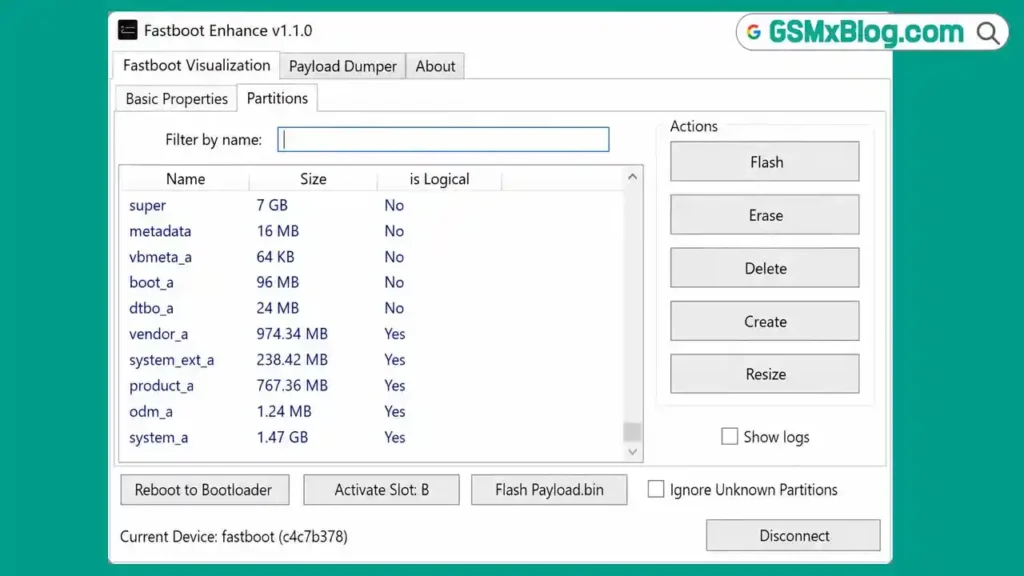
What Is Fastboot Enhance Tool?
Fastboot Enhance is an open-source, portable Windows GUI utility built on top of the standard Android Fastboot protocol. It was developed by libxzr and is hosted officially on GitHub. The tool serves two primary purposes: an Advanced Fastboot & Fastbootd Manager for connected Android devices, and a standalone Payload.bin Dumper for local ROM extraction without needing a connected phone.
For daily Android repair and ROM work, the most impactful feature is the direct Fastbootd payload flashing — load a payload.bin file and flash it straight to the device while it sits in Fastbootd mode, with a visual progress bar tracking every partition write. The targeted image extraction is equally useful — instead of unpacking a full 4–6 GB ROM package just to get boot.img, you browse the payload map, select only the partitions you need, and extract them individually in seconds.
The tool is 100% portable — no installation, no registry entries, no background services. Extract the ZIP and run the EXE directly.
Key Features of Fastboot Enhance v1.4.0
⚡ Advanced Fastboot & Fastbootd Manager
- Read Fastboot Variables (fastboot vars) — pull real-time system details from your connected phone including partition layout, slot info, device state, and product info directly from the bootloader
- Seamless Mode Switching — switch your device instantly between Bootloader, Fastbootd, Recovery, and Android System modes from a single click without manual button combinations
- A/B Slot Switching — toggle your active boot target between Slot A and Slot B in one click — essential for A/B partition scheme Android devices during ROM flashing and rollback
- Erase Partitions — wipe specific partitions cleanly without a full factory reset
- Delete Logical Volumes — remove existing logical partition volumes from the dynamic partition table
- Create Custom Logical Sectors — add new logical partitions directly to the dynamic partition scheme
- Resize Partitions — adjust the size of existing logical partitions on the fly
- Read Dynamic Partition Metadata — analyze and display raw dynamic partition maps and metadata profiles for advanced repair and ROM development work
💾 Payload.bin Dumper
- Direct Fastbootd Flashing — flash a full, unzipped payload.bin firmware package straight onto the connected phone while it is in Fastbootd mode, with a visual progress bar tracking the operation
- Full Payload Extraction — unpack complete OTA or factory stock ROM zip archives entirely to local PC storage for offline use or analysis
- Targeted Single Image Extraction — browse the internal partition map and pull out only the specific image you need (boot.img, init_boot.img, vbmeta.img, vendor_boot.img, etc.) without unpacking the entire ROM — saves time and disk space significantly
- Payload Variable Reading — read built-in payload variables and verify security checksum signatures automatically before flashing
Download Fastboot Enhance Tool v1.4.0
- File Name: Release.zip
- Version: v1.4.0
- File Size: 1.68 MB
- Type:Portable (No Installation Required)
- Platform: Windows PC
- Prerequisite: .NET Framework 4.5 or newer
- License: Free & Open Source
- Developer: libxzr
✅ This is the official release linked directly from the developer’s GitHub repository. No third-party repack or modification.
System Requirements
| Component | Requirement |
|---|---|
| OS | Windows 10 / 11 (64-bit recommended) |
| Processor | Intel / AMD Dual-Core or faster |
| RAM | 2 GB minimum (4 GB recommended for large payload files) |
| Storage | Sufficient free space for extracted ROM partitions |
| USB Port | USB 2.0 or USB 3.0 |
| .NET Framework | 4.5 or newer (required) |
| Bootloader | Must be unlocked on target device |
| Internet | Not required after download |
How to Install Fastboot Enhance Tool v1.4.0
- Download the Release.zip file from the official GitHub link above.
- Extract the ZIP to any accessible folder on your PC using WinRAR or 7-Zip.
- Open the extracted folder — no further installation is needed.
- Right-click
FastbootEnhance.exeand select Run as Administrator. - The tool opens directly — no setup wizard, no registry modification. ✅
Prerequisite: Make sure Microsoft .NET Framework 4.5 or newer is installed on your Windows PC. If the tool fails to launch, download and install the latest .NET Framework from Microsoft’s official website first.
How to Use Fastboot Enhance v1.4.0
▶️ Flash a Payload.bin File to Device (Fastbootd Method)
- Enable USB Debugging on your Android device.
- Go to Settings → About Phone → tap Build Number 7 times.
- Go to Settings → Developer Options → enable USB Debugging.
- Ensure your device’s bootloader is fully unlocked — this tool will not work on locked bootloader devices.
- Reboot your phone into Fastboot Mode (hold Volume Down + Power, or run
adb reboot bootloaderin terminal). - Connect the device to your PC via USB.
- Open FastbootEnhance.exe as Administrator.
- The tool detects your device serial number automatically in the interface.
- Switch the device to Fastbootd Mode — click the Fastbootd button in the mode switcher panel (device screen will show a blue/purple layout).
- Click Flash Payload and browse to select your payload.bin file.
- Watch the visual progress bar as each partition flashes sequentially. ✅
Note: Do not disconnect the USB cable during flashing. The tool flashes partitions one by one — the progress bar reflects each write operation.
▶️ Extract a Single Image from Payload.bin (No Device Required)
- Open FastbootEnhance.exe — no device connection needed for local extraction.
- Switch to the Payload Dumper tab.
- Click Browse and navigate to your ROM’s payload.bin file (inside the extracted stock ROM or OTA ZIP).
- The tool reads the payload map and displays all available partition images in the Partitions panel.
- Highlight the specific partition you want — for example, boot, init_boot, vbmeta, or vendor_boot.
- Click Extract Image and choose a save location.
- Only the selected image is extracted — no need to unpack the entire ROM. ✅
▶️ Switch Between Slots (A/B Slot Management)
- Connect your device in Fastboot Mode.
- Open Fastboot Enhance and confirm device detection.
- Locate the A/B Slot Switcher in the interface.
- Click Switch to Slot A or Switch to Slot B as needed.
- Reboot the device — it will boot from the newly selected slot. ✅
▶️ Read Fastboot Variables
- Connect your device in Fastboot Mode.
- Open Fastboot Enhance.
- Click Read Variables (fastboot vars).
- The tool outputs all available fastboot variables — partition layout, slot info, device state, bootloader version, product info, and more — directly in the log panel. ✅
▶️ Manage Dynamic Partitions
- Connect the device in Fastbootd Mode.
- Open Fastboot Enhance and confirm Fastbootd connection.
- Navigate to the Partition Management section.
- Choose the required operation:
- Erase — wipe a specific partition
- Delete Logical — remove a logical volume
- Create Logical — add a new logical partition
- Resize — adjust partition size
- Confirm the operation and wait for the result. ✅
⚠️ Warning
Fastboot Enhance requires an unlocked bootloader. Attempting to use this tool on a device with a locked bootloader will not work and may trigger device security responses. Dynamic partition operations (erase, delete, create, resize) are advanced functions — incorrect use can result in a soft brick or unbootable device. Always maintain a full partition backup before making any partition modifications. Flash only firmware that is compatible with your exact device model and region. This tool is intended for experienced Android users, ROM developers, and trained mobile technicians.
Important Notes
🔓 Unlocked Bootloader Required: This tool will not function on any device with a locked bootloader. Unlock the bootloader through official OEM methods before using Fastboot Enhance.
📌 Credit: Full development credit goes to libxzr for creating and maintaining Fastboot Enhance as a free, open-source project on GitHub.
🖥️ .NET Framework: The tool requires .NET Framework 4.5 or newer to run on Windows. Install it from Microsoft’s official website if the EXE does not launch.
💾 Portable Tool: Fastboot Enhance does not write to the Windows registry and does not require installation. Extract and run from any folder.
⚠️ Payload Flashing: When flashing payload.bin in Fastbootd mode, ensure the firmware is built for your exact device model. Flashing mismatched firmware can brick the device.
Frequently Asked Questions (FAQs)
❓ What is Fastboot Enhance Tool used for? Fastboot Enhance is a free, open-source Windows GUI for two main tasks — flashing payload.bin firmware directly in Fastbootd mode and extracting individual partition images from payload.bin locally. It also manages Fastboot/Fastbootd mode switching, A/B slot toggling, and dynamic partition operations.
❓ Is Fastboot Enhance Tool free? Yes. It is completely free and open-source with no account, no credits, and no activation required. The source code and official releases are available on the developer’s GitHub page.
❓ Does Fastboot Enhance work without a connected device? Yes — the Payload Dumper tab works entirely offline and locally. You can extract specific partition images from any payload.bin file on your PC without connecting a phone.
❓ What is the difference between Fastboot Mode and Fastbootd Mode? Fastboot Mode is the standard bootloader-level mode for basic flashing. Fastbootd Mode is a userspace Fastboot implementation that enables dynamic partition management and payload.bin flashing on modern A/B Android devices. Fastboot Enhance can switch between both with a single click.
❓ Can I extract just boot.img without unpacking the full ROM? Yes. The Payload Dumper tab lets you browse the full partition map inside payload.bin and extract only the specific image you need — boot.img, init_boot.img, vbmeta.img, or any other partition — without extracting the entire ROM package.
❓ What is .NET Framework and do I need it? .NET Framework is a Microsoft runtime required to run many Windows applications. Fastboot Enhance requires version 4.5 or newer. Most modern Windows 10/11 installations already include it — if the tool does not launch, download and install the latest .NET Framework from Microsoft’s website.
❓ Does this work on locked bootloader devices? No. An unlocked bootloader is a hard requirement. Fastboot Enhance cannot bypass bootloader locks and will not detect or operate on locked devices in Fastboot Mode.
❓ What Android devices are supported? Any Android device with an unlocked bootloader and a dynamic partition scheme (most Android 10+ devices using A/B partition layout) is supported. The tool is particularly useful for Xiaomi, OnePlus, Pixel, Samsung (with unlocked bootloader), and other devices that use payload.bin-based firmware.
Conclusion
Fastboot Enhance Tool v1.4.0 fills a real gap in the Android repair and ROM development toolkit — a clean, portable, free Windows GUI that handles both direct Fastbootd payload.bin flashing and targeted single-image extraction without the Python dependencies and terminal complexity that similar tools require. The A/B slot switcher, dynamic partition manager, and real-time fastboot variable reader add further depth that makes it genuinely useful for advanced Android flash work on a daily basis.
If your workflow involves flashing custom ROMs, patching boot images, managing dynamic partitions, or simply extracting a single init_boot.img from a large OTA package, download Fastboot Enhance v1.4.0 from the official GitHub link above and add it to your Windows repair toolkit today. No login. No credits. No installation. Just extract and run. 🚀
Found a device or chipset it works particularly well with? Drop your experience in the comments below — your feedback helps the Android repair and ROM community.
Related Posts
- NCK Online MTK Preloader Tool v0.2.5 (Latest Version)
- NCK Online Samsung Tool v3.7 (Latest Version)
- WWR MTK Tool v2.51 Free
- MTK USB Driver Download (Latest Version)