NCK Online UNISOC Tool v1.5 (Latest Version) Download
Working on Unisoc-based budget and rugged phones has always meant juggling different tools depending on the brand and chipset generation. NCK Online UNISOC Tool v1.5 brings a single, focused Windows utility for Unisoc repair work — covering everything from Diag Mode operations to sim unlock, IMEI repair, and full flash read/write, with support now extended across 24 Unisoc chipsets including the SC98xx series and the full Tiger T-series lineup.
This guide covers the complete feature list, supported chipsets, newly added devices in v1.5, what’s fixed in this update, the download link, and installation steps — everything a mobile technician needs before downloading.
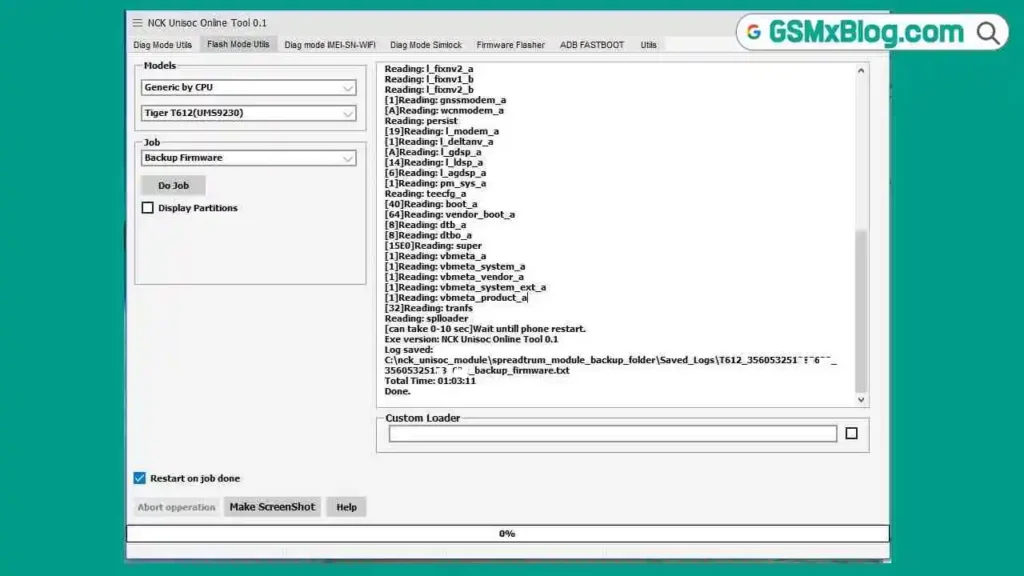
What Is NCK Online UNISOC Tool?
NCK Online UNISOC Tool is a dedicated Windows-based repair utility from the NCK Team built specifically for Unisoc (SPD) chipsets. It handles the full range of day-to-day GSM tool tasks — reading phone info, factory reset, FRP removal, sim unlock, IMEI repair, and direct flash read/write — through Diag Mode communication with the device.
Version 1.5 focuses on stability and accuracy improvements. Partition info reading has been fixed, the security backup function has been improved after it was previously dropping on certain models, and FRP reset has been strengthened to work more reliably on newer Android versions.
Key Features of NCK Online UNISOC Tool v1.5
📱 Diag Mode & Device Info
- Enter Diag Mode directly from the tool
- Read complete phone info
- Read partition info (fixed in v1.5)
- Reboot device to recovery
🔄 Reset & Backup
- Factory reset / wipe phone
- Safe format and low-level format
- Backup security NV and restore NV backup (improved reliability in v1.5)
🔓 FRP & Sim Unlock
- Remove FRP — improved for newer Android versions in v1.5
- Read simlock info and unlock codes
- Remove sim lock to unlock the phone
- Remove regional lock
- Unlock phone using a custom UID
- Restore simlock NV backup to lock the phone again if needed
🔧 IMEI & Serial Repair
- IMEI 1–4 repair and change
- BT address change
- Serial 1–2 change
⚡ Flash Operations
- Read flash and write flash
- Make a custom loader directly from firmware
- Use a custom loader for flashing
Supported Unisoc Chipsets
| Chipset | Supported |
|---|---|
| SC6530 | ✅ |
| SC6531 | ✅ |
| SC6531E | ✅ |
| SC6531EFM | ✅ |
| SC6631 | ✅ |
| SC7731C | ✅ |
| SC7731E | ✅ |
| SC7731G | ✅ |
| SC9820E | ✅ |
| SC9832A | ✅ |
| SC9863A | ✅ |
| SC9863A_64 | ✅ |
| SC9863A_64 V2 | ✅ |
| SC9863A V2 | ✅ |
| Tiger T310 (UMS312) | ✅ |
| Tiger T603 | ✅ |
| Tiger T606 | ✅ |
| Tiger T606 V2 | ✅ |
| Tiger T610 (UMS512) | ✅ |
| Tiger T610 (UMS512) V2 | ✅ |
| Tiger T612 (UMS9230) | ✅ |
| Tiger T616 | ✅ |
| Tiger T616 V2 | ✅ |
| Tiger T700 | ✅ |
| Tiger T760 | ✅ |
Newly Added Devices in v1.5
Blackview
- Blackview A52 Pro
- Blackview A85
- Blackview BV4800 Pro
- Blackview Oscal C70
- Blackview Oscal C80
- Blackview Oscal Tiger 10
- Blackview Wave 8
Oukitel
- Oukitel C1 Pro
- Oukitel C32
- Oukitel C33
- Oukitel C36
- Oukitel C51
- Oukitel C58
- Oukitel C58 Pro
- Oukitel C59
- Oukitel C60
- Oukitel C62
- Oukitel C62 Pro
- Oukitel C65
- Oukitel C65 Pro
- Oukitel G1
- Oukitel G2
- Oukitel OT11
- Oukitel OT12
- Oukitel RT9
- Oukitel WP23 Plus
- Oukitel WP23 Pro
- Oukitel WP28 E
- Oukitel WP28 S
- Oukitel WP32 Pro
All newly added Blackview and Oukitel models support read info, wipe/factory reset, FRP reset, security backup/restore, read/write flash, Diag Mode wipe, Diag Mode read info, IMEI repair, and Diag Mode serial number repair.
What’s Fixed in v1.5
- ✅ Fixed a bug affecting partition info reading
- ✅ Improved security backup function — was dropping on some models in earlier versions
- ✅ Improved FRP reset performance for newer Android versions
- ✅ Added full Blackview and Oukitel device support with Diag Mode operations
Download NCK Online UNISOC Tool v1.5
- File Name: NCKOnline_Tool_Unisoc_Installer_v1.5.7z
- Version: v1.5
- File Size: 121.0 MB
- Archive Password: NckTeam
- Platform: Windows PC
- Developer: NCK Team
How to Install NCK Online UNISOC Tool v1.5
- Download the NCKOnline_Tool_Unisoc_Installer_v1.5.7z file using the link above.
- Extract the 7z file using 7-Zip with the password: NckTeam
- Open the extracted folder and locate the setup installer file.
- Right-click the installer and select Run as Administrator.
- Follow the on-screen installation steps to complete the setup.
- Once installed, launch the tool from the installation directory.
- Connect your Unisoc device via USB in the required mode and select the operation you need. ✅
Note: Make sure your device is properly detected by installing the correct USB driver on your Windows PC before starting any Diag Mode or flash operation.
How to Use NCK Online UNISOC Tool v1.5
▶️ Read Phone Info
- Open NCK Online UNISOC Tool.
- Enter Diag Mode on the connected device.
- Click Read Phone Info.
- Device details populate in the log panel. ✅
▶️ FRP Removal
- Connect the device and enter Diag Mode.
- Select Remove FRP.
- Wait for the operation to complete.
- Reboot the device — FRP lock will be cleared. ✅
▶️ Flash Read/Write
- Connect the device via USB.
- Load or create a custom loader from the firmware file if required.
- Select Read Flash or Write Flash.
- Wait for the process to finish without disconnecting the cable. ✅
System Requirements
| Component | Requirement |
|---|---|
| OS | Windows 7 / 8 / 10 / 11 (32-bit & 64-bit) |
| Processor | Intel / AMD Dual-Core or faster |
| RAM | 2 GB minimum (4 GB recommended) |
| Storage | 200 MB free space |
| USB Port | USB 2.0 or USB 3.0 |
⚠️ Warning
Always confirm the exact chipset and model before running any flash, FRP, or unlock operation. Writing an incorrect loader or firmware file can result in a bootloop or hard brick. Do not disconnect the USB cable during any active read or write process. This tool is intended for trained mobile technicians only.
Important Notes
📌 Credit: Full development credit goes to the NCK Team for developing and maintaining NCK Online UNISOC Tool.
🔑 Archive Password: The 7z archive password is NckTeam — enter it exactly when extracting the file.
🛡️ Antivirus Note: The installer may be flagged by antivirus software as a false positive due to its Diag Mode and flash communication routines. Use on a dedicated repair PC with standard caution.
Frequently Asked Questions (FAQs)
❓ What is NCK Online UNISOC Tool used for? It is a professional Windows-based Unisoc repair tool for reading phone info, factory reset, FRP removal, sim unlock, IMEI repair, and flash read/write across Unisoc SC and Tiger series chipsets.
❓ How many chipsets does v1.5 support? Version 1.5 supports 24 Unisoc chipsets, from the SC6530 through the full Tiger T-series lineup up to Tiger T760.
❓ What’s new for Blackview and Oukitel devices? v1.5 adds full support for several Blackview and Oukitel models, including read info, wipe/factory reset, FRP reset, backup/restore, read/write flash, and Diag Mode operations.
❓ What was fixed in this update? v1.5 fixes a partition info reading bug, improves the security backup function that was dropping on some models, and improves FRP reset for newer Android versions.
❓ Is NCK Online UNISOC Tool free to download? Yes, the installer file is free to download and extract using the provided archive password.
❓ What is the archive password? The password for the installer file is NckTeam — enter it when extracting the 7z file.
Conclusion
NCK Online UNISOC Tool v1.5 delivers meaningful fixes and additions for technicians working on Unisoc devices daily — a corrected partition info reader, a more reliable security backup function, stronger FRP reset support for newer Android versions, and full Diag Mode support added for a long list of Blackview and Oukitel models. Combined with broad chipset coverage across the SC series and Tiger T-series, this update makes it a solid, no-nonsense flash tool for any Windows PC repair bench.
If you regularly handle Unisoc-based Android repair, FRP bypass, or IMEI jobs, download NCK Online UNISOC Tool v1.5 using the link above and add it to your toolkit. 🚀
Tested it on a specific model? Drop the device name and result in the comments — it helps the community confirm support across more devices.
Related Posts
- NCK Online MTK Preloader Tool v0.2.5 (Latest Version)
- MH Unlocker Pro Tool V6.9 (Latest Version)
- E-GSM Tool v19 (Latest Version)
- 360 Tool v1.2.0 (Latest Version)