Simba Tool (Latest Version) Free — Unisoc Production Line Calibration & Test System
If you work on a Unisoc device production line or provide deep-level mobile repair services, accurate RF calibration and automated production testing are non-negotiable. Simba Tool is an official utility developed by Unisoc (formerly Spreadtrum Communications) that brings RF calibration, verification, firmware handling, security deployment, and manufacturing tasks together into a single automated workflow — purpose-built for production test engineers working with Unisoc-powered mobile devices.
In this guide, you’ll find the full feature breakdown, download links for all available versions, setup notes, and everything a working technician needs to get Simba Tool running on their production line.
What Is Simba Tool?
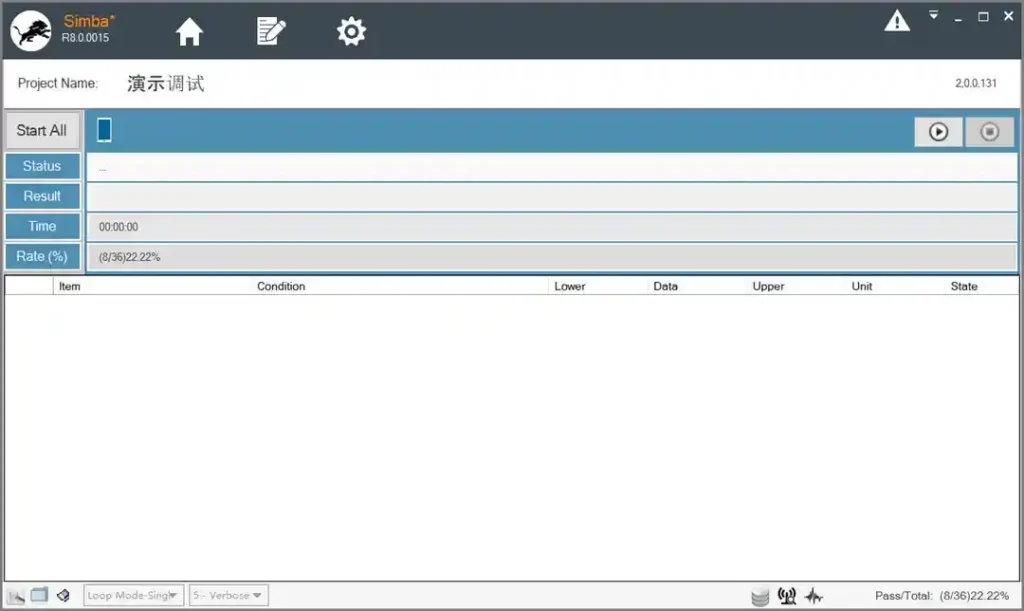
Simba Tool is a highly integrated automatic test system designed by Unisoc for production line testing and calibration of mobile devices. Rather than running separate tools for RF calibration, identifier management, firmware loading, and factory reporting, Simba consolidates all of these functions into one automated platform.
It is part of the broader Unisoc production software ecosystem — working alongside tools like the legacy CFT Tool for older chipsets, the CheckX Tool for post-calibration verification, and the SPD Factory Tool for firmware flashing. Within that workflow, Simba handles the core calibration, testing, and security deployment station, making it the most feature-complete tool in the Unisoc production chain.
Simba Tool is strictly a professional production and service engineering tool — it requires proper hardware setup and is not intended for standard end-user device flashing or repair without appropriate authorization.
Key Features of Simba Tool
📡 RF Calibration and Verification
Simba excels at RF calibration and verification across 2G, 3G, and 4G cellular technologies, as well as WCN (Wireless Connectivity Network) systems including WiFi, Bluetooth, and GPS. It handles RF path loss correction automatically, ensuring every device on the production line performs accurately within specification.
This covers both TX (transmit) and RX (receive) calibration paths, giving engineers confidence that each unit delivers correct signal strength and receiver sensitivity before it moves to the next production station.
📶 Antenna and Current Consumption Testing
Beyond RF calibration, Simba supports antenna testing and current consumption measurements. Antenna testing verifies that the physical antenna system performs as designed, while current consumption testing measures the device’s power draw across different operating states.
Catching antenna and power issues at this stage — before a device ships — prevents costly field returns and warranty claims down the line.
🔑 IMEI, SN, MAC, and MEID Management
Simba allows engineers to write and verify all critical device identifiers directly from the production station:
- IMEI (1 and 2) — primary cellular identity
- Serial Number (SN) — unit tracking identifier
- MAC Addresses — WiFi and Bluetooth hardware addresses
- MEID — CDMA device identifier where applicable
This makes Simba a one-stop station for both RF work and identifier provisioning, removing the need for a separate IMEI write step on the production line.
🔒 Security Deployment
Simba handles security provisioning tasks that modern Unisoc devices require before they can be shipped:
- SIMLOCK — carrier SIM restriction configuration
- Google Attestation Keybox — required for GMS certification and Play Protect
- IFAA — Chinese mobile payment security standard
- Soter — Tencent’s mobile security framework for fingerprint and payment APIs
Having security deployment integrated into the same tool as RF calibration significantly reduces the number of stations needed on a production line.
💾 Firmware Download and Database Integration
Simba facilitates DUT (Device Under Test) firmware downloads directly from the production station interface. It also integrates with MES (Manufacturing Execution System) platforms and local databases, enabling seamless production tracking, result logging, and reporting across the entire manufacturing floor.
This integration means every test result, pass/fail status, and identifier written during Simba’s workflow is automatically recorded for quality control and traceability purposes.
🔄 Multi-DUT Support
One of Simba’s standout production-line features is support for up to 4 DUTs simultaneously. Engineers can run calibration and testing on four devices at once from a single PC station, dramatically improving throughput on high-volume production lines.
The interface includes:
- Sequence editor — customize which test items run and in what order
- Real-time status monitoring — live pass/fail display per DUT
- Pass/fail reporting — automatic result logging for QC
- Alarm notifications — instant alerts on any test failure
Download Simba Tool
Simba Tool is developed and distributed by Unisoc Technologies Co., Ltd. and is available as a free download for Windows (32-bit and 64-bit):
📌 Recommended: Use R8.0.0015 for the most current build. Use R8.0.0001 only if your specific chipset or station configuration requires it.
How to Install Simba Tool
- Download the correct version ZIP file from the links above.
- Extract the ZIP using WinRAR or 7-Zip to a dedicated folder on your PC (e.g.
C:\SimbaTools\). - Install SPD/Unisoc USB Drivers — required for device detection and communication.
- Set up your test hardware — connect RF test instruments, regulated power supply, and any other required station equipment.
- Launch the Simba Tool executable as Administrator from the extracted folder.
- Load the correct sequence file (.seq) for your target chipset — each Unisoc chipset requires its own specific
.seqfile. - Configure your station parameters — RF bands, test items, cable loss values, and database/MES connection if applicable.
- Connect your Unisoc device(s) via USB cable.
- Start the test sequence — Simba runs calibration, verification, identifier writing, and testing automatically. ✅
✅ Important: Never modify the default
.seqfile directly. Always save a copy first, then make your customizations in the copy. Corrupting the sequence file will cause incorrect test results or failed calibrations.
How to Use Simba Tool
▶️ RF Calibration (2G/3G/4G and WCN)
- Load the correct chipset
.seqfile in the Simba sequence editor. - Enable the calibration items required for your device — cellular bands, WiFi, Bluetooth, GPS as needed.
- Connect test instruments and power supply, then connect the DUT via USB.
- Click Start — Simba automatically runs each calibration step in sequence, applying RF path loss correction along the way.
- Review per-item pass/fail status in the real-time monitoring panel.
- Re-run any failed items after checking hardware connections and test instrument settings.
▶️ IMEI, SN, and MAC Writing
- In the sequence editor, enable the identifier writing items (IMEI, SN, MAC, MEID as required).
- Enter or import the identifier values for the device batch.
- Connect the DUT via USB and run the sequence — Simba writes and verifies each identifier automatically.
- Confirm written values in the result log before passing the device to the next station.
▶️ Security Deployment (Keybox, SIMLOCK, IFAA, Soter)
- Enable the required security items in the sequence editor.
- Ensure the correct security provisioning files (Keybox, SIMLOCK config, etc.) are loaded and accessible.
- Connect the DUT and run the sequence — Simba deploys all configured security items in the correct order.
- Verify deployment success in the result log before the device moves forward.
▶️ Multi-DUT Testing (Up to 4 Devices)
- Connect up to 4 DUTs simultaneously via USB.
- Simba assigns each DUT to a separate channel in the interface.
- Run the sequence — all 4 devices are calibrated and tested in parallel.
- Monitor each DUT’s real-time status independently; alarms trigger immediately on any failure.
- Export the combined pass/fail report for QC documentation.
⚠️ Warning
Simba Tool is a professional production-line engineering system — incorrect calibration or security provisioning can permanently damage a device’s RF performance or render it non-functional on cellular networks. Always use correctly configured test instruments, proper cable loss values, and approved sequence files for your target chipset. Simba Tool must only be operated by trained production engineers or qualified RF technicians. The developer and this blog are not responsible for any damage resulting from improper use.
Important Notes
🛡️ Virus Status: Both Simba Tool versions listed above are official Unisoc software — 100% safe to download from the links provided.
📌 Credit: Full credit goes to Unisoc Technologies Co., Ltd. for developing and distributing this professional production testing solution.
⚙️ Sequence Files: Each Unisoc chipset uses a specific
.seqfile. Do not edit default sequence files directly — always work from a saved copy to protect the original configuration.
🔌 USB Drivers: SPD/Unisoc USB Drivers must be installed before connecting any device to Simba Tool. Without them, the tool cannot detect the DUT.
🔗 Production Flow: For a complete Unisoc production line, use Simba Tool alongside SPD Factory Tool (firmware flashing), CFT Tool (legacy Spreadtrum chipsets), and CheckX Tool (post-calibration station verification).
Frequently Asked Questions (FAQs)
❓ What is Simba Tool used for? Simba Tool is a highly integrated automatic test system for Unisoc device production lines. It automates RF calibration (2G/3G/4G and WCN), device identifier writing (IMEI, SN, MAC, MEID), security deployment, firmware download, and production testing — all from a single station.
❓ Is Simba Tool free to download? Yes — Simba Tool is developed and distributed by Unisoc Technologies Co., Ltd. and is available as a free download. No activation key or dongle is required.
❓ How many devices can Simba Tool test at once? Simba Tool supports up to 4 DUTs (Devices Under Test) simultaneously, allowing engineers to run calibration and testing on four units at the same time from one PC.
❓ What is the .seq file in Simba Tool? The .seq file is the test sequence file that defines which calibration and test items run, and in what order, for a specific Unisoc chipset. Each chipset requires its own .seq file. Never modify the default file directly — always work from a saved copy.
❓ What is the difference between Simba Tool and CFT Tool? Both are Unisoc production tools for RF calibration. CFT Tool targets older Spreadtrum/Unisoc chipset generations (legacy SC-series). Simba Tool is the more advanced, fully integrated system for current Unisoc production lines, adding multi-DUT support, security deployment, MES integration, and WCN calibration on top of core RF functions.
❓ Can I use Simba Tool for standard phone repair without test instruments? No. Simba Tool is a production-line engineering system that requires proper hardware setup including RF test instruments and a regulated power supply. It is not intended for standard end-user device repair without the correct equipment and authorization.
❓ Which security tasks does Simba Tool handle? Simba Tool supports SIMLOCK configuration, Google Attestation Keybox provisioning, IFAA (Chinese mobile payment security), and Soter (Tencent mobile security framework for fingerprint and payment APIs).
Conclusion
Simba Tool is the most complete production-line solution Unisoc offers for RF calibration and device manufacturing. By combining 2G/3G/4G and WCN RF calibration, antenna testing, current consumption measurement, IMEI and MAC management, Google Attestation Keybox and security deployment, firmware download, MES integration, and multi-DUT support into a single automated platform, it eliminates the need for multiple separate tools across your production stations.
For any engineer or technician running a Unisoc device production line today, Simba Tool is the definitive calibration and testing system to have in your workflow. Download R8.0.0015 from the links above, load the correct .seq file for your chipset, and ensure every Unisoc device you produce meets full cellular and wireless performance standards before it ships. 🚀
Have you used Simba Tool on your production line? Share your setup or experience in the comments below!
Related Posts
- Spreadtrum CFT Tool (All Versions) Free Download
- CheckX Tool for Windows — Unisoc Production Verification
- SPD Factory Tool — .PAC Firmware Flash Tool
- SPD USB Driver (Latest Version) Free Download