Spreadtrum CFT Tool (Latest Version) Free – RF Calibration & Final Test Tool for Unisoc
Are you a mobile production engineer or advanced Spreadtrum / Unisoc technician looking for a professional RF calibration and final test tool for Android phones? The Spreadtrum CFT Tool (Calibration and Final Test) is an official utility developed by Spreadtrum Communications (now Unisoc) specifically for RF parameter tuning, battery ADC calibration, current consumption testing, and 3GPP compliance verification on Spreadtrum and Unisoc-powered mobile devices.
Available in multiple versions from R8.0.0001 through R21.0.0001, this production-grade tool is used by mobile manufacturers and service engineers worldwide to ensure devices meet strict cellular performance standards before reaching consumers. In this guide you’ll find the complete feature list, all download versions, usage notes, and supported instrument information.
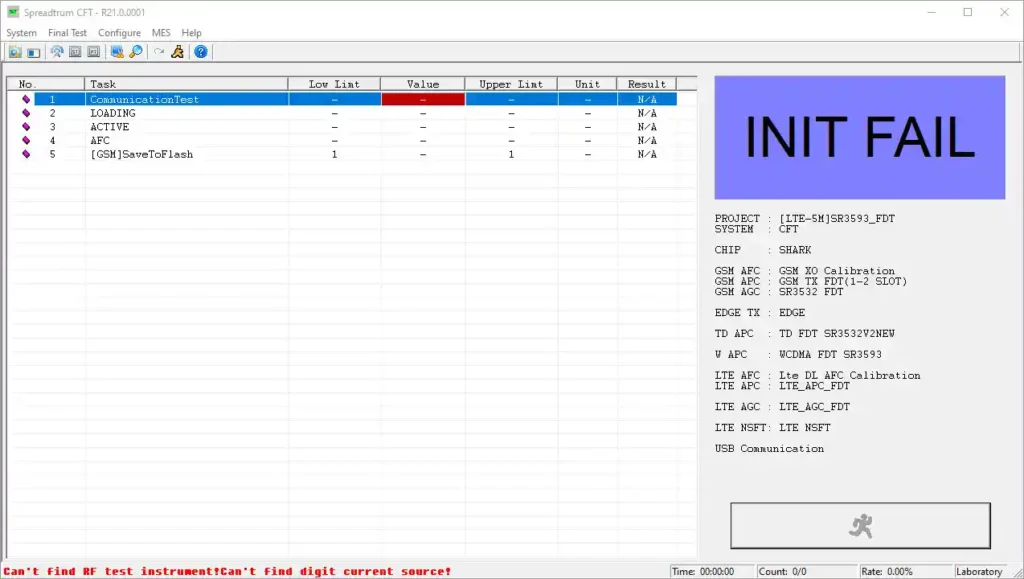
What Is Spreadtrum CFT Tool?
The Spreadtrum CFT Tool (Calibration and Final Test) is a professional Windows-based production line tool developed by Spreadtrum Communications, Inc. (now Unisoc). It is designed to be used on mobile phone manufacturing and testing lines to automatically perform RF tuning, battery calibration, and performance verification on Spreadtrum/Unisoc-based Android devices — ensuring every unit meets 3GPP cellular specifications before leaving the factory.
CFT Tool operates in conjunction with professional RF test instruments (such as R&S CMU200, Agilent 8960) connected via GPIB interface and a calibrated power supply — making it a true production-grade engineering tool rather than a standard consumer repair utility.
Key Features of Spreadtrum CFT Tool
🔋 Battery Calibration (ADC)
- Perform Automatic Battery DAC Calibration to fine-tune ADC parameters
- Ensure accurate battery level reporting on the device
- Verify proper power management behavior post-calibration
- Correct ADC drift that causes inaccurate battery percentage readings
- Essential for production quality control on all Unisoc-based devices
📡 RF Parameter Tuning
- Automatically tune critical RF parameters including:
- AFC (Automatic Frequency Control) — frequency stability tuning
- APC (Automatic Power Control) — transmit power output tuning
- AGC (Automatic Gain Control) — receiver gain optimization
- Optimize device for stable cellular performance across all supported frequency bands
- Ensures every unit transmits and receives within specification
🧪 RF Performance Final Test
- Conduct comprehensive 3GPP-compliant final testing on each device
- Tests covered include:
- TX Power — transmitted signal strength verification
- Phase Error — signal phase accuracy testing
- Spectrum Emission — out-of-band emission compliance
- ACLR (Adjacent Channel Leakage Ratio) — interference measurement
- EVM (Error Vector Magnitude) — signal quality measurement
- Sensitivity — receiver minimum detectable signal testing
- All results logged for production QC documentation
⚡ Current Consumption Testing
- Measure device current draw in multiple operating modes:
- Power Off mode — verify shutdown current
- Deep Sleep mode — verify standby power efficiency
- Identify abnormal current leakage issues early in production
- Ensure power efficiency standards are met before device ships
⚙️ System Setup & Automation
- Supports flexible system role configuration:
- CFT (Full Calibration and Final Test)
- FT Only (Final Test without calibration)
- Antenna Test (standalone antenna verification)
- Auto-start on phone connection — fully automated workflow
- Handover configuration support for multi-station production lines
- Detailed logging for every test result — full production audit trail
- Advanced parameter editing via CALPARAM.ini (password:
sprd)
Download Spreadtrum CFT Tool — All Versions
All versions are available for Windows (32-bit and 64-bit):
| Version | Download |
|---|---|
| CFT R8.0.0001 | Download |
| CFT R9.0.0001 | Download |
| CFT R9.15.1501 | Download |
| CFT R11.0.0001 | Download |
| CFT R17.0.0001 | Download |
| CFT R21.0.0001 | Download |
📌 Recommended: Use R21.0.0001 for the latest Unisoc chipset support. Use older versions only if your specific chipset or test instruments require them.
How to Install Spreadtrum CFT Tool
- Download the correct version ZIP file for your chipset using the links above.
- Extract the ZIP file using WinRAR or 7-Zip to a dedicated folder on your PC (e.g.
C:\CFT_Tool\). - Install NI-GPIB drivers — required for instrument communication via GPIB interface.
- Connect your RF test instruments (R&S CMU200, Agilent 8960, or equivalent) via GPIB cable.
- Connect regulated power supply to the device under test.
- Open the extracted folder and launch the CFT Tool executable as Administrator.
- Configure System Setup — set calibration items, final test standards, cable loss values, and station role.
- Connect your Spreadtrum / Unisoc device via USB cable.
- The tool auto-detects the device and initiates the calibration/test workflow. ✅
✅ Tip: For advanced parameter customization, edit
CALPARAM.iniusing the passwordsprd. Always back up the original file before making changes.
How to Use Spreadtrum CFT Tool
▶️ RF Calibration (Full CFT Mode)
- Launch CFT Tool and set System Role to “CFT” in System Setup.
- Configure calibration items — select AFC, APC, AGC, and battery ADC as required.
- Connect test instruments and power supply to the device.
- Connect Spreadtrum device via USB.
- Click “Start” — the tool automatically performs all calibration steps in sequence.
- Review calibration results in the log panel.
- Pass ✅ / Fail ❌ status is displayed for each calibration item. Repeat failed items if needed.
▶️ Final Test Only (FT Mode)
- Set System Role to “FT Only” in System Setup.
- Configure the 3GPP test standards and acceptable thresholds for your device model.
- Connect device and instruments.
- Click “Start” — all RF performance metrics are automatically measured and logged.
- Review TX Power, Phase Error, ACLR, EVM, and Sensitivity results.
- Export the log for QC documentation.
▶️ Battery ADC Calibration
- Set System Role to “CFT” and enable Battery ADC calibration item.
- Connect a regulated power supply set to the exact reference voltage.
- Connect device via USB.
- Run calibration — CFT automatically tunes ADC reference values.
- Verify battery percentage accuracy after calibration.
▶️ Current Consumption Test
- Connect precision current measurement hardware to the power supply line.
- Enable Current Consumption test in System Setup.
- Connect device and run test — CFT measures power off and deep sleep current.
- Results are compared against preset thresholds and logged automatically.
▶️ Antenna Test
- Set System Role to “Antenna Test” in System Setup.
- Connect device to antenna test equipment.
- Run the test — CFT verifies antenna performance and radiation efficiency.
Required Hardware Setup
⚠️ CFT Tool is a production-line engineering tool — proper hardware setup is mandatory. It cannot be used with just a PC and USB cable alone.
| Hardware | Purpose |
|---|---|
| R&S CMU200 or Agilent 8960 | RF signal generation and measurement |
| GPIB Interface Card | PC-to-instrument communication (NI GPIB required) |
| Regulated DC Power Supply | Controlled power input for calibration |
| RF Cables & Attenuators | Signal path connections with known cable loss |
| USB Cable | PC-to-device communication |
| Spreadtrum / Unisoc Device | Device under test (DUT) |
📌 Note: For modern Unisoc chipsets (Tiger T-series, SC9863A, etc.), Spreadtrum’s newer Simba Tool is recommended instead of the older CFT Tool versions.
Supported Chipsets
Spreadtrum CFT Tool covers a wide range of Spreadtrum and Unisoc chipsets across production generations:
| Generation | Chipsets |
|---|---|
| Legacy SC Series | SC6820, SC8810, SC7715, SC7730 |
| Mid-Range SC Series | SC9830, SC9832, SC9863A |
| Unisoc Tiger Series | T310, T606, T610, T612, T616, T700 |
| LTE Platforms | All 4G-capable Spreadtrum/Unisoc chipsets |
Supported Brands & Devices
CFT Tool is used during production and servicing of Spreadtrum/Unisoc-based devices from major budget Android brands:
- ✅ Itel — All Spreadtrum/Unisoc-powered models
- ✅ Tecno — All Spreadtrum/Unisoc-powered models
- ✅ Infinix — All Spreadtrum/Unisoc-powered models
- ✅ Samsung — Budget models on Unisoc chipsets (A01 Core, A03 series)
- ✅ Symphony — Spreadtrum-based models (South Asia)
- ✅ Walton — Primo-series SPD models
- ✅ Generic Spreadtrum ODM devices — All major chipset platforms
System Requirements
| Component | Requirement |
|---|---|
| OS | Windows XP / 7 / 10 (32-bit or 64-bit) |
| Processor | Intel Dual-Core or faster |
| RAM | 1 GB minimum (2 GB recommended) |
| Storage | 500 MB free space |
| USB Port | USB 2.0 |
| GPIB Interface | National Instruments GPIB card + drivers |
| Test Instruments | R&S CMU200, Agilent 8960, or compatible |
| Power Supply | Regulated DC supply |
⚠️ Warning
Spreadtrum CFT Tool is a professional production-line instrument — incorrect calibration can permanently damage a device’s RF performance or render it non-functional on cellular networks. Always use correctly configured test instruments, proper cable loss values, and approved calibration procedures. CFT Tool should only be operated by trained production engineers or qualified RF technicians. The developer and this blog are not responsible for any damage resulting from improper use.
Important Notes
🛡️ Virus Status: All CFT Tool versions are official Spreadtrum/Unisoc software — 100% safe to download from the links above.
📌 Credit: Full credit goes to Spreadtrum Communications, Inc. (now Unisoc) for developing and distributing this professional production testing solution.
⚙️ CALPARAM.ini: Advanced calibration parameters can be modified via
CALPARAM.iniusing passwordsprd. Always back up the original before editing — incorrect parameters will produce failed calibrations.
🔌 NI Drivers: National Instruments GPIB drivers must be installed before launching CFT Tool — without them, the tool cannot communicate with test instruments.
Why Use Spreadtrum CFT Tool?
- ✅ Official Unisoc production tool — trusted by manufacturers worldwide
- ✅ Covers complete calibration workflow — RF tuning + battery + current + final test
- ✅ 3GPP-compliant testing — ensures cellular regulatory compliance
- ✅ Multiple versions available — from R8 to R21 for all chipset generations
- ✅ Fully automated process — auto-start, auto-test, detailed logging
- ✅ Supports multiple system roles — CFT, FT Only, Antenna Test
- ✅ Free to download — all versions freely available
- ✅ Compatible with major RF test instruments (R&S CMU200, Agilent 8960)
Frequently Asked Questions (FAQs)
❓ Is Spreadtrum CFT Tool free to download? Yes — all versions of Spreadtrum CFT Tool (R8 through R21) are free to download from the links provided above.
❓ Can I use CFT Tool without RF test instruments? No — CFT Tool requires proper hardware including a GPIB-connected RF test instrument (R&S CMU200, Agilent 8960, or compatible) and a regulated power supply. It cannot perform RF calibration without this hardware.
❓ Which version should I use for modern Unisoc devices? Use R21.0.0001 for the broadest modern Unisoc support. However, for the newest Unisoc Tiger-series chipsets (T606, T610, T616, T700), the Simba Tool is recommended.
❓ What is the CALPARAM.ini password? The password to modify CALPARAM.ini advanced parameters is sprd. Always back up the original file before making changes.
❓ Does CFT Tool work on Windows 10? Compatibility varies by version. Older versions (R8, R9) work best on Windows XP/7. Newer versions (R17, R21) generally work on Windows 10. NI GPIB drivers must be installed for all versions.
❓ What does AFT, APC, and AGC mean in RF calibration? AFC (Automatic Frequency Control) adjusts oscillator frequency for stable cellular signal. APC (Automatic Power Control) calibrates transmit power output. AGC (Automatic Gain Control) optimizes receiver sensitivity and gain.
❓ What is the difference between CFT mode and FT Only mode? CFT mode performs both calibration and final testing in one workflow. FT Only mode skips calibration and only runs the 3GPP final test — used on devices already calibrated on a separate station.
Conclusion
The Spreadtrum CFT Tool is an essential, official production-grade utility for any engineer or advanced technician working with Spreadtrum and Unisoc Android devices at a manufacturing or deep service level. Its comprehensive coverage of RF parameter calibration (AFC, APC, AGC), battery ADC tuning, 3GPP final testing, current consumption verification, and multi-station automation makes it the definitive calibration and testing platform for the Spreadtrum/Unisoc ecosystem.
With multiple versions spanning from R8 to R21 and free downloads for all, there’s a version available for every Spreadtrum chipset generation from legacy SC-series all the way to modern Unisoc platforms. Download the version you need using the links above and ensure every Unisoc device you service or produce meets full cellular compliance standards! 🚀
Have you used Spreadtrum CFT Tool before? Share your experience in the comments below!
Related Posts
- SPRD IMEI Write Tool V10.00.01 (Latest Version)
- Extra-Tools SPD Diag Tool v1.0 (Latest Version)
- SPD USB Driver (Latest Version)
- MTK USB Driver (Latest Version)