OTA Blocker Mac Download Free – Block macOS Updates Easily
If your Mac updates at the wrong time or breaks important tools after updating, you’re not alone. Many users prefer to stay on a stable macOS version instead of dealing with unexpected changes.
OTA Blocker Mac is a lightweight free tool that helps you block automatic macOS updates easily. It gives you full control over your system updates so you can update only when you want.
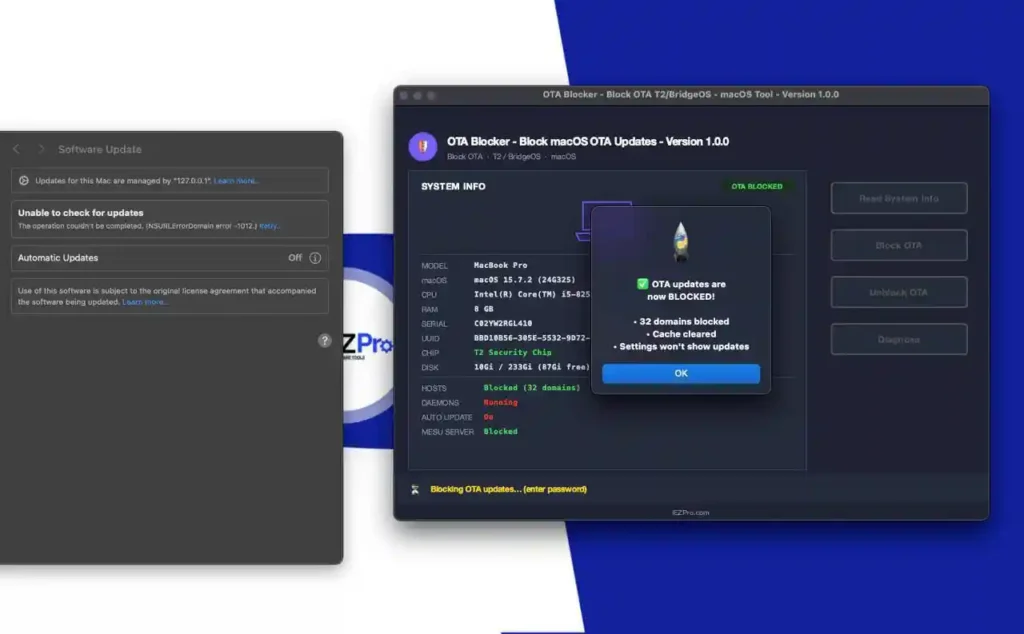
What is OTA Blocker Mac
OTA Blocker is a small macOS utility designed to stop OTA (Over-The-Air) updates. It works by blocking Apple update servers so your Mac cannot download or install updates automatically.
After blocking, the Software Update section will not show new updates. However, you can still update your system manually anytime.
This tool is especially useful for:
- Technicians
- Repair professionals
- Users running older macOS versions
- People using tools that break after updates
Why Block macOS Updates
Software Compatibility
Some tools stop working after macOS updates, especially repair or unlocking tools.
Performance Issues
Older Mac devices may become slow after installing new updates.
Stability
If your system is working fine, updating may create unnecessary problems.
Save Internet Data
Automatic updates can use a lot of data, which is not ideal for limited connections.
Features of OTA Blocker Tool
- Block macOS OTA updates
- Stop automatic system updates
- One-click block and unblock option
- Clear update cache
- Simple and easy interface
- Works on many macOS versions
- Completely free tool
Download OTA Blocker Block macOS OTA Updetes Version 1.0.0
- File Name: OTA_Blocker.zip
- Version: 1.0.0
- File Size: 11.63 MB
How to Use OTA Blocker on MacBook
- Download OTA Blocker tool
- Extract the file
- Open the tool on your Mac
- Click on “Read System Info”
- Click on “Block OTA”
- Enter your Mac password
- Wait for the process to complete
- Restart your Mac
After restarting, automatic updates will be disabled.
You can unblock updates anytime using the same tool.
Advantages of OTA Blocker
- Stops unwanted macOS updates
- Prevents compatibility problems
- Saves internet data
- Keeps system stable
- Very easy to use
- Useful for technicians
- Free to use
Is OTA Blocker Safe
OTA Blocker only blocks update servers and does not affect your personal files. It is generally safe to use.
However:
- You will not receive automatic security updates
- You should update manually when needed
Conclusion
OTA Blocker Mac is a simple and effective solution for users who want full control over macOS updates. It helps prevent unwanted updates, protects compatibility, and keeps your system stable.
If you prefer stability over automatic updates, this tool is a good choice.
