Xiaomi Mi Unlock Tool v6.5.224.28 (Latest) – Official Bootloader Unlock Tool
Rooting a Xiaomi phone, flashing a custom recovery, or installing a third-party ROM all start at the same place — the bootloader. The Xiaomi Mi Unlock Tool is the official desktop utility from Xiaomi that handles bootloader unlocking on all Xiaomi, Redmi, and POCO smartphones. Without unlocking the bootloader first, none of those Android repair or customization tasks are possible. This guide covers everything you need — what the tool does, prerequisites, step-by-step usage, and the direct free download for Windows PC.
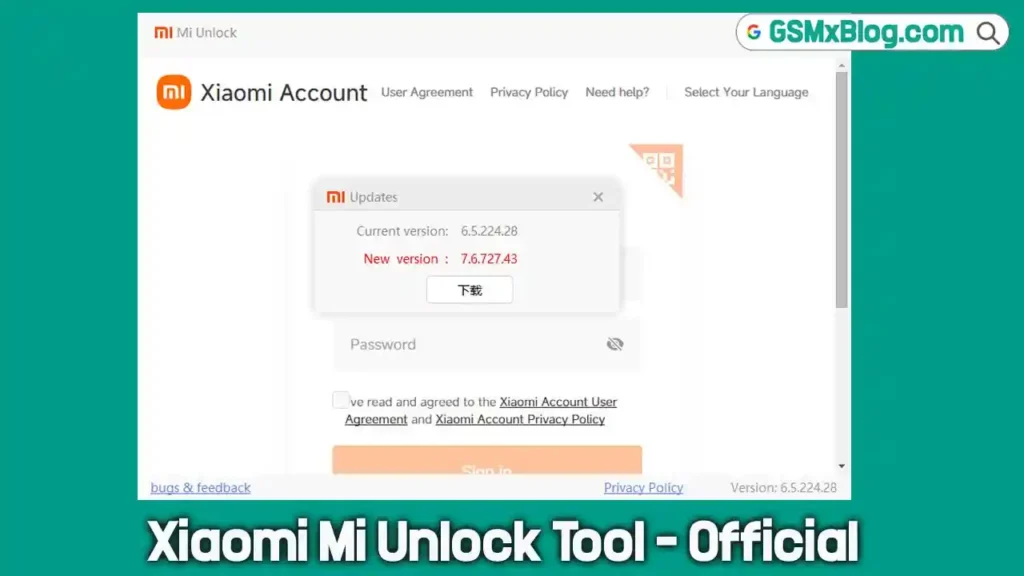
What Is Xiaomi Mi Unlock Tool?
Xiaomi Mi Unlock Tool (also known as MiFlash Unlock) is the official bootloader unlock utility developed and distributed by Xiaomi Inc. It runs on Windows PC and lets you unlock the bootloader on Xiaomi, Redmi, and POCO Android devices through a straightforward desktop interface.
Unlocking the bootloader is the essential first step before you can root your device with Magisk, flash a custom recovery like TWRP, or install modified firmware such as Xiaomi.eu or any custom AOSP ROM. The tool communicates directly with Xiaomi’s cloud servers to verify your Mi Account authorization before completing the unlock — which means your Mi Account must be linked to the device before you start.
For devices running Xiaomi HyperOS (including HyperOS 2.0 and HyperOS 3.0), you must first request and receive unlock authorization through the official Xiaomi Community App on your phone before using the desktop tool. Once your account gets approved, the desktop tool finalizes the process.
One important thing to know upfront: the unlock process performs a complete factory reset on your device. Back up all your data before you proceed.
Key Features of Xiaomi Mi Unlock Tool
🔓 Official Bootloader Unlock
- Unlocks the bootloader on all Xiaomi, Redmi, and POCO Android smartphones
- Communicates with Xiaomi’s official cloud servers for account verification and token authorization
- Required for rooting, custom recovery installation, and custom ROM flashing
🖥️ Portable Windows Application
- Runs directly from the extracted ZIP folder — no heavy installer needed
- Compatible with Windows 7, 8, 10, and 11 (32-bit and 64-bit)
- Clean, simple interface with a single Unlock button workflow
🔐 Mi Account-Based Authorization
- Requires the Mi Account linked to the target device to be logged into the tool
- Verifies authorization tokens through Xiaomi’s server before proceeding
- Ensures the unlock is tied to the device owner’s account
⏱️ Security Cooldown Handling
- New devices or recently linked accounts may trigger a waiting period (e.g., 168 hours)
- The tool clearly displays the cooldown notice and the remaining wait time
- Once the cooldown passes, the unlock completes on the next attempt without any extra steps
🔄 HyperOS Support
- Supports modern Xiaomi HyperOS devices including HyperOS 2.0 and HyperOS 3.0
- For HyperOS devices, unlock authorization is requested through the Xiaomi Community App first, then completed via this desktop tool
Prerequisites Before You Start
Complete these steps on your phone before running the desktop tool. Skipping any of these will cause the unlock to fail.
On Your Phone:
- Enable Developer Options — Go to Settings → About Phone and tap on your MIUI or HyperOS version number 7 times until Developer Options are enabled.
- Enable OEM Unlocking — Go to Settings → Additional Settings → Developer Options and turn on OEM Unlocking.
- Bind Your Mi Account — In the same Developer Options menu, tap Mi Unlock Status and link your active Mi Account to the device hardware. This step is mandatory — the desktop tool checks this binding.
- Back Up Your Data — The unlock process will wipe your device completely. Transfer all photos, contacts, and app data to a safe location before proceeding.
On Your PC:
- Install USB Drivers — Make sure your PC has working Xiaomi USB Fastboot drivers installed. Without the correct driver, the tool will not detect the device. You can use the Qualcomm USB Driver or MTK USB Driver depending on your device chipset.
Download Xiaomi Mi Unlock Tool
| Detail | Info |
|---|---|
| File Name | miflash_unlock-en-6.5.224.28.zip |
| Version | 6.5.224.28 |
| File Size | 31 MB |
| Platform | Windows PC (32-bit & 64-bit) |
| Developer | Xiaomi Inc. |
| Price | Free |
How to Install
- Download the ZIP file from the link above.
- Right-click the ZIP and select Extract Here using WinRAR or 7-Zip.
- Open the extracted folder and locate miflash_unlock.exe.
- No installation required — the tool runs directly from this folder.
- Right-click miflash_unlock.exe and select Run as Administrator to launch it. ✅
How to Use the Tool
Step 1 — Open the Tool and Log In
- Launch miflash_unlock.exe as Administrator.
- Log in using the exact same Mi Account that is currently linked to your smartphone.
- Wait for the tool dashboard to fully load.
Step 2 — Boot Your Phone into Fastboot Mode
- Power off your Xiaomi, Redmi, or POCO device completely.
- Press and hold Volume Down + Power buttons together.
- Release when the Fastboot screen or Xiaomi mascot appears on the display.
- Connect the phone to your PC using a good quality USB data cable — preferably into a USB 2.0 port for stable communication.
Step 3 — Verify Connection and Unlock
- The tool will automatically scan for the connected device and show “Phone Connected” in the status area.
- Click the Unlock button at the bottom of the tool window.
- Read the security warning carefully, then click Unlock Anyway to confirm and begin the process.
Step 4 — Wait for Completion
- The tool communicates with Xiaomi’s servers to verify your authorization tokens.
- If a security cooldown notice appears (e.g., “Please unlock 168 hours later”), simply wait the required time without unlinking your Mi Account, then repeat the process.
- Once the status bar shows “Unlocked Successfully”, your device will automatically wipe and reboot to the initial setup screen with an unlocked bootloader. ✅
System Requirements
| Component | Requirement |
|---|---|
| OS | Windows 7 / 8 / 10 / 11 (32-bit & 64-bit) |
| USB Port | USB 2.0 or USB 3.0 |
| USB Driver | Xiaomi Fastboot USB Driver |
| Internet | Required (server authorization) |
| Mi Account | Required and linked to device |
| Box/Dongle | Not required |
Important Notes
📌 Credit: Full development credit goes to Xiaomi Inc. This article is published by the GSMxblog team for informational and educational purposes only.
⚠️ Data Loss Warning: The bootloader unlock process performs a complete factory reset. All user data, apps, and settings on the device will be erased. Back up everything before you start.
🔐 Mi Account Required: The tool will not proceed without a Mi Account that is already linked to the device via Developer Options → Mi Unlock Status.
⏳ Cooldown Notice: New devices or freshly linked accounts may be subject to a waiting period before the unlock is permitted. Do not unlink your Mi Account during this period.
📱 HyperOS Devices: On HyperOS (2.0 / 3.0) devices, you must first obtain unlock permission through the Xiaomi Community App before using this desktop tool.
Frequently Asked Questions (FAQs)
❓ What is Xiaomi Mi Unlock Tool used for? It is the official Xiaomi desktop utility for unlocking the bootloader on Xiaomi, Redmi, and POCO smartphones. Bootloader unlock is required before rooting with Magisk, installing TWRP, or flashing custom ROMs.
❓ Is the tool free? Yes. Xiaomi Mi Unlock Tool is completely free to download and use. No paid license or activation is needed.
❓ Does it work on all Xiaomi phones? It supports all Xiaomi, Redmi, and POCO Android smartphones. HyperOS devices require an additional authorization step via the Xiaomi Community App before using the desktop tool.
❓ Will unlocking the bootloader erase my data? Yes. The unlock process triggers a complete factory reset. Back up all your data before starting.
❓ What is the cooldown period? Some devices require a waiting period (e.g., 168 hours) between linking the Mi Account and completing the unlock. The tool displays this notice clearly. Do not unlink your account during the wait.
❓ Does it work on Windows 11? Yes. The tool supports Windows 7, 8, 10, and 11 in both 32-bit and 64-bit configurations.
❓ Can I use this tool without a Mi Account? No. A Mi Account linked to the device is mandatory. The tool verifies the account binding with Xiaomi’s servers before unlocking.
Conclusion
The Xiaomi Mi Unlock Tool is the only official, supported way to unlock the bootloader on Xiaomi, Redmi, and POCO devices — and it is completely free. Whether you are a mobile technician preparing a device for custom ROM installation, a developer setting up a test environment, or an advanced Android user looking to root with Magisk, this flash tool is your starting point. Version 6.5.224.28 runs cleanly on Windows PC with no installer required — just extract and run as Administrator.
Download Xiaomi Mi Unlock Tool from the link above, complete the prerequisites on your phone first, and follow the step-by-step guide to unlock your bootloader safely. Already using this GSM tool in your repair workflow? Share your experience in the comments.
Related Posts:
- MTK USB Driver – Free Download
- Qualcomm USB Driver – Free Download
- Oplus Flash Tool – Latest Version
- RD Power Plus Tool – Latest Version