Vivo V29 Pro PD2284F Flash File (Firmware) Free Download
Is your Vivo V29 Pro PD2284F stuck on the logo, dead, or facing software errors? Flashing the official stock firmware can restore your device to its original working condition. This guide provides the latest Vivo V29 Pro PD2284F flash file, along with flashing instructions, tools, and driver requirements.
If you want to fix bootloop, unbrick your device, repair IMEI, or remove root access, downloading and installing the official firmware is the safest solution.
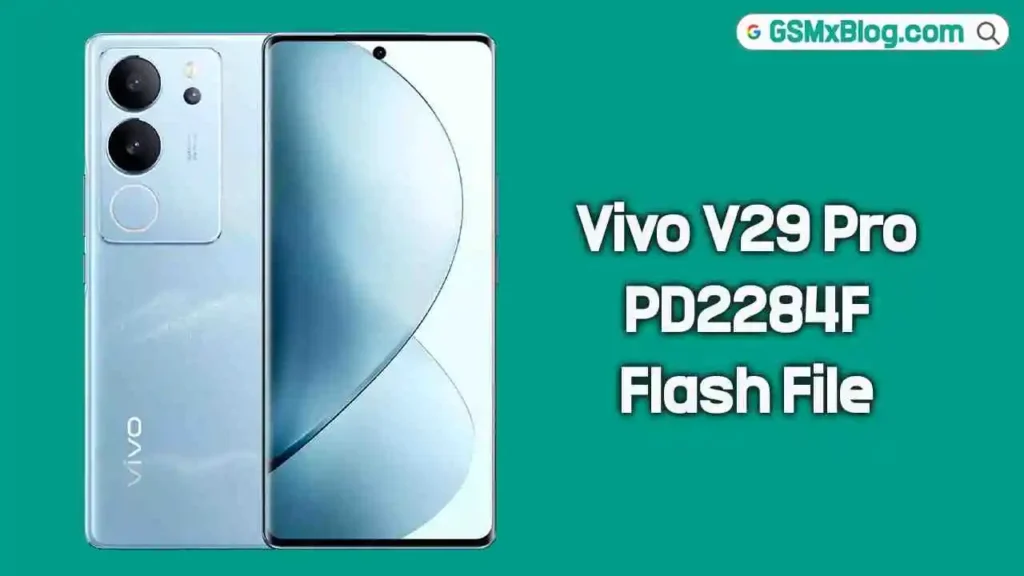
About Vivo V29 Pro 5G
The Vivo V29 Pro 5G comes with powerful hardware and premium design. Below are the key specifications:
- Processor: MediaTek Dimensity 8200 (4nm)
- RAM: 8GB / 12GB
- Storage: 256GB (No SD Card Slot)
- Battery: 4600mAh non-removable
- Charging: 80W Fast Charging
- Operating System: Funtouch OS 13 based on Android 13
The device delivers smooth performance, but like any smartphone, it may face software-related issues that require firmware flashing.
Why Flash Vivo V29 Pro PD2284F Firmware?
Flashing the stock ROM helps resolve serious software problems. Here are the main benefits:
Fix Common Issues
- Stuck on logo
- Bootloop problem
- Dead or bricked device
- System crashes
- Corrupted firmware
Repair & Restore
- Fix IMEI issues
- Solve red, orange, and yellow state errors
- Remove root access
- Restore factory settings
- Revert back to official stock firmware
- Regain warranty (if applicable)
Flashing the official ROM ensures your device runs on clean and stable software.
Download Vivo V29 Pro PD2284F Flash File
Firmware Version:
PD2284F_EX_A_13.0.7.1.W30.V000L1_vivo_mtk
Download Link: Click Here to Download
Make sure to download the correct firmware version for your exact model number (PD2284F). Installing the wrong file may cause further issues.
Pre-Requisites Before Flashing Vivo V29 Pro
Before you start the flashing process, follow these important requirements:
- Charge battery at least 70%
- Use original Vivo USB cable
- Install MediaTek USB Drivers on your PC
- Download and install SP Flash Tool (Recommended tools: UMT, UnlockTool, EMT Tool, MRT)
- Backup important data (flashing will erase data)
- Basic knowledge of firmware flashing
Following these steps reduces the risk of flashing failure.
How to Install Vivo V29 Pro PD2284F Stock Firmware
Follow the steps carefully to flash using SP Flash Tool:
Step 1: Install Drivers
Download and install MediaTek drivers on your PC.
(Skip if already installed.)
Step 2: Extract Files
Download the Vivo V29 Pro flash file and SP Flash Tool.
Extract both files to your computer.
Step 3: Load Scatter File
- Open SP Flash Tool
- Click on “Scatter-loading”
- Select the scatter file from the extracted firmware folder
Step 4: Start Flashing
- Click the Download button
- Power off your phone
- Connect it to PC using USB cable
SP Flash Tool will automatically detect and begin flashing.
Step 5: Completion
Wait until the process finishes.
You will see a success message once flashing is complete.
Disconnect the phone and power it on. First boot may take a few minutes.
Conclusion
Downloading and installing the Vivo V29 Pro PD2284F flash file is the best solution for fixing serious software problems like bootloop, dead phone, corrupted system, and IMEI errors. Always use the official firmware version and follow the instructions carefully.
If you carefully complete all steps, your Vivo V29 Pro will return to its original factory condition and run smoothly again.