SP Flash Tool BROM ERROR S_BROM_CMD_STARTCMD_FAIL Fix [2026 Complete Guide]
Are you getting the frustrating BROM ERROR: S_BROM_CMD_STARTCMD_FAIL while trying to flash your MediaTek Android phone using SP Flash Tool? You’re not alone. This error is one of the most commonly reported issues by mobile technicians and Android enthusiasts worldwide — and the good news is, it has multiple proven fixes.
In this complete guide, we’ll explain exactly what causes this error, what each error code means (2005, 0x7D5, -1073348607), and walk you through every working solution step by step so you can get back to flashing without losing time.
What Is SP Flash Tool BROM ERROR S_BROM_CMD_STARTCMD_FAIL?
SP Flash Tool (Smart Phone Flash Tool) is the most widely used Windows software for flashing firmware on MediaTek (MTK) chipset-based Android phones — including brands like Tecno, Infinix, Itel, Symphony, Realme, Xiaomi Redmi (MTK), Walton, and many more.
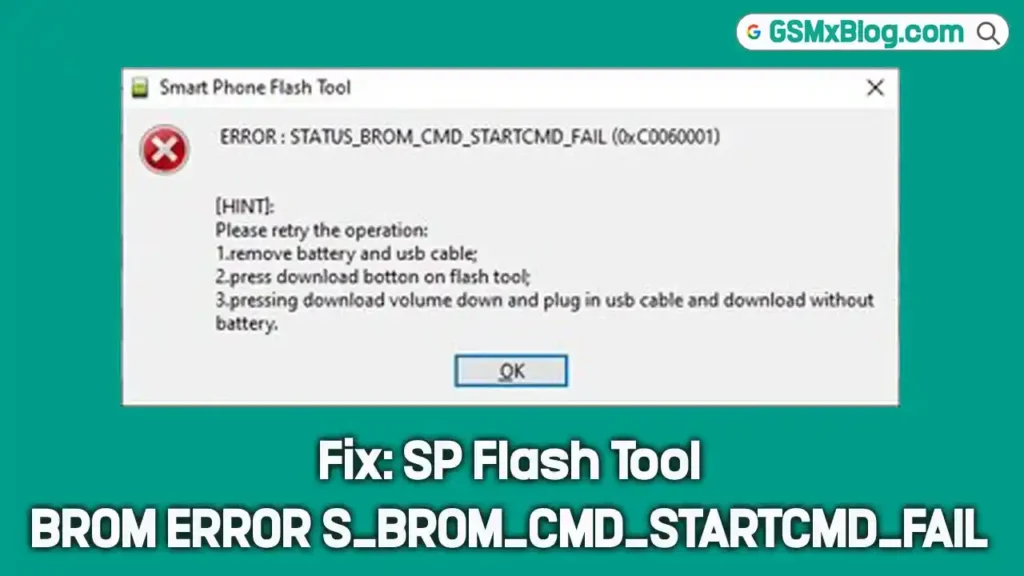
The error message appears like this in the SP Flash Tool log:
BROM ERROR: S_BROM_CMD_STARTCMD_FAIL (2005)
MSP ERROR CODE: 0x00
Or in some versions:
ERROR: STATUS_BROM_CMD_STARTCMD_FAIL (-1073348607)
MSP ERROR CODE: 0x00
What does it mean? This error means that SP Flash Tool tried to send a command to the phone’s Boot ROM (BROM) — the lowest-level chip boot layer — but the command failed to start. In simple terms, the phone powered on or responded at the wrong time before SP Flash Tool could take control of the flashing process.
Error Code Variants
This same error appears under different code numbers depending on your SP Flash Tool version:
| Error Code | Full Message |
|---|---|
| 2005 | BROM ERROR: S_BROM_CMD_STARTCMD_FAIL (2005) |
| 0x7D5 | BROM ERROR: S_BROM_CMD_STARTCMD_FAIL (0x7D5) |
| -1073348607 | ERROR: STATUS_BROM_CMD_STARTCMD_FAIL (-1073348607) |
All three codes point to the same root cause and are fixed using the same methods below.
What Causes This Error?
Before jumping to fixes, understanding the cause helps you pick the right solution faster:
| Cause | Explanation |
|---|---|
| Phone powered on too early | The device booted before SP Flash Tool could enter BROM mode |
| Battery not properly inserted | Low or missing battery causes unstable BROM communication |
| Wrong or damaged USB cable | Data line issues prevent proper MTK BROM handshake |
| MTK VCOM driver not installed | PC can’t communicate with the phone at BROM level |
| Running without Administrator rights | SP Flash Tool can’t access USB ports fully |
| Wrong Download Agent (DA) file | The DA file is incompatible with the phone’s chipset |
| Wrong SP Flash Tool version | Newer versions may not support older chipsets and vice versa |
| USB 3.0 port interference | MTK BROM works better on USB 2.0 ports |
Fix 1 — Battery Check & Reconnect
This is the most common cause and the first thing you should try.
Steps:
- Disconnect the phone from the PC completely.
- Remove the phone’s battery (if removable).
- Wait 10–15 seconds.
- Reinsert the battery — make sure it’s well charged (at least 30%).
- Make sure the phone is completely switched OFF — not just the screen.
- Open SP Flash Tool first, load your scatter file.
- Click Download in SP Flash Tool.
- Then connect the phone to PC via USB — do NOT power it on.
⚠️ Important: The phone must be OFF when you connect it. SP Flash Tool needs to catch the phone in BROM mode before it boots up.
Fix 2 — Run SP Flash Tool as Administrator
SP Flash Tool requires full system access to communicate with the phone’s USB port at a low level. Running without admin rights causes BROM communication to fail.
Steps:
- Close SP Flash Tool if it’s open.
- Right-click on flash_tool.exe.
- Select “Run as Administrator”.
- Click Yes if a UAC prompt appears.
- Try flashing again.
Fix 3 — Change Compatibility Mode to Windows XP SP3
This is one of the most effective and least-known fixes. SP Flash Tool’s BROM communication layer works more reliably when the app is set to run in Windows XP SP3 compatibility mode — even on Windows 10 and Windows 11.
Steps:
- Right-click on flash_tool.exe.
- Select Properties.
- Click the Compatibility tab.
- Check “Run this program in compatibility mode for:”
- Select Windows XP (Service Pack 3) from the dropdown.
- Also check “Run this program as an administrator”.
- Click Apply, then OK.
- Launch SP Flash Tool and try again.
Fix 4 — Try a Different USB Cable & Port
A faulty USB cable is responsible for this error more often than people realize. The data lines in cheap or worn-out cables fail to carry the precise BROM-level signals SP Flash Tool needs.
Steps:
- Replace with a known good USB cable — ideally the original cable that came with the phone.
- Try a different USB port on your PC — preferably a USB 2.0 port (usually black-colored), not USB 3.0 (usually blue-colored).
- Avoid connecting through a USB hub — plug directly into the motherboard port.
- Try connecting to a rear USB port on a desktop PC (more stable power delivery).
Fix 5 — Reinstall MediaTek VCOM USB Driver
SP Flash Tool communicates with your phone through a special driver called the MTK VCOM (Virtual COM Port) driver. If this driver is missing, corrupted, or the wrong version, the BROM handshake fails completely.
Steps:
- Open Device Manager on your PC (Win + X → Device Manager).
- Connect your phone (powered OFF) via USB.
- Look for any unknown device or a device showing a yellow warning triangle.
- If you see it — the VCOM driver is not installed correctly.
- Download the correct MediaTek VCOM USB Driver for your Windows version.
- Install it and restart your PC.
- Try flashing again with SP Flash Tool.
💡 Tip: Use MTK USB Driver from GSMxBlog for the latest tested version.
Fix 6 — Change Download Agent (DA File)
SP Flash Tool uses a Download Agent (DA) file to communicate with the phone’s chipset. If the default DA file is incompatible with your specific phone model or chipset, you’ll get this error.
Steps:
- In SP Flash Tool, go to Options → Option (from the top menu).
- Click on the Download Agent tab.
- Change the DA file from the default to MTK_AllInOne_DA.bin (included with most SP Flash Tool versions).
- If that doesn’t work, try MTK_AllInOne_DA_5.2112.bin or a DA file specific to your chipset.
- Click OK and try flashing again.
⚠️ Note: The location of DA settings varies between SP Flash Tool versions (v5.x vs v6.x). Look under Options in older versions.
Fix 7 — Use an Older or Different Version of SP Flash Tool
Newer SP Flash Tool versions (v6.x and above) sometimes have compatibility issues with older MediaTek chipsets (MT6580, MT6735, MT6737, MT6739). Conversely, older SP Flash Tool versions may not support newer chipsets.
Recommended versions by chipset:
| Chipset | Recommended SP Flash Tool Version |
|---|---|
| MT6580, MT6572, MT6735 | SP Flash Tool v5.1628 or v5.1744 |
| MT6739, MT6761, MT6765 | SP Flash Tool v5.1924 or v5.2112 |
| MT6768, MT6781 (Helio G85/G96) | SP Flash Tool v6.2352 or v6.2448 |
| MT6877, MT6893 (Dimensity) | SP Flash Tool v6.2352 or latest |
Steps:
- Download an SP Flash Tool version matched to your chipset.
- Extract and run as Administrator.
- Load your scatter file and try again.
Fix 8 — Format Before Flashing (Format All + Download)
Sometimes the phone’s internal storage has a corrupted partition table that prevents BROM from accepting new flash commands. Formatting first clears this and allows flashing to proceed.
Steps:
- Open SP Flash Tool and load your scatter file.
- Instead of selecting “Download Only”, switch to “Format All + Download”.
- Make sure “Format whole flash except bootloader” is checked.
- Connect your phone (OFF, no battery press).
- Let the format complete first — then the download will begin automatically.
⚠️ Warning: Format All will erase all data on the phone. Use only if other methods fail.
Fix 9 — Do NOT Press Any Button While Connecting
Many users accidentally trigger Volume Up or Volume Down while connecting the phone. This can cause the phone to enter a different mode (Fastboot or Recovery) instead of BROM mode, triggering the STARTCMD_FAIL error.
Steps:
- Make sure the phone is completely OFF.
- Do NOT hold Volume Up, Volume Down, or Power button.
- Simply connect the USB cable to the OFF phone.
- Let SP Flash Tool detect it automatically in BROM mode.
Fix 10 — Try on a Different PC
Some PCs have USB controller issues, power delivery problems, or conflicting drivers that interfere with MTK BROM communication. Trying on a different PC — especially one running Windows 7 or Windows 10 — often solves the issue instantly.
Tips:
- Windows 7 is historically the most compatible OS for SP Flash Tool.
- On Windows 11, ensure no USB selective suspend is enabled (Power Options → USB settings → disable USB selective suspend).
- Try a laptop instead of a desktop or vice versa.
Video Guide: ERROR S BROM CMD STARTCMD FAIL2005 PROBLEM FIX
Quick Reference Table
Use this table to find the right fix based on your situation:
| Situation | Best Fix to Try First |
|---|---|
| Phone turns on when connected | Fix 1 (Battery & reconnect method) |
| SP Flash Tool crashes or freezes | Fix 2 (Run as Administrator) |
| Using Windows 10 or 11 | Fix 3 (Compatibility mode XP SP3) |
| No device detected at all | Fix 5 (Reinstall VCOM driver) |
| Error appears with all cables | Fix 6 (Change Download Agent) |
| Old chipset (MT6580/MT6735) | Fix 7 (Use older SP Flash Tool) |
| Error after every attempt | Fix 8 (Format All + Download) |
| Works on another PC | Fix 10 (Try different PC) |
Frequently Asked Questions (FAQs)
❓ What does BROM ERROR S_BROM_CMD_STARTCMD_FAIL mean? It means SP Flash Tool failed to send the initial command to your phone’s Boot ROM (BROM). The phone powered on or responded at the wrong time, breaking the BROM communication handshake.
❓ Is error code 2005 and 0x7D5 the same error? Yes. Error 2005 in decimal and 0x7D5 in hexadecimal are the exact same BROM error — S_BROM_CMD_STARTCMD_FAIL. They appear differently depending on your SP Flash Tool version.
❓ Can this error brick my phone permanently? No. This error occurs before any flashing begins, so your phone’s data is safe. The error simply means SP Flash Tool couldn’t start — nothing has been written to your device yet.
❓ Why does this error happen on Windows 11 more than Windows 10? Windows 11 has stricter USB driver signing and power management policies that can interfere with MTK BROM mode communication. Setting compatibility to Windows XP SP3 and disabling USB selective suspend usually fixes this.
❓ Which SP Flash Tool version is best for 2026? For most modern MediaTek chipsets (MT6765, MT6768, Dimensity series), SP Flash Tool v6.2352 or v6.2448 is recommended. For older chipsets (MT6580, MT6739), use v5.1924.
❓ My phone has a non-removable battery. How do I do Fix 1? For non-removable batteries, simply ensure the phone is completely off (hold Power until it shuts down fully), then connect via USB while SP Flash Tool is ready and waiting.
❓ Does the USB cable brand matter? Yes. Cheap or multi-function charging cables often lack proper data lines. Use the original cable that came with the phone, or a known good data cable from a reputable brand.
❓ Will Format All delete my data? Yes — Fix 8 (Format All + Download) will erase all user data on the phone. Only use this as a last resort when all other fixes have failed.
Conclusion
The BROM ERROR: S_BROM_CMD_STARTCMD_FAIL in SP Flash Tool is annoying, but it’s never a dead end. In most cases, the problem comes down to one of these simple causes: the phone powered on too early, a bad USB cable, missing MTK VCOM drivers, or running SP Flash Tool without Administrator rights.
Follow the fixes in order — start with Fix 1 (battery and reconnect method), then move to Fix 3 (Compatibility Mode XP SP3) and Fix 5 (VCOM Driver reinstall) — and you’ll resolve the error in most cases within minutes.
If you found this guide helpful or have a fix that worked for you that we haven’t listed, share it in the comments below! Your experience could help hundreds of other technicians facing the same issue.
Related Posts:
- Download SP Flash Tool Latest Version Free
- Download MediaTek USB Driver (VCOM) Latest Version
- Download Miracle Box Latest Setup Free 2026
- How to Fix SP Flash Tool BROM ERROR S_FT_ENABLE_DRAM_FAIL