Realme 10 4G RMX3630 Flash File (Firmware) Download Free [Stock ROM + Flashing Guide]
Is your Realme 10 4G (RMX3630) stuck on the logo, unresponsive, or locked due to FRP (Factory Reset Protection)? Flashing the official stock firmware can resolve these issues and restore your phone to its original state.
In this guide, we’ll provide a free download link for the Realme 10 4G RMX3630 Flash File, along with a step-by-step tutorial on how to flash it safely. Whether you’re dealing with software corruption, forgotten passwords, or malware issues, this firmware will help you revive your device.
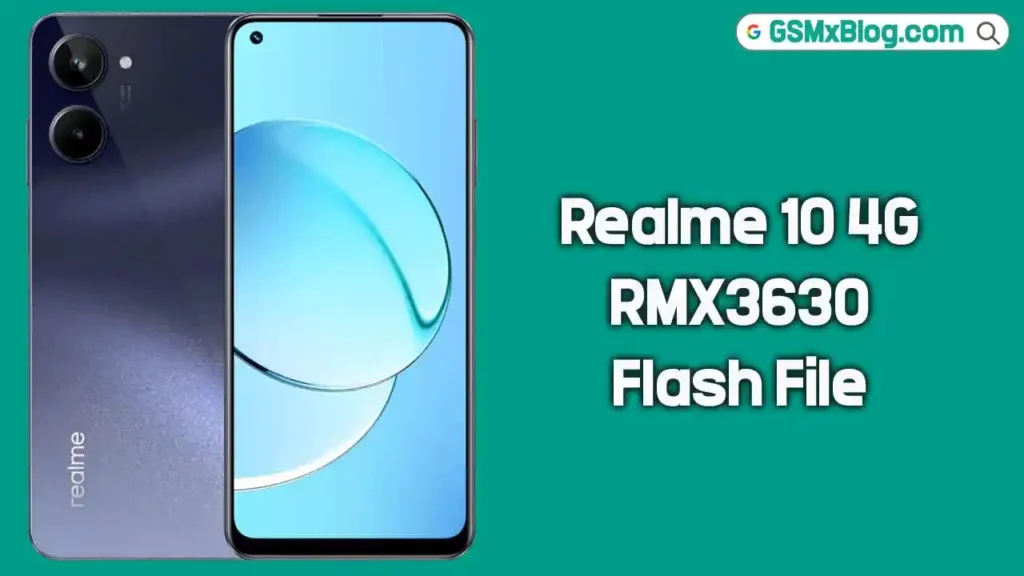
About Realme 10 4G RMX3630
Before we jump into flashing, let’s look at the Realme 10 4G’s technical specifications. It is powered by the MediaTek Helio G99 (6nm) chipset and comes in 4GB, 6GB, and 8GB RAM variants. It features a 6.4-inch Super AMOLED display with a 90Hz refresh rate, runs on Realme UI 4.0 based on Android 13, and packs a 5000mAh battery with 33W fast charging. It offers 128GB/256GB internal storage with a dedicated microSD card slot — a well-rounded mid-range device, but like any phone, software issues can occur.
Why Flash Realme 10 4G RMX3630?
Flashing the stock firmware can solve many software-related issues:
- ✅ Fix boot loop (stuck on Realme logo)
- ✅ Remove pattern or password locks
- ✅ Bypass FRP (Factory Reset Protection)
- ✅ Restore device to factory state
- ✅ Solve lagging, crashing, or freezing issues
- ✅ Fix IMEI or network-related software problems
- ✅ Rollback to an older Android version if needed
Important: Always use the correct flash file matching your device version. To verify your model, dial
*#899#in the emergency dialer.
Download Realme 10 4G RMX3630 Flash File (Firmware)
Here are all the official stock ROM download links for the Realme 10 4G:
Latest Version (Global)
- Model: Realme 10 4G (RMX3630)
- File Name: RMX3630export_11_14.0.0.420EX0
- Updated: January 17, 2026
- Region: Global
- Android Version: Android 14 (Realme UI 5)
- Chipset: MediaTek Helio G99 (6nm)
- Type: Stock
- Download Link: ⬇️ Click Here to Download
Version 14.0.0.420EX01 (Project 2269)
- Model: Realme 10 4G (RMX3630)
- File Name: RMX3630export_11_14.0.0.420EX01_2025030414560165
- Updated: October 22, 2025
- Type: Stock Project 2269
- Download Link: ⬇️ Click Here to Download
Version 14.0.0.200EX01
- Model: Realme 10 4G (RMX3630)
- File Name: RMX3630export_11_14.0.0.200EX01_2024090223460108.zip
- Updated: September 17, 2025
- Type: Stock
- Download Link: ⬇️ Click Here to Download
Rollback to Android 12 (A.29)
- Model: Realme 10 4G (RMX3630)
- File Name: RMX3630export_11_A.29_2023031420540149.zip
- Updated: September 17, 2025
- Type: Stock (Rollback)
- Download Link: ⬇️ Click Here to Download
Rollback to Android 12 (A.24)
- Model: Realme 10 4G (RMX3630)
- File Name: RMX3630export_11_A.24_2022120114240000.zip
- Updated: September 17, 2025
- Type: Stock (Rollback)
- Download Link: ⬇️ Click Here to Download
Rollback to Android 12 (A.22)
- Model: Realme 10 4G (RMX3630)
- File Name: RMX3630export_11_A.22_2022110412300000.zip
- Updated: September 17, 2025
- Type: Stock (Rollback)
- Download Link: ⬇️ Click Here to Download
Rollback Package (A12)
- Model: Realme 10 4G (RMX3630)
- File Name: Rollback RMX3630 A12
- Updated: September 17, 2025
- Type: Stock (Rollback)
- Download Link: ⬇️ Click Here to Download
Bonus: Google Camera (GCam APK)
- Version: Google Camera V7.4.104
- Type: APK Solution
- Download Link: ⬇️ Click Here to Download
These files have been sourced from official public domains and verified for safety. Ensure your internet connection is stable due to the file’s large size.
Pre-Requisites Before Flashing
Before proceeding, make sure you meet the following requirements:
- ✅ A Windows PC/Laptop (Firmware flashing is not supported on Mac).
- ✅ Original USB Cable (To avoid connection issues).
- ✅ Oplus USB Drivers (Required for device recognition).
- ✅ Oplus Download Tool (Official flashing software).
- ✅ Backup Important Data (Flashing erases all data).
- ✅ At Least 50% Battery (Prevents shutdown during flashing).
How to Install Stock Firmware on Realme 10 4G RMX3630
Step 1: Download Firmware & Tools
- Download the Realme 10 4G RMX3630 Flash File from the links above.
- Extract the ZIP file on your PC.
- Install Oplus USB Drivers (Download from Realme’s official site).
- Download and extract the Oplus Download Tool.
Step 2: Flash Firmware Using Oplus Tool
- Open Oplus Download Tool and log in (requires authorized service account credentials).
- Click “Import” and select the extracted firmware folder.
- Power off your Realme 10 4G.
- Hold Volume Up + Volume Down buttons and connect the phone to the PC via USB.
- The tool will detect the device automatically.
- Click “Start” to begin flashing.
- Wait until the process completes (do not disconnect the phone).
Step 3: Reboot Your Device
Once flashing is done, disconnect the phone and power it on. The first boot may take a few minutes — this is completely normal.
⚠️ Flashing Warning & Disclaimer
- Flashing firmware will erase all user data. Backup your data before proceeding.
- Most newer Realme/Oplus devices require an official service account for EDL auth flashing.
- This guide is for educational purposes only. We are not responsible for any damage or loss caused during the process.
- If you’re unsure, seek help from a professional mobile technician.
Conclusion
Flashing the Realme 10 4G RMX3630 Flash File (Firmware) is an effective solution for unbricking your device, removing screen locks, or restoring the system to stock. With a wide range of firmware versions available — including multiple rollback options — you can restore or downgrade your Realme 10 4G with ease.
Related Posts:
- Realme C71 Flash File (RMX5303)
- Realme C61 Flash File (RMX3930, RMX3933)
- Realme C63 Flash File (RMX3939)
- Realme 5 Flash File (RMX1911)
FAQs
Is flashing safe for my Realme 10 4G?
Yes, if done correctly using the official firmware. Avoid interrupting the process to prevent bricking.
Will flashing remove FRP lock?
Yes, the stock ROM erases all security locks, including FRP and screen locks.
Can I flash without Oplus Tool?
Bootloader-unlocked devices can use the Fastboot Enhance Tool. For locked devices, the official Oplus Download Tool with a service account is required.
Do I need a service account for EDL flashing?
Yes, most newer Realme/Oplus devices are protected and require an official EDL auth service account for flashing.
Can I rollback to Android 12 on my Realme 10?
Yes! Multiple rollback firmware versions (A.22, A.24, A.29) are available in the download section above. Use with caution and back up all data first.
Which firmware version should I download?
Always download the latest Global version for the best stability and security patches. Use older or rollback versions only if you need to downgrade for compatibility reasons.