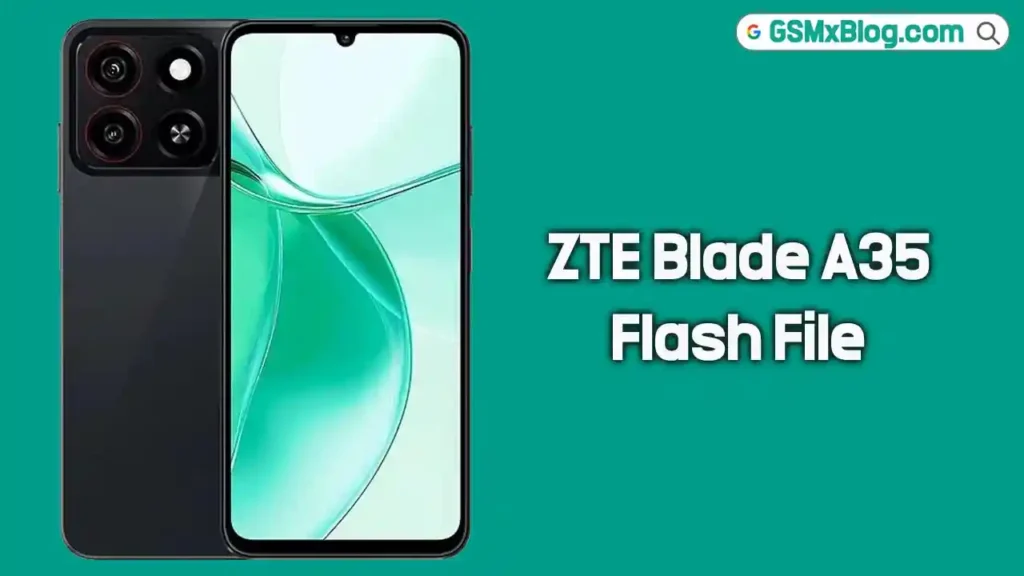
ZTE Blade A35 Flash File (Firmware) Free Download
On this page, you can download the official ZTE Blade A35 Flash File Firmware (Stock ROM) completely free. This full firmware package is made specifically for the ZTE Blade A35 and can be used to fix a wide range of software problems including bootloop, FRP lock, hang on logo, dead after flash, and general software errors. Follow the steps below to safely restore your device to its original factory condition.
What is Stock Firmware?
Stock firmware — also known as a flash file or Stock ROM — is the official operating system that the manufacturer pre-installs on a device before it reaches the customer. It contains all the core system files the phone needs to run properly. When your ZTE Blade A35 develops serious software issues, flashing the stock firmware wipes out all errors and brings the device back to its original out-of-the-box state.
Stock ROMs are device-specific and cannot be shared across different models. Always verify your exact model number before downloading or flashing any firmware to avoid permanent damage to your device.
📱 About ZTE Blade A35
The ZTE Blade A35 is a compact and affordable entry-level Android smartphone designed for everyday use. It runs on a MediaTek chipset and is aimed at users who need a simple, reliable device for basic tasks. The Blade A35 is popular in the budget segment and widely used across multiple regions.
Unlike Qualcomm-based devices, the ZTE Blade A35 firmware is flashed directly through the stock recovery method — no special PC flashing tool or EDL mode is required. The process is straightforward and can be completed using just the device itself.
⚠️ Important: This firmware is strictly for the ZTE Blade A35. Do not flash this on any other ZTE model. Always double-check your model number before proceeding.
Why Do You Need Stock Firmware?
- To fix hang on logo / bootloop issues
- To remove FRP (Factory Reset Protection) lock
- To recover a dead or bricked device
- To fix “dead after flash” or display blank problems
- To resolve lagging, freezing, or app crashing problems
- To downgrade or upgrade the Android version
- To perform a clean re-installation of the system software
- To remove screen lock (pattern, PIN, password)
- To restore the phone to original factory state
📥 Firmware Download Details
| Detail | Info |
|---|---|
| Device Name | ZTE Blade A35 |
| Model Number | Z2453 |
| Firmware Version | 480010B033914.0_Z2453_EEA |
| ROM Type | Full OTA / Stock ROM |
| Region | EEA (Europe) |
| Password | None (No Password) |
| Root Access | No |
| Flash Method | Stock Recovery (OTA Sideload) |
🔗 Download Links
⬇️ ZTE Blade A35 Firmware Download
⚠️ Important Note / Disclaimer
- Always create a full backup of your personal data before flashing — this process will completely erase your device including internal storage.
- Flashing the wrong firmware or making mistakes during the process can brick your device. Proceed entirely at your own risk.
- This firmware is only for ZTE Blade A35 (Z2453). Do not use it on any other model.
- Charge your device to at least 50% before starting to prevent unexpected shutdown during flashing.
- GSMxBlog is not responsible for any damage that occurs during or after the flashing process.
⚙️ Pre-Requisites Before Flashing
Before you start, make sure all of the following are ready:
- Download the ZTE Blade A35 firmware (.zip) from the download link above — do not extract the ZIP file.
- Move the downloaded firmware ZIP file directly to your device’s internal storage or SD card.
- Make sure your device battery is charged to at least 50% before starting.
- Take a full backup of your contacts, photos, and important data — the process will wipe everything.
- This method does not require a PC, USB cable, or any special flash tool.
🔧 How to Flash ZTE Blade A35 Firmware
Follow these steps carefully to flash the stock firmware on your ZTE Blade A35 via stock recovery:
Step 1: Download the Firmware
Download the ZTE Blade A35 firmware ZIP from the download link provided above. Once downloaded, do not extract the file — keep it as a ZIP. Move or copy it to your device’s internal storage or SD card.
Step 2: Power Off the Device
Completely power off your ZTE Blade A35. Make sure the device is fully turned off before proceeding to the next step.
Step 3: Boot into Stock Recovery
Press and hold the Power + Volume Up buttons simultaneously until the ZTE recovery menu appears on screen. Use the volume buttons to navigate through the menu options.
Step 4: Select “Install from SD Card”
In the stock recovery menu, navigate to and select the “Install from SD Card” (or “Apply update from SD card”) option using the Volume buttons, then confirm with the Power button.
Step 5: Browse and Select the Firmware File
Navigate through the file browser in recovery to locate the firmware ZIP file you transferred earlier. Select the file and confirm the installation.
Step 6: Confirm Installation
The recovery menu will ask you to confirm the firmware installation. Select “Yes” or “Confirm” to begin the flashing process. Wait patiently — do not interrupt the process.
Step 7: Reboot the Device
Once the installation is complete, you will see a success message in the recovery menu. Select “Reboot System Now” to restart your ZTE Blade A35. The first boot may take a few minutes — this is completely normal.
✅ Tip: If the device gets stuck on the boot logo after flashing, perform a factory reset from the recovery menu and try booting again. This usually resolves any post-flash boot issues.
✅ Supported Flash Methods
The ZTE Blade A35 firmware can be installed using the following methods:
- Stock Recovery (OTA) — The primary and easiest method; no PC required
- ADB Sideload — PC-based method using ADB when recovery is accessible
- SP Flash Tool — For MediaTek-based advanced flashing (scatter file required)
- Miracle Box / UFI Box — Optional, for advanced repair, FRP, and chip-level operations
Important Notes
- This firmware is only for ZTE Blade A35 (Z2453) — never flash it on a different model.
- Do not turn off the device or remove the battery while the flashing process is running.
- If the recovery does not show the firmware file, make sure the ZIP is placed directly in the root of internal storage — not inside any subfolder.
- Back up all personal data before starting — the entire process will wipe your phone completely.
- For FRP bypass, bootloader unlock, root, or unbrick services, reach out via the Telegram support link in the download section above.
Related Posts
- Download Qualcomm USB Driver (Latest Version)
- Download MediaTek USB Driver (Latest Version)
- Download SPD USB Driver (Latest Version)
- Flash Tools Free Download
✅ Conclusion
The ZTE Blade A35 Flash File Firmware is the official stock ROM you need to fully recover your device from any software-related problem. Whether your phone is stuck on the boot logo, locked with FRP, or just running slow — installing this firmware through the stock recovery method will restore your ZTE Blade A35 back to its original factory-fresh condition without needing any PC tools.
Download the correct firmware version from the links above, follow the step-by-step flashing guide carefully, and your device will be back up and running in no time. If you face any difficulty during the process, feel free to leave a comment below and we will be happy to assist you.