Oplus EDL Tool v2.0.0 (Latest Version) Download Free
Working with OPLUS devices — Oppo, OnePlus, or Realme — in EDL mode used to mean juggling multiple command-line tools, manually entering Firehose commands, and dealing with encrypted OFP and OPS packages through separate decryptors. OPlus EDL Tool changes that completely. It is a powerful cross-platform GUI built specifically for EDL (Emergency Download) flashing on OPLUS devices, giving technicians and developers a clean, single interface to unbrick devices, flash ROMs, manage partitions, and handle encrypted packages without writing a single manual command.
Version 2.0.0 brings cloud loader integration for automatic Firehose file fetching, making it the most complete release yet. Here is everything you need to know before you download.
What Is OPlus EDL Tool?
OPlus EDL Tool is an open-source GUI application developed by salokrwhite that wraps the complex Firehose protocol operations required for EDL flashing on OPLUS platform devices into a simple, point-and-click interface. Instead of running raw EDL commands through a terminal, technicians can load programmer files, select partitions, decrypt OFP/OPS packages, and trigger flash operations directly from the tool’s interface.
EDL (Emergency Download) mode is a low-level Qualcomm chipset mode that remains accessible even when a device’s bootloader is completely broken or the Android system refuses to boot. It communicates through the Qualcomm HS-USB QDLoader 9008 interface and is the last reliable entry point for recovering a fully bricked OPLUS device.
OPlus EDL Tool supports the full range of Qualcomm chipsets used in OnePlus, Oppo, and Realme devices — from older models right through to current flagships running SM8750, SM8650, and SM8550 chipsets.
Key Features of OPlus EDL Tool
🔌 One-Click Firehose Mode Entry
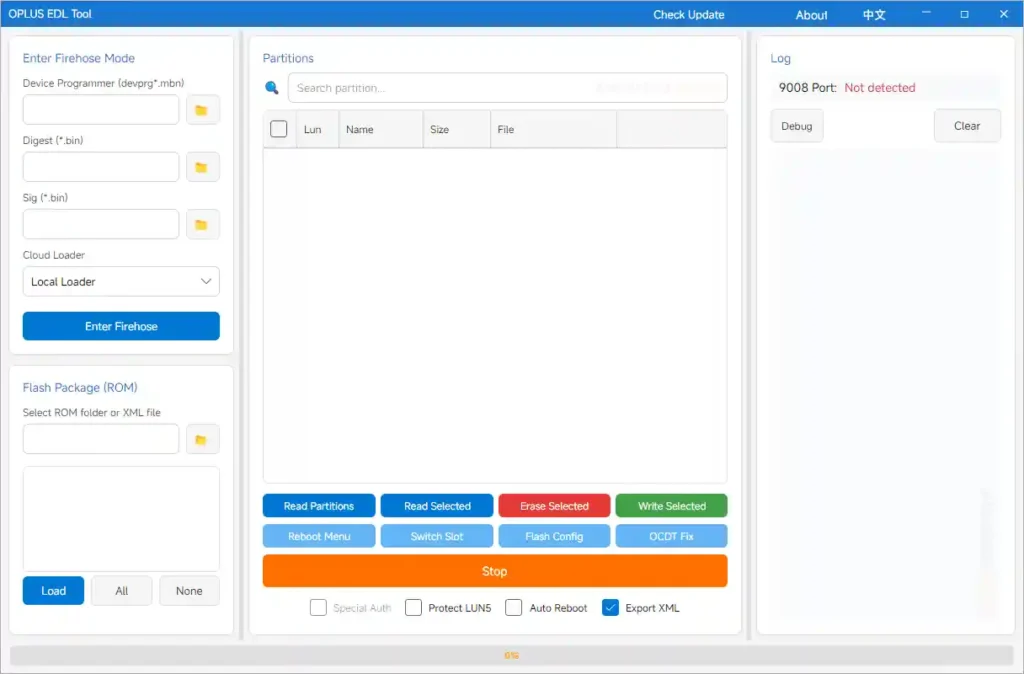
OPlus EDL Tool lets you enter Firehose mode with a single click by loading the device programmer (devprg*.mbn), digest, and signature files. The tool automatically detects the Qualcomm 9008 EDL port once the device connects — no manual COM port hunting required. This auto-detection covers the full Qualcomm HS-USB QDLoader 9008 interface and speeds up the connection process significantly on all supported chipsets.
💾 Flash ROM Packages
Flashing is straightforward regardless of the ROM format. OPlus EDL Tool supports:
- Extracted ROM folders — select the rawprogram XML files, parse the partition list, then batch flash selected partitions
- OFP packages — Oppo’s encrypted ROM format, handled natively
- OPS packages — OnePlus encrypted ROM format, also handled natively
- Super partition auto-merge — automatically merges segmented super images during flashing for complete, error-free partition writes
📂 Full Partition Management
The tool reads the full partition table directly from the device in EDL mode. From there, technicians can:
- Read individual or multiple partitions
- Write partition images selectively
- Erase partitions as needed
- Back up critical partitions for safekeeping
This level of partition-by-partition control is essential for surgical repairs — fixing only what needs fixing without touching the rest of the device’s storage.
🧩 Super Partition Support
Dynamic super partitions on modern Android devices are split across multiple image segments (super.0.xxx.img and so on). OPlus EDL Tool automatically handles the merging of these segmented images using super_def.json definitions, ensuring the complete super partition is assembled and written correctly every time — no manual merging steps required.
🔓 Built-In OFP/OPS Decryptor
Both OFP (Oppo Firmware Package) and OPS (OnePlus encrypted package) formats use proprietary encryption that normally requires a separate decryption step before flashing. OPlus EDL Tool handles decryption internally — extract the necessary files and partitions directly within the tool, then flash without any external decryptor. This cuts a whole step out of the recovery workflow.
☁️ Cloud Loader Integration
Version 2.0.0 introduces chipset-based cloud loading for Firehose files. Instead of manually sourcing and loading the correct programmer, digest, and signature ELF files for each chipset, the tool automatically fetches the matching files from the cloud based on the detected chipset. This significantly reduces setup time when working across multiple device models and chipset generations.
💼 Partition Backup and Restore
Before any flashing operation, OPlus EDL Tool lets you back up critical partitions including:
- persist — carrier and calibration data
- modem — baseband firmware
- EFS — IMEI and radio configuration storage
- OCDT — device configuration data
Restore operations allow selective recovery of backed-up partition images — useful for unbricking without a full ROM reflash or for recovering IMEI-related data after a botched flash.
🌐 Bilingual Interface (English / Chinese)
The interface supports both English and Chinese, switchable instantly. This makes the tool accessible across the global OPLUS device repair and development community without needing a separate build for different regions.
📌 OPlus EDL Tool works specifically with Qualcomm chipset OPLUS devices. It does not support MediaTek-based Oppo or Realme models.
Download OPlus EDL Tool v2.0.0
OPlus EDL Tool is developed and distributed by salokrwhite as a free, open-source project. Full credit goes to the developer for this EDL solution.
| Detail | Info |
|---|---|
| File Name | Oplus_EDL_Tool_v2.0.0.zip |
| Version | v2.0.0 |
| File Size | 24.89 MB |
| Platform | Windows (32-bit and 64-bit) |
| Price | Free |
How to Install OPlus EDL Tool
- Download the
Oplus_EDL_Tool_v2.0.0.zipfrom either mirror link above. - Extract the ZIP using WinRAR or 7-Zip to a dedicated folder (e.g.
C:\OPlusEDL\). - Install Qualcomm HS-USB QDLoader 9008 drivers — the device must appear on this port in Device Manager for the tool to connect.
- Use a USB 2.0 port with a high-quality cable — USB 3.0 ports frequently cause EDL connection instability.
- Launch
OPlus_EDL_Tool.exefrom the extracted folder. No installation is required — it runs as a portable executable. ✅
How to Use OPlus EDL Tool
▶️ Entering EDL Mode on Your Device
Boot your OPLUS device into EDL mode using one of these methods:
- Hardware method: Hold Volume Up + Volume Down simultaneously while connecting the USB cable to your PC.
- ADB method (from Android): Run
adb reboot edlin a command prompt with USB debugging enabled. - Fastboot method: Run
fastboot oem edlfrom a fastboot prompt.
Once in EDL mode, the device appears as Qualcomm HS-USB QDLoader 9008 in Device Manager.
▶️ Flashing a ROM Package
- Launch OPlus EDL Tool and let it auto-detect the 9008 EDL port.
- Load the Firehose files — programmer (
devprg*.mbn), digest, and signature — or let the cloud loader fetch the correct files for your chipset automatically. - Select your ROM format:
- For extracted ROM folders: browse to the rawprogram XML file, parse the partition list, select partitions, and click Flash.
- For OFP/OPS packages: load the package file — the built-in decryptor handles extraction automatically.
- Enable super partition auto-merge if your device uses dynamic partitions.
- Start the flash operation and wait for completion. Do not disconnect the device during flashing.
▶️ Partition Backup
- Connect the device in EDL mode and load the Firehose files.
- Read the full partition table from the device.
- Select the partitions you want to back up — persist, modem, EFS, OCDT are the most critical.
- Click Read / Backup and save the images to a safe location on your PC.
▶️ Partition Restore
- Connect the device in EDL mode and load the Firehose files.
- Select the partition you want to restore from the table.
- Browse to your backed-up partition image file.
- Click Write to restore the selected partition.
▶️ Erasing a Partition
- Read the partition table after connecting in EDL mode.
- Select the target partition from the list.
- Click Erase — confirm before proceeding, as this operation is irreversible.
System Requirements
| Component | Requirement |
|---|---|
| Operating System | Windows 7 / 10 / 11 (32-bit or 64-bit) |
| USB Port | USB 2.0 (use a high-quality cable for stable EDL connection) |
| Drivers | Qualcomm HS-USB QDLoader 9008 drivers (latest version) |
| Firehose Files | Correct devprg*.mbn, digest, and signature files for your chipset |
| Storage | Sufficient space for ROM packages and partition backups |
Supported Devices and Chipsets
OPlus EDL Tool supports a wide range of OnePlus, Oppo, and Realme devices running Qualcomm chipsets in EDL mode:
| Brand | Supported Models |
|---|---|
| OnePlus | All Qualcomm-based models in EDL mode |
| Oppo | All Qualcomm-based models in EDL mode |
| Realme | All Qualcomm-based models in EDL mode |
| Chipset Generation | Examples |
|---|---|
| Current Flagship | SM8750, SM8650, SM8550 |
| Previous Gen | SM8450, SM8350, SM8250 |
| Mid-Range Qualcomm | All supported Qualcomm EDL-accessible chipsets |
⚠️ Warning
Flashing can permanently brick your device if done incorrectly. Always back up critical partitions before any flash operation. Avoid touching persist and EFS unless you fully understand the consequences — incorrect writes to these partitions cause permanent IMEI loss and radio failure. Always use the correct Firehose files matching your exact chipset. Use USB 2.0 ports only — USB 3.0 causes frequent EDL connection drops. OPlus EDL Tool is intended for educational and development purposes. The developer and this blog are not responsible for any damage resulting from improper use.
Important Notes
🛡️ Virus Status: OPlus EDL Tool is an open-source project by salokrwhite. Scan the downloaded ZIP with your antivirus before extraction as a precaution, as EDL tools are sometimes flagged as false positives due to low-level driver interaction.
☁️ Cloud Loader (v2.0.0): The cloud loader in v2.0.0 automatically fetches Firehose ELF files for supported chipsets. If your chipset is not yet in the cloud database, you will need to source and load the correct programmer, digest, and signature files manually.
🔌 Drivers First: Install Qualcomm HS-USB QDLoader 9008 drivers before connecting your device. Without them, OPlus EDL Tool cannot detect the EDL port.
⚙️ Firehose Files: Always match your Firehose programmer file to your device’s exact chipset. Using a mismatched programmer file will fail to establish a Firehose connection and may cause further issues.
Why Use OPlus EDL Tool?
- ✅ Clean GUI — eliminates manual EDL command-line operations entirely
- ✅ Built-in OFP/OPS decryptor — no separate decryption tool needed
- ✅ Auto port detection — detects Qualcomm 9008 EDL port automatically
- ✅ Cloud loader integration — auto-fetches correct Firehose files by chipset
- ✅ Super partition auto-merge — handles segmented dynamic partition images seamlessly
- ✅ Full partition management — read, write, erase, backup, and restore individual partitions
- ✅ Bilingual interface — English and Chinese supported out of the box
- ✅ Free and open-source — developed by salokrwhite with no activation required
- ✅ Supports SM8750, SM8650, SM8550 and a wide range of Qualcomm chipsets
Frequently Asked Questions (FAQs)
❓ What is OPlus EDL Tool used for? OPlus EDL Tool is a GUI application for EDL (Emergency Download) mode flashing on OPLUS devices — OnePlus, Oppo, and Realme. It handles ROM flashing, partition management, OFP/OPS decryption, partition backup and restore, and security key provisioning, all through a clean interface without manual Firehose commands.
❓ Is OPlus EDL Tool free? Yes — OPlus EDL Tool v2.0.0 is a free, open-source tool developed by salokrwhite. No activation fee, dongle, or subscription is required.
❓ Does it support Realme and OnePlus devices or only Oppo? OPlus EDL Tool supports all three OPLUS platform brands — OnePlus, Oppo, and Realme — on Qualcomm chipsets in EDL mode.
❓ What is EDL mode and how do I enter it? EDL (Emergency Download) mode is a low-level Qualcomm chipset mode used to flash firmware even when the Android system is completely broken. Enter it by holding Volume Up + Volume Down while connecting USB, or via adb reboot edl from an Android terminal or fastboot oem edl from a fastboot prompt.
❓ What drivers do I need for OPlus EDL Tool? You need the Qualcomm HS-USB QDLoader 9008 drivers installed on your Windows PC. Your device must appear on this port in Device Manager before OPlus EDL Tool can connect.
❓ What is the OFP/OPS decryptor inside the tool? Oppo uses OFP and OnePlus uses OPS as their encrypted ROM package formats. OPlus EDL Tool includes a built-in decryptor that processes these packages internally — extracting partitions and files for direct flashing without requiring a separate external decryption tool.
Conclusion
OPlus EDL Tool v2.0.0 is the most practical and complete GUI solution available for EDL flashing on OPLUS platform devices. By combining one-click Firehose entry, built-in OFP/OPS decryption, automatic super partition merging, full partition management, cloud-based Firehose file loading, and a bilingual interface into a single free application, it removes almost every manual hurdle that previously made EDL work difficult for all but the most experienced technicians.
Whether you are unbricking a OnePlus flagship, flashing a clean ROM on an Oppo device, or recovering a Realme phone with a corrupt system partition, OPlus EDL Tool gives you the control you need at every step. Download v2.0.0 from the links above and keep this tool ready for your next OPLUS EDL recovery job. 🚀
Have you used OPlus EDL Tool on an OPLUS device repair? Share your experience in the comments below!